This guide provides the necessary technical procedures to update your PADFLASH ECU Diagnostic Tool to version 1.02. Follow these instructions precisely to ensure hardware stability and software compatibility.
Version Overview & New Features
The v1.02 release introduces critical stability patches and expanded vehicle support:
- MEDC17 Checksum Fix: Resolves calculation errors during ECU read/write operations.Enhanced OS Support: Full compatibility with Windows 7 (SP1), 10, and 11 (32/64-bit).
- Improved USB Stability: New reconnection logic and a dedicated "Connection Lost Solution" utility to manage USB power states.
- Driver Signing: Updated "Super Driver" featuring valid Microsoft SHA-256 signatures for Windows 10/11 enforcement.

System Requirements
Before installation, ensure your workstation meets the following specifications:
ComponentRequirementOperating SystemWindows 7 SP1, 10, or 11 (32/64-bit)USB ConnectivityMandatory powered USB 2.0 or 3.0 hub (included in package)Memory (RAM)2 GB minimum (4 GB recommended)Storage500 MB free disk spaceSecurityHardware Security Dongle (must share the same hub as the device)
Hardware Configuration
Proper hardware sequencing is vital for device enumeration:
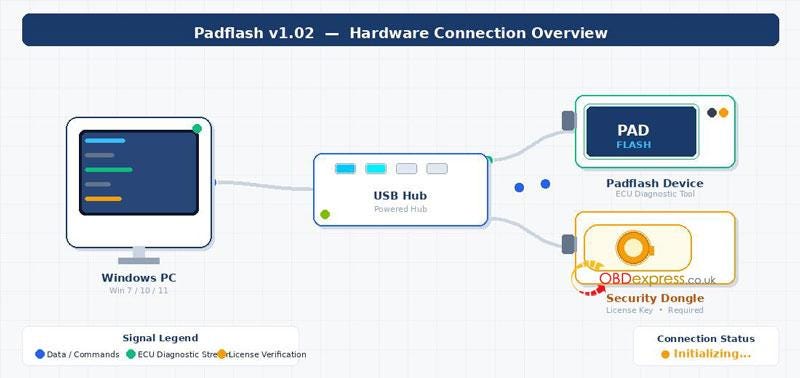
- Connect the Powered USB Hub to your Windows PC.
- Plug the PADFLASH Device into the hub.
- Plug the Security Dongle into a separate port on the same hub.
Note: Avoid using USB extension cables for the dongle.
Step-by-Step Installation Procedure
Complete these phases in exact order to avoid connection failures.
Phase 1: Software Update
Uninstall: Remove previous Padflash versions via Control Panel.
Install Updater: Run PadflashUpdater_Setup.exe as Administrator.
Update: Open the Updater, click Update, and wait for the v1.02 download to finish.
Restart: Close and reopen the Updater to initialize firmware.
Phase 2: Driver Setup
Super Driver: Right-click superdriver.exe and select Run as Administrator. Click Install Driver.
Padflash Driver Tool: Open the tool, click Install, and accept all prompts.
Phase 3: System Optimization
Connection Lost Solution: Run this utility as Administrator.
Configure: Select Disable USB Sleep and Gain Admin Rights.
Security: Select Disable AV & Firewall (can be re-enabled after initial testing).
Phase 4: Finalization
Reboot: Perform a mandatory cold restart of the computer.
Launch: Right-click the Padflash V2 desktop icon and select Run as Administrator.
Troubleshooting Reference
SymptomRecommended ActionDevice not detectedReconnect hardware to the hub; re-run Super Driver.Connection Lost errorUse the "Connection Lost Solution" to disable USB Sleep and reboot.Driver install failsTemporarily disable Windows Defender/antivirus; ensure Admin rights.Checksum errorsConfirm the title bar displays version 1.02.
Important: Always launch Padflash V2 using Run as Administrator. Failure to do so is the primary cause of licensing and connection errors.


No comments:
Post a Comment