Showing posts with label PADFLASH ECU Programmer. Show all posts

Friday, 13 March 2026

PADFLASH V1.02 Update Guide: Add Win11 & MEDC17 Checksum Fix

 This guide provides the necessary technical procedures to update your PADFLASH ECU Diagnostic Tool to version 1.02. Follow these instructions precisely to ensure hardware stability and software compatibility.

Version Overview & New Features

The v1.02 release introduces critical stability patches and expanded vehicle support:

  • MEDC17 Checksum Fix: Resolves calculation errors during ECU read/write operations.Enhanced OS Support: Full compatibility with Windows 7 (SP1), 10, and 11 (32/64-bit).
  • Improved USB Stability: New reconnection logic and a dedicated "Connection Lost Solution" utility to manage USB power states.
  • Driver Signing: Updated "Super Driver" featuring valid Microsoft SHA-256 signatures for Windows 10/11 enforcement.

PADFLASH V1.02 Update Guide

System Requirements

Before installation, ensure your workstation meets the following specifications:

ComponentRequirementOperating SystemWindows 7 SP1, 10, or 11 (32/64-bit)USB ConnectivityMandatory powered USB 2.0 or 3.0 hub (included in package)Memory (RAM)2 GB minimum (4 GB recommended)Storage500 MB free disk spaceSecurityHardware Security Dongle (must share the same hub as the device)

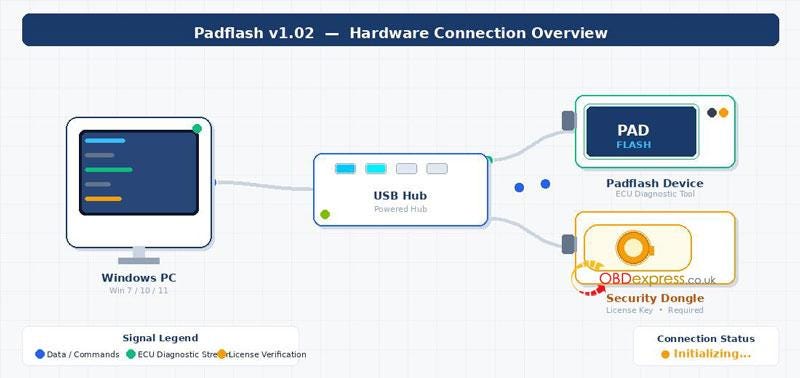
Hardware Configuration

Proper hardware sequencing is vital for device enumeration:

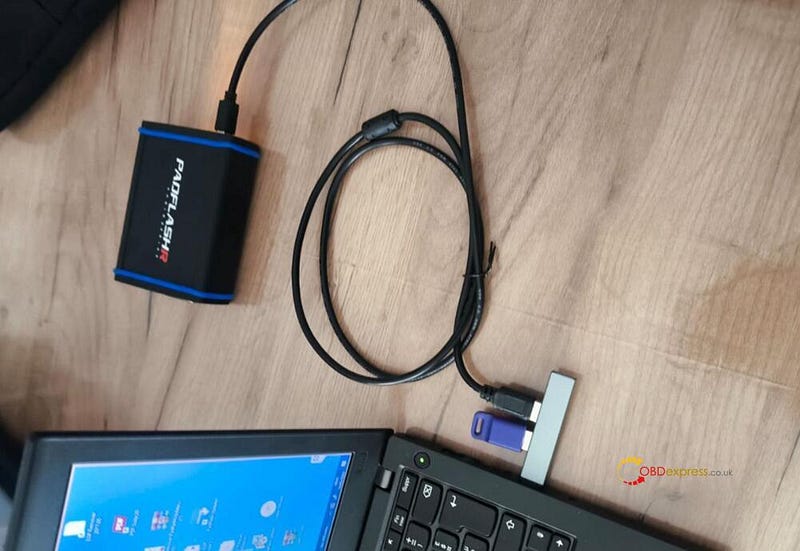
  1. Connect the Powered USB Hub to your Windows PC.
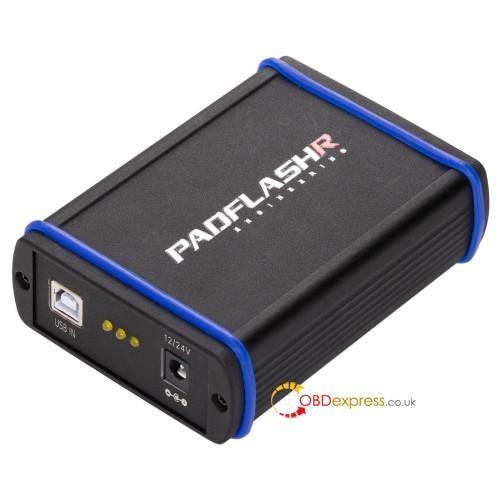
  2. Plug the PADFLASH Device into the hub.
  3. Plug the Security Dongle into a separate port on the same hub.

Note: Avoid using USB extension cables for the dongle.

PADFLASH V1.02 Update Guide

Step-by-Step Installation Procedure

Complete these phases in exact order to avoid connection failures.

Phase 1: Software Update

Uninstall: Remove previous Padflash versions via Control Panel.

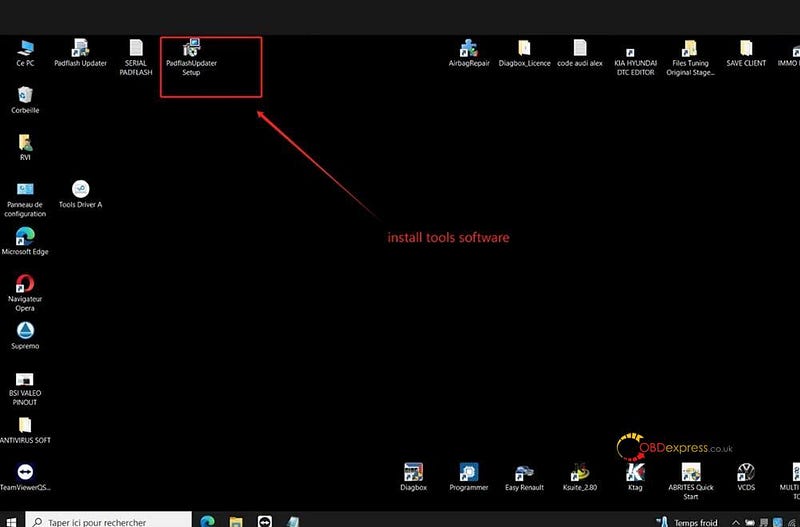
Install Updater: Run PadflashUpdater_Setup.exe as Administrator.

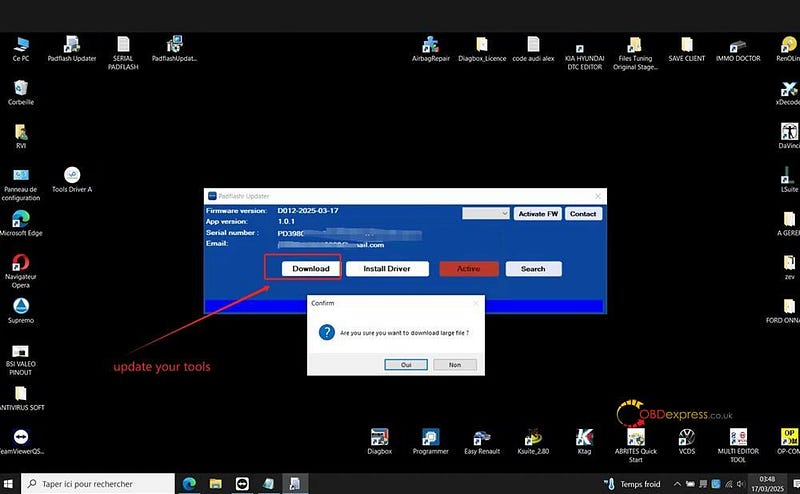
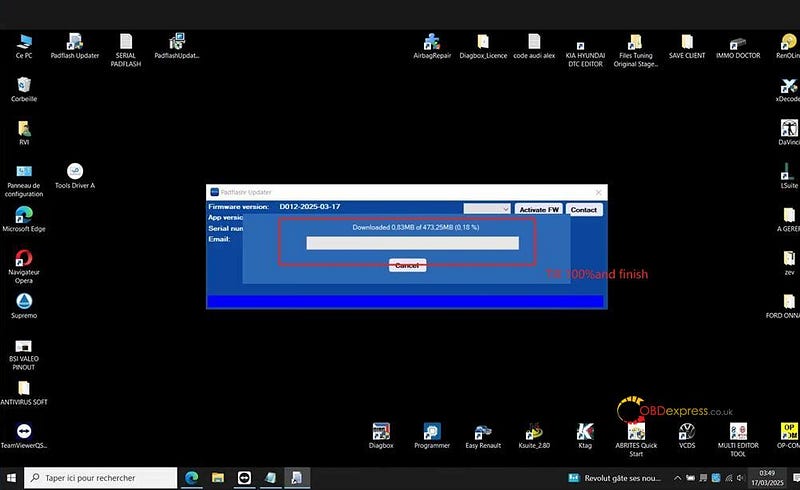
Update: Open the Updater, click Update, and wait for the v1.02 download to finish.

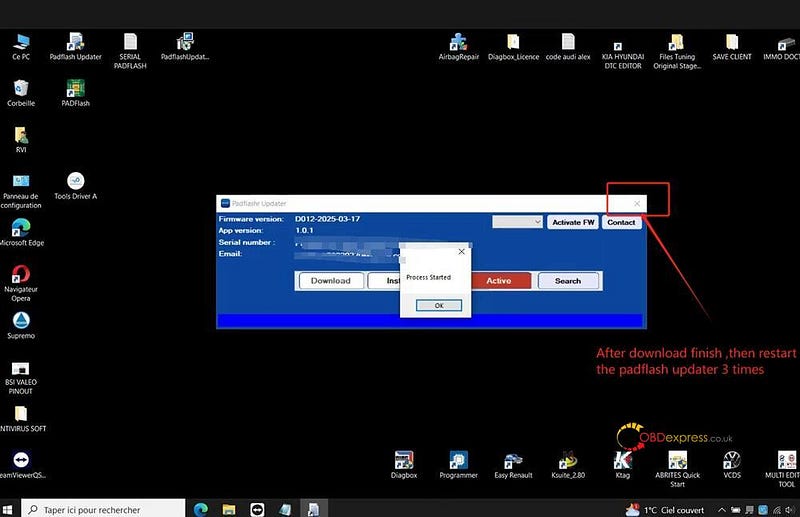
Restart: Close and reopen the Updater to initialize firmware.

Phase 2: Driver Setup

Super Driver: Right-click superdriver.exe and select Run as Administrator. Click Install Driver.

Padflash Driver Tool: Open the tool, click Install, and accept all prompts.

Phase 3: System Optimization

Connection Lost Solution: Run this utility as Administrator.

Configure: Select Disable USB Sleep and Gain Admin Rights.

Security: Select Disable AV & Firewall (can be re-enabled after initial testing).

Phase 4: Finalization

Reboot: Perform a mandatory cold restart of the computer.

Launch: Right-click the Padflash V2 desktop icon and select Run as Administrator.

PADFLASH V1.02 Update Guide

Troubleshooting Reference

SymptomRecommended ActionDevice not detectedReconnect hardware to the hub; re-run Super Driver.Connection Lost errorUse the "Connection Lost Solution" to disable USB Sleep and reboot.Driver install failsTemporarily disable Windows Defender/antivirus; ensure Admin rights.Checksum errorsConfirm the title bar displays version 1.02.

Important: Always launch Padflash V2 using Run as Administrator. Failure to do so is the primary cause of licensing and connection errors.

www.obdexpress.co.uk

Monday, 2 June 2025

How to Install PADFLASH Software & Driver (2025 Latest)

 Here shares the latest PADFLASH Software & Driver installation guide, updated on May 28, 2025.

Please follow the step-by-step instructions carefully to ensure proper operation.

System Requirements

Operating System:

  • Windows 7 64-bit (strongly recommended)
  • Windows 10 64-bit (supported)
  • Windows 11 (requires additional configuration)

Hardware:

  • Minimum 4GB RAM
  • Minimum 2.5GHz CPU

Installation Steps

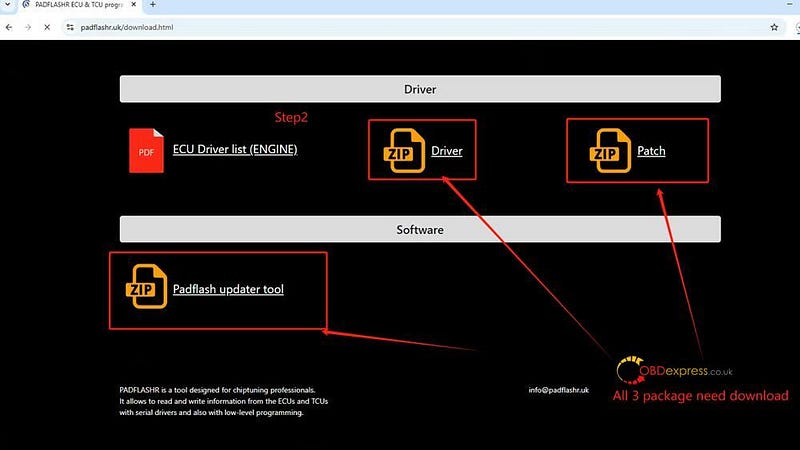
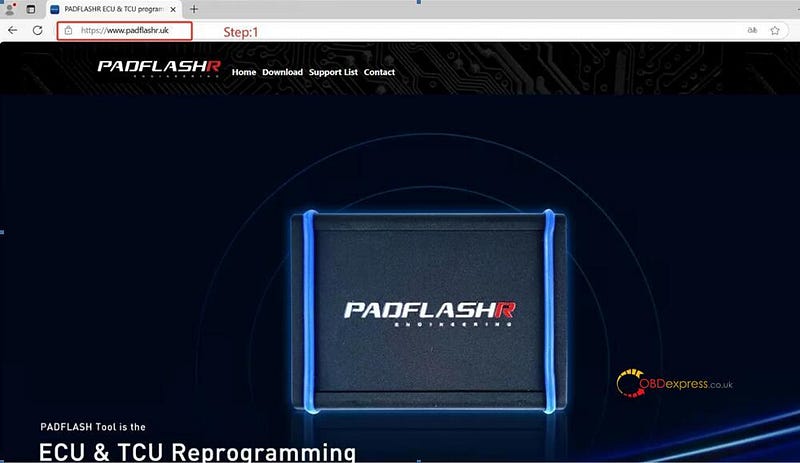
Step 1: Visit the Official Website

  • Go to: https://padflashr.uk
  • Navigate to the Download section and download the required software and drivers.

How to Install PADFLASH Software and Driver

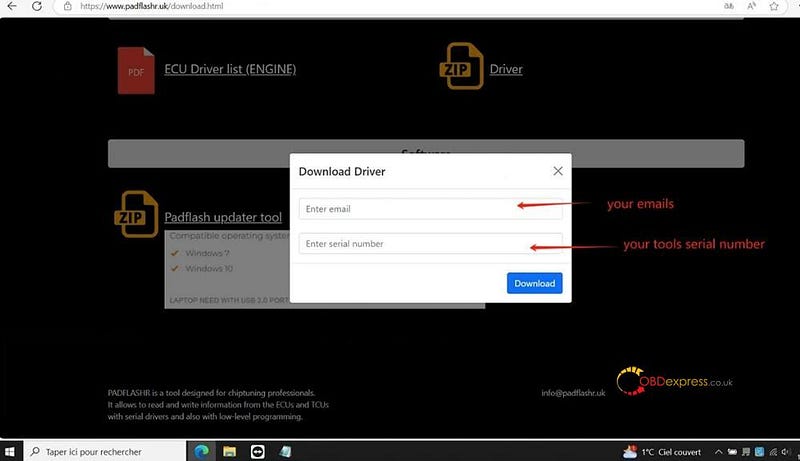
Step 2: Access the Download Page

  • Enter your email address and tool serial number (SN) to access the downloads.

How to Install PADFLASH Software and Driver

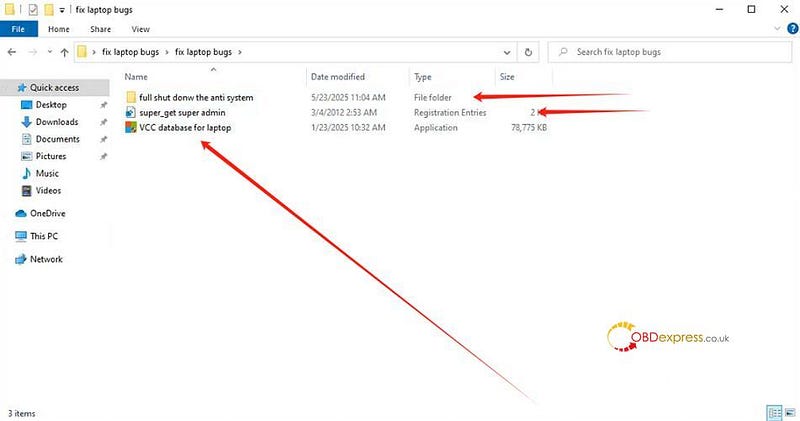
Step 3: Install Patches

  • Run the "PATCH INSTALL"
  • Install the Super Driver using Administrator Mode.
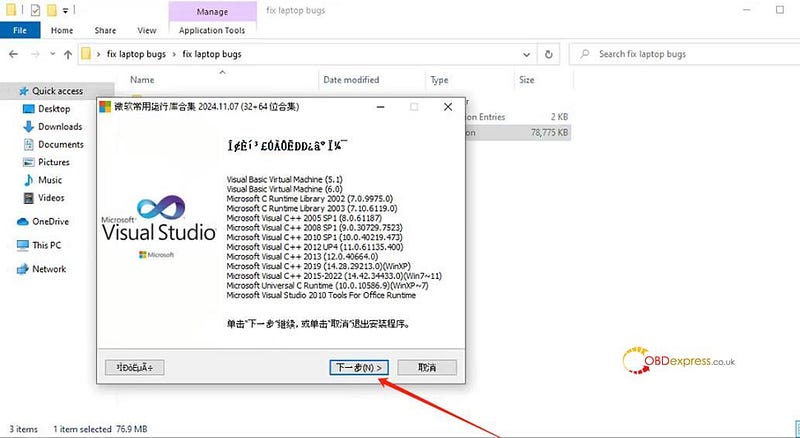
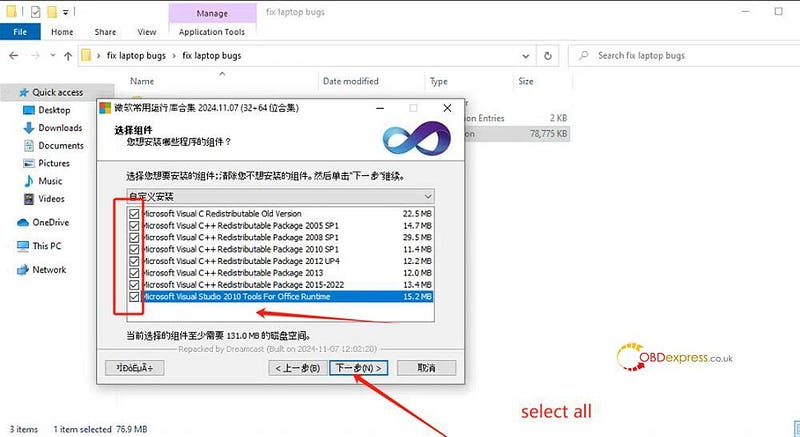
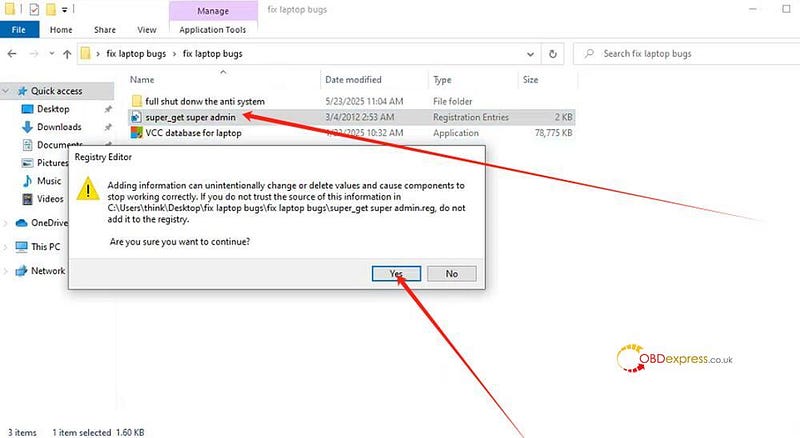
  • Install the Laptop Patch Fix.

How to Install PADFLASH Software and Driver

Important:
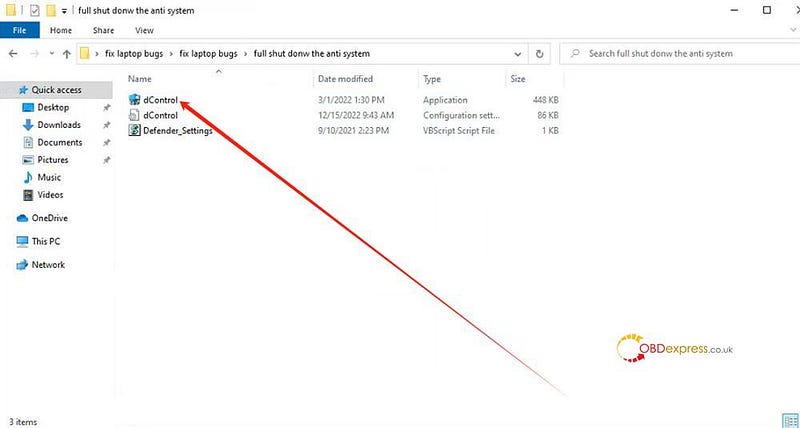
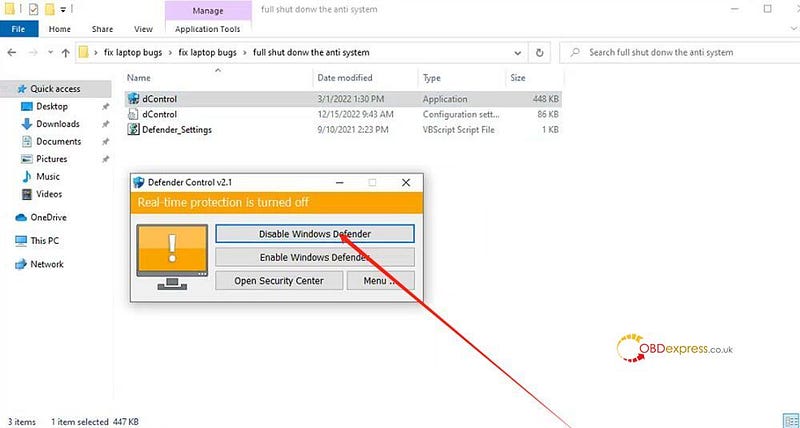
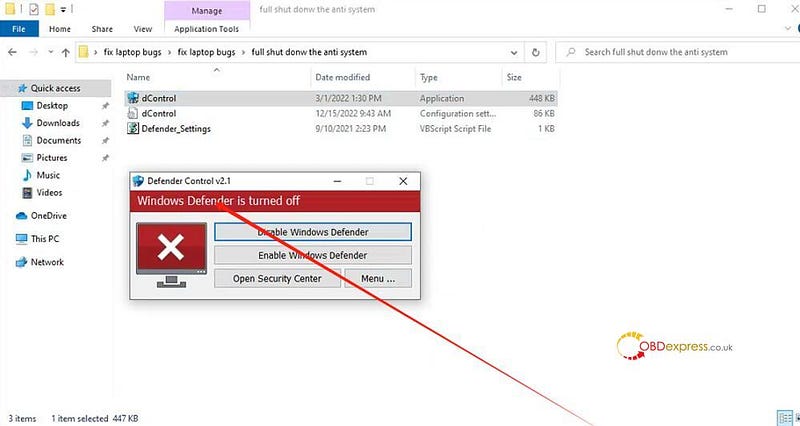
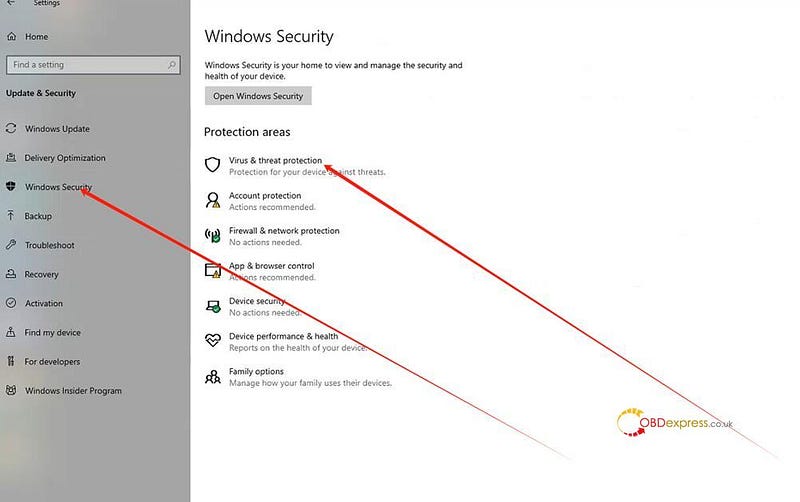
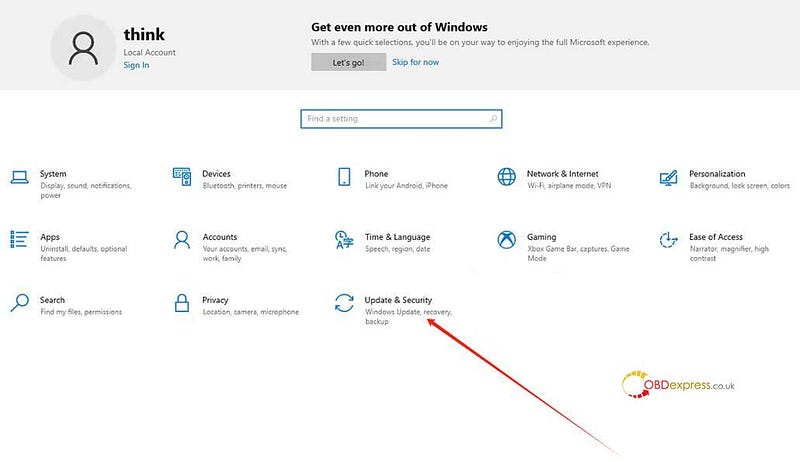
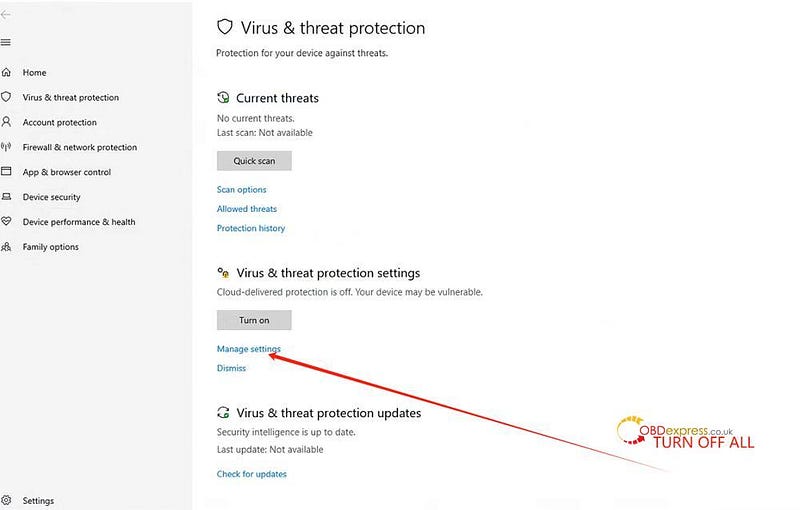
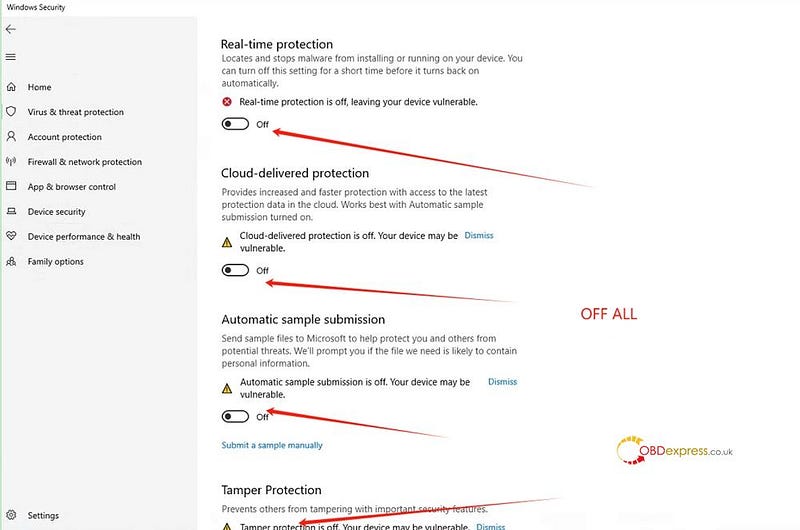
Disable Windows Defender completely:

  • On Windows 7/10/11, turn off Real-time Protection and all related security features.

How to Install PADFLASH Software and Driver

Step 4: Install PADFLASHR Software

  • Run the PADFLASHR software installer.
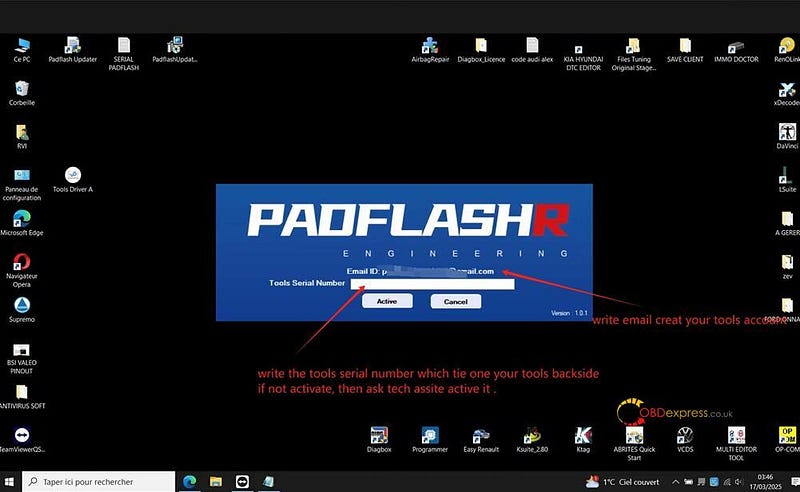
  • Enter your email and tool SN to complete registration.
  • After registration, restart the PADFLASHR Updater.

How to Install PADFLASH Software and Driver

Step 5: Update Software

  • After restarting, the updater will automatically begin downloading update files.
  • Wait until the download is complete.
  • Then restart the updater three times to finalize setup.

How to Install PADFLASH Software and Driver

Step 6: Connect and Install Drivers


How to Install PADFLASH Software and Driver
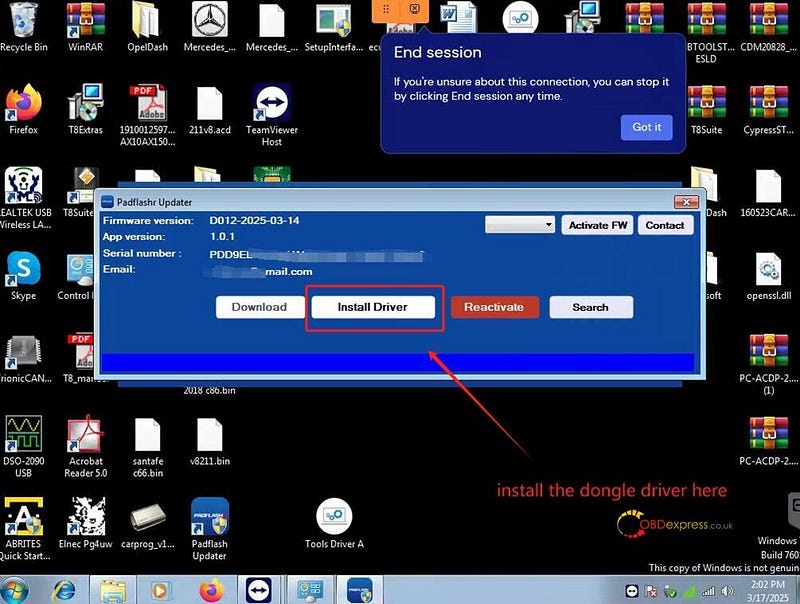
  • Install the dongle driver when prompted.

How to Install PADFLASH Software and Driver
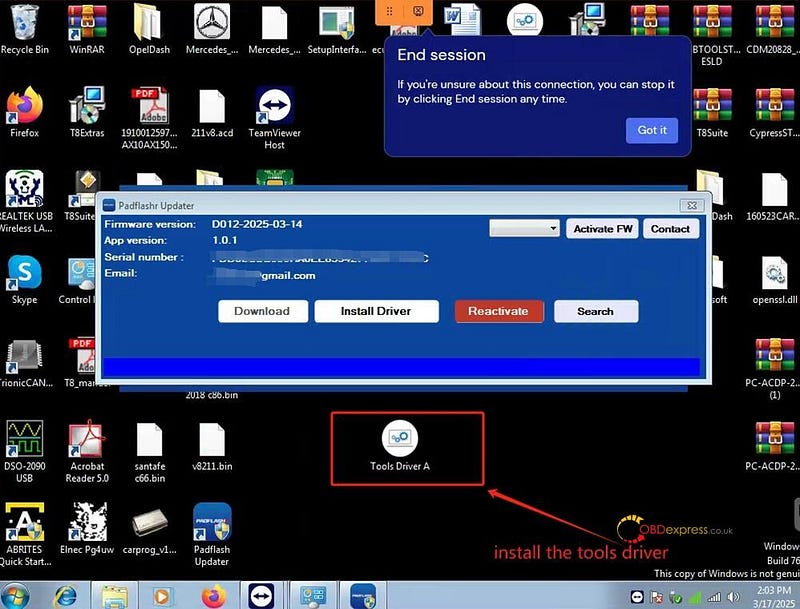
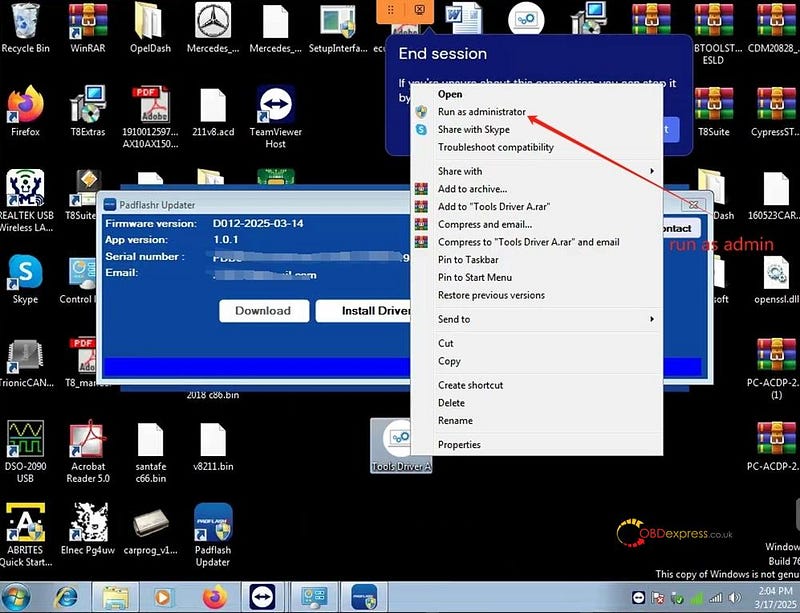
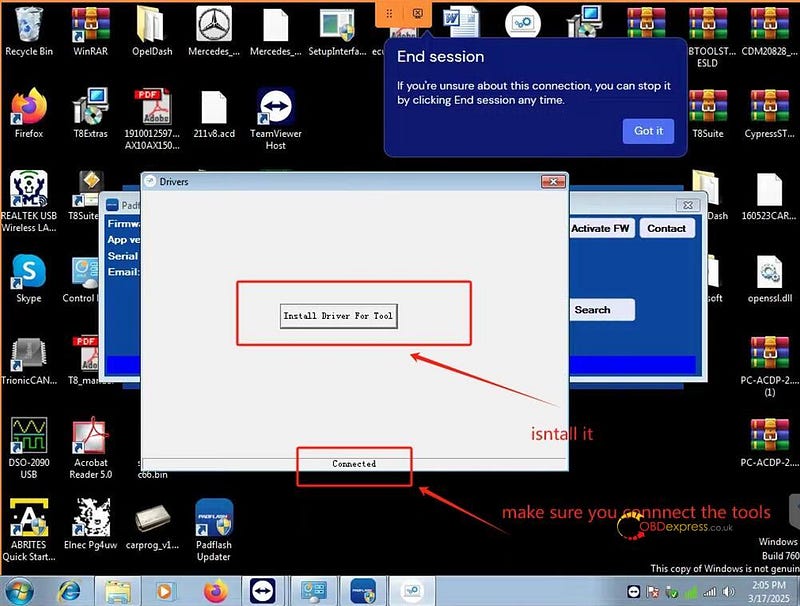
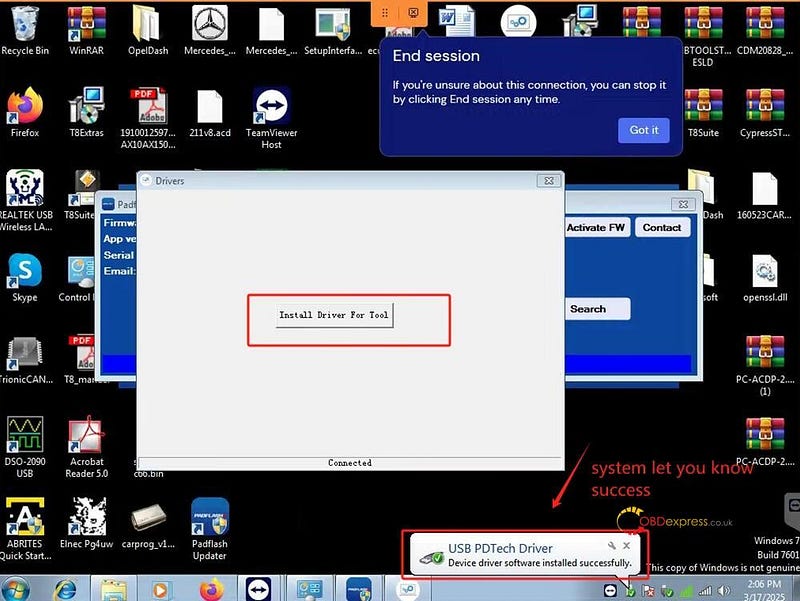
  • Connect the tool and install the tool drivers.

How to Install PADFLASH Software and Driver

Important Setup Note

Ensure PADFLASHR Updater.exe is running.

Navigate to:
C:\Windows\systembin\pdata

Locate PADFlash.exe


How to Install PADFLASH Software and Driver

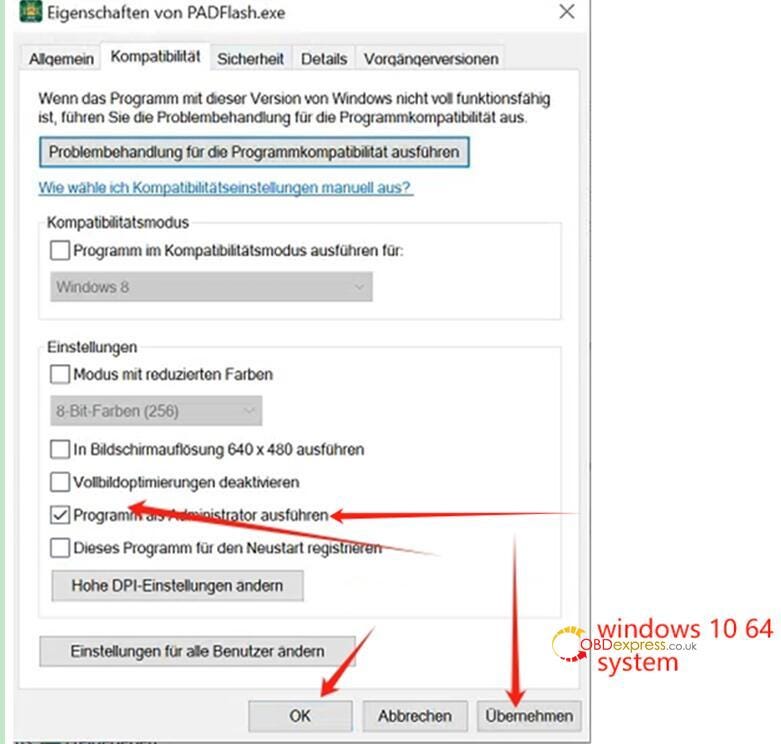
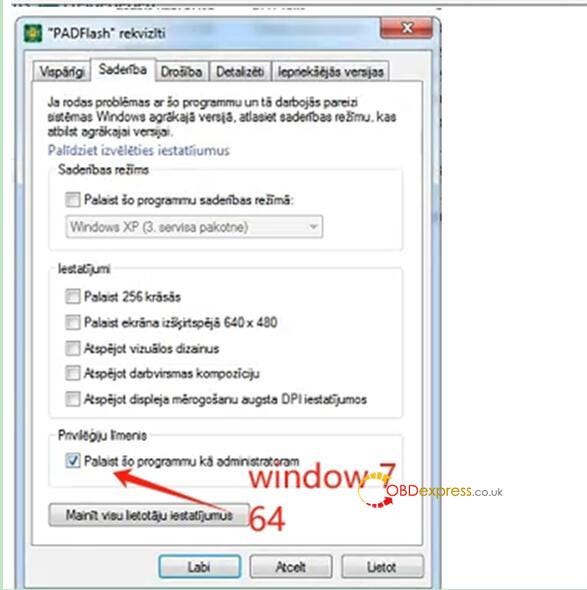
Right-click → Properties → Set to "Run as Administrator".

Launch padflash.exe in Admin mode. A prompt will appear requesting your tool Serial Number (in uppercase).

Enter your serial number to log in.


How to Install PADFLASH Software and Driver

Final Activation Steps

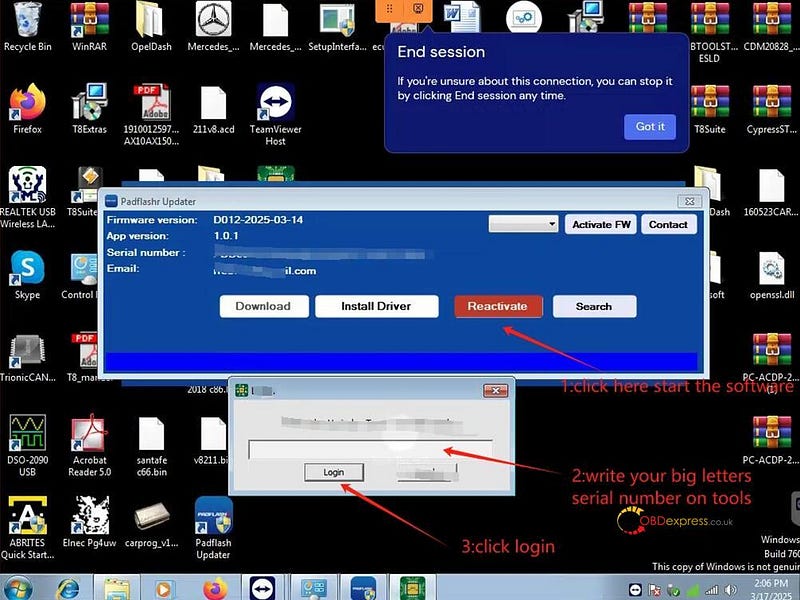
  1. Run padflashr updater.exe, then click "Activate".
    (Do not run padflash.exe directly from the desktop.)
  2. When prompted, enter your tool serial number in capital letters.
  3. Once the software opens, click "Activate FW" to apply the firmware license.

Note:
Each time you restart the software, you must click "Activate FW" again to refresh the Padflash tool firmware.


How to Install PADFLASH Software and Driver

Important Notes for Windows 10/11 Users

  • You must disable Windows Defender and Real-Time Protection completely to ensure stable operation.
  • If the tool doesn’t function properly or the software fails to launch, your system may be missing essential patches.
  • In such cases, please contact remote support for assistance with refreshing your Windows system.

www.obdexpress.co.uk

Monday, 17 March 2025

Padflash Software Free Download, Installation and Activation Guide

 The PADFLASHR team has released the free download link for Padflash ECU Programmer software (Padflash Updater Tool) on its official website. Users can easily download, install, and activate the software themselves, no need to contact us or a PADFLASHR engineer to operate remotely. Additionally, from the website, users can also download the ECU Driver list for free and view the ECU support list by vehicle brands to check which models are compatible with the software online.

1.Padflash official website

www.padflashr.uk

2.Free download Padflash software (Padflash updater tool) and ECU Driver list

https://www.padflashr.uk/download.html

Laptop requirement:

Compatible operating systems:

  • Windows 7
  • Windows 10

CPU> 2.5 GHz (Intel i5, i7)

RAM> 4GB

64 bit OS

Laptop needs with USB 2.0 port and USB 3.0 port at the same time.


Padflash Software Free Download, Installation and Activation Guide

How to download?

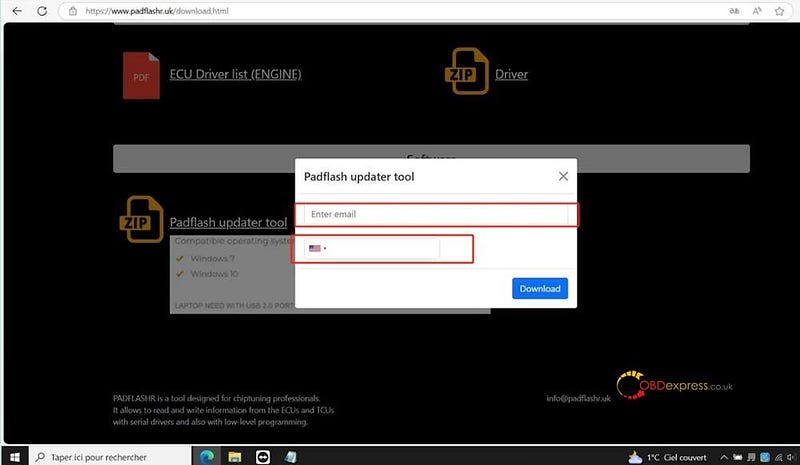
Click "ECU Driver list" or "Padflash updater tool"

Follow the prompts to enter your email address, select your mobile country code, and provide your phone number

The software or driver list will then be downloaded automatically.


Padflash Software Free Download, Installation and Activation Guide

3.How to install and activate Padflash software yourself?

Connect the Padflash ECU programmer to the computer using the USB cable

Insert the USB KEY that came with the device into the computer

Make sure you have connected a stable internet to the computer

Follow the prompt to install the software easily

After installation, run Padflash software, it will show the SN, Email, and App version on the screen

Choose your preferred language and click the "Activate FW" button to begin the license activation.


Padflash Software Free Download, Installation and Activation Guide

Click the "Activate" button to proceed.


Padflash Software Free Download, Installation and Activation Guide

Enter the device’s S/N and click "Login".


Padflash Software Free Download, Installation and Activation Guide

Once completed, PADFlash software will be successfully activated.

NOTE: Each time you use the software, you must click Activate FW first, then click Activate to log in to the software.

4.How to check ECU support list online?

Visit http://padflashr.uk/driver-list.php directly

Select "ECU" or "TCU"

Select "CAR", "TRUCK", "TRACTOR/MARINE" or "BIKE"

Select the car brand you need

Select the car model with year

The supported ECU list will be displayed, allowing you to easily identify which ECU model is compatible with each mode.


Padflash Software Free Download, Installation and Activation Guide

Learn more:

How to check the wiring diagram and read/write ECU/TCU on Padflash software?

http://blog.obdexpress.co.uk/2025/03/05/how-to-install-and-activate-padflash-software-on-windows-10-for-use/

PADFLASH read and write Benz CRD3.10 via OBD

http://blog.obdexpress.co.uk/2025/03/07/padflash-read-and-write-mercedes-benz-crd3-10-via-obd/

www.obdexpress.co.uk

Wednesday, 12 March 2025

PADFLASH Read and Write Mercedes-Benz CRD3.10 via OBD

 How to use PADFlash ECU & TCU Programmer to read and write Mercedes-Benz CRD3.10 via OBD?

Check the step-by-step guide below.

Operation guide:

Connect PADFlash ECU Programmer and a computer/PC (WIN7 or WIN10 64-bit) via USB cable

Insert the USB KEY that comes with the device into the computer

Ensure you have a stable internet connection

Launch the PADFlash software on your desktop

Select the corresponding ECU model

i.e. MERCEDES>> C KLASSE (From 2000)>> 1.8/2/2 CDI Blue 136/177/204HP Delphi CRD3.x * CAN Fast (TC1797)

Click "Next"


PADFLASH Read and Write Mercedes-Benz CRD3.10 via OBD

Connect the Padflash correctly to the ECU according to the connection diagram

Click "OK"


PADFLASH Read and Write Mercedes-Benz CRD3.10 via OBD

Click "ECU Data" to read the data


PADFLASH Read and Write Mercedes-Benz CRD3.10 via OBD

Click "Read File" to read the file data and save it

Reading terminated, turn the ignition off


PADFLASH Read and Write Mercedes-Benz CRD3.10 via OBD

Click "Open file" to select the crd3.1 file you want to write


PADFLASH Read and Write Mercedes-Benz CRD3.10 via OBD

Then click "Write File/Recovery"

It starts writing, wait a while till the process is complete.

After that, turn the ignition off


PADFLASH Read and Write Mercedes-Benz CRD3.10 via OBD

Done!

Read also:

PADFLASH ECU Programmer User Guide:

http://blog.obdexpress.co.uk/2025/02/17/padflash-ecu-programmer-user-guide/

How to Install and Activate PADFLASH Software on Windows 10 for Use?

http://blog.obdexpress.co.uk/2025/03/05/how-to-install-and-activate-padflash-software-on-windows-10-for-use/

www.obdexpress.co.uk

KEYDIY New KD-Moto Adapter Adds Honda, Yamaha & Ducati

  Motorcycle key programming is now coming to the KEYDIY KD-X4 . The new KEYDIY KD-Moto Adapter adds dedicated motorcycle coverage for a w...