Friday, 4 July 2025

APPRO2 Supported List: Key Programming & Mileage Correction

APPRO2 Automotive Programming Expert provides extensive coverage for European and Asian vehicle models with specialized functionality for immobilizer matching, mileage correction and key programming. Below is the organized support list by manufacturer.

APPRO2 Automotive Programming Expert Supported Vehicle List
Version: V19.0
Last Updated: 2025–04–10

1. Volkswagen Audi 4th & 5th Generation (AN001, AN002) Supported Models & Year Ranges:
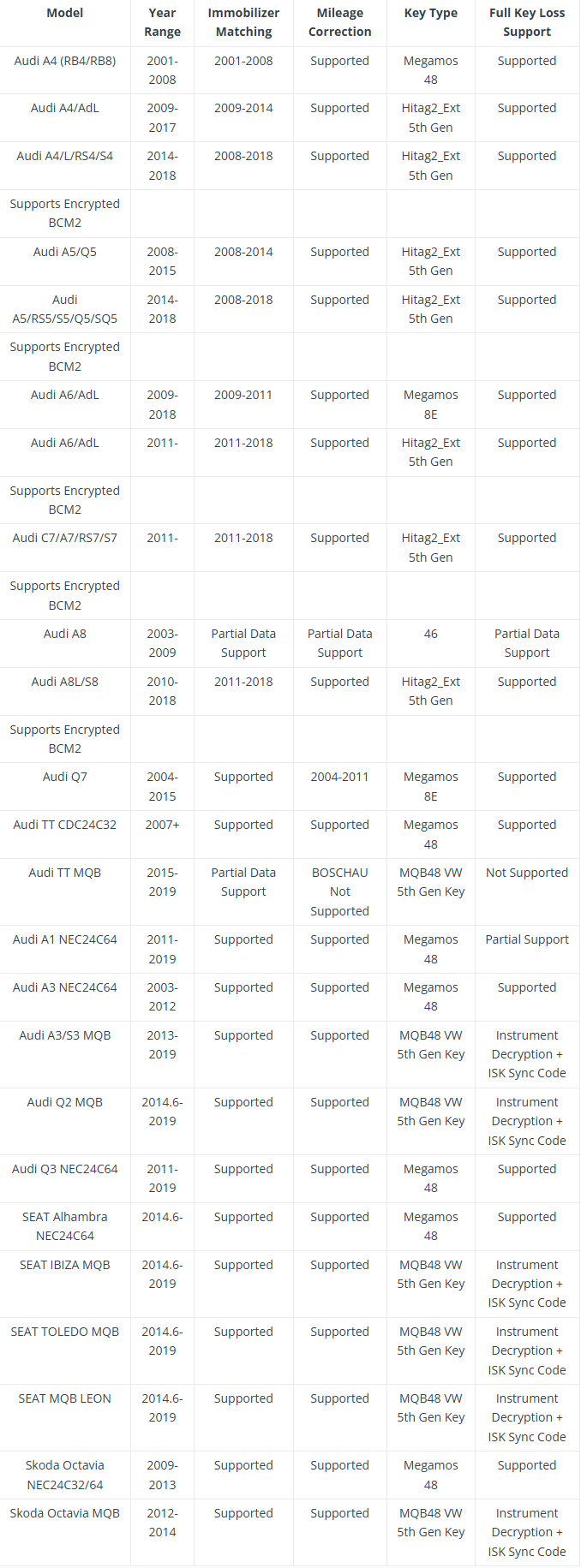

APPRO2 Supported List_Key Programming & Mileage Correction

2. BMW Supported Models & Year Ranges:
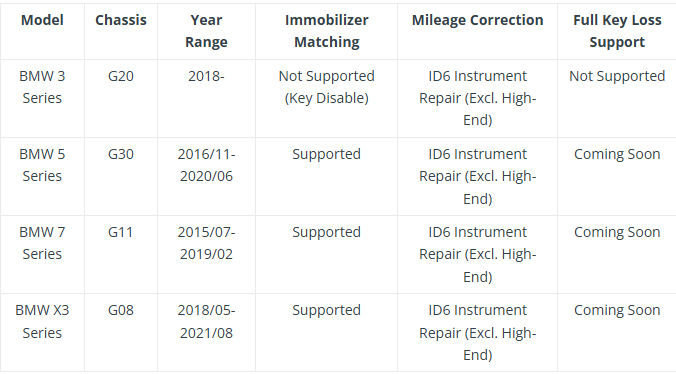

APPRO2 Supported List_Key Programming & Mileage Correction

3. Porsche Supported Models & Year Ranges:
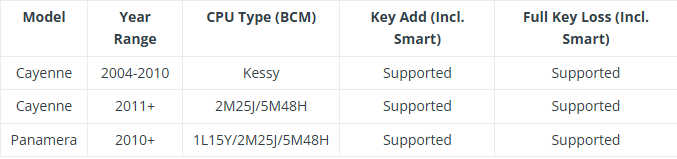

APPRO2 Supported List_Key Programming & Mileage Correction

4. Land Rover/Jaguar Supported Models & Year Ranges:
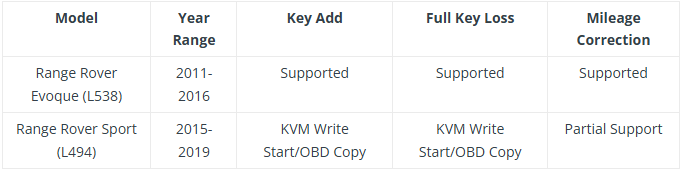

APPRO2 Supported List_Key Programming & Mileage Correction

5. Volvo/Lynk & Co Supported Models & Year Ranges:


APPRO2 Supported List_Key Programming & Mileage Correction

6. Mercedes-Benz Supported Models & Year Ranges:
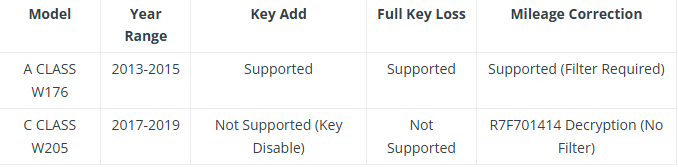

APPRO2 Supported List_Key Programming & Mileage Correction

7. Buick Supported Models & Year Ranges:


APPRO2 Supported List_Key Programming & Mileage Correction

8. Toyota Supported Models & Year Ranges:


APPRO2 Supported List_Key Programming & Mileage Correction

9. Engine Data Read/Write (Incl. CAS4+ Full Key Loss ISN Read) Support List:


APPRO2 Supported List_Key Programming & Mileage Correction

10. Key Unlock:
BMW E-Series:
BMW E-Series Original 315MHz Key (BMW-E-Series-Original-315MHz-IN-Circuit)
BMW E-Series Original 868MHz Key (BMW-E-Series-Original-868MHz-IN-Circuit)

Audi 5th Gen:
Audi 5th Gen 315MHz Key Refresh (AUDI-315MHz-IN-Circuit-8T0959754C)
Audi 5th Gen 868MHz Key Refresh (AUDI-868MHz-IN-Circuit-4H0959754F)

Land Rover:
Land Rover Smart Card 434MHz Key Refresh (LANDROVER-IN-Circuit-434MHz-5E0U40247)

Note: The above list represents tested models and user feedback, not an exhaustive list.

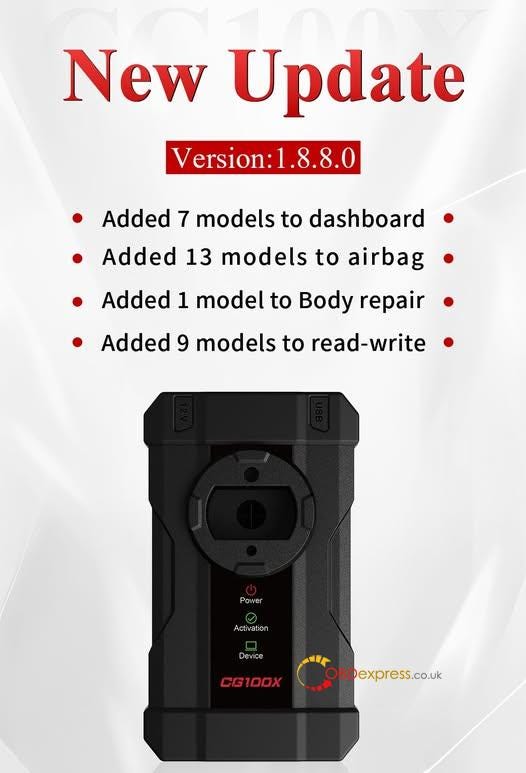
CG100X V1.8.8.0 Update: Add Support for Volvo R7F701330

 CGDI CG100X Programmer released the new software V1.8.8.0 on July 2, 2025. Check the upgrade info and update your device soon.


CG100X V1.8.8.0 Update

CG100X V1.8.8.0 update details:

  1. Added 7 models to dashboard.
  2. Added 13 models to airbag.
  3. Added 1 model to Body repair.
  4. Added 9 models to read-write.

The following models are added for dashboard.

  • BYD AUTO BYD Qin PRO 2020- 93C86 V2
  • DongFeng Wind God SKY EV01 2023- 24C16
  • Chery jietu dasheng 24C16 V2
  • KIA KX3 MB91F061BS
  • ZONTES 350 24C16
  • YHMAC YH Harvester 2020- 24LC02
  • Great Wall GWM Poer·KingKong R7F701442 (LCD)

The following models are added for airbag.

  • BAIC A00094750 95320
  • Volkswagen 2QD 959 655 M 95256
  • HONGQI 3607115 DA01 R7F701008
  • Geely 6608022201 R7F701008
  • Geely P6608100635 R7F701330 (encrypted) (Need to send for repair)
  • Geely 6608089886 R7F701330 (encrypted) (Need to send for repair)
  • Geely P6608089881 R7F701330 (encrypted) (Need to send for repair)
  • Geely P6608089887 R7F701330 (encrypted) (Need to send for repair)
  • Leapmotor 5723100-CT01 R7F701010
  • LYNK&CO P6608045975 R7F701330 (encrypted) (Need to send for repair)
  • LYNK&CO P6608089888 R7F701330 (encrypted) (Need to send for repair)
  • Chery F08–3658010CB 95320
  • Nissan 98820 5RPOA TC222

The following models are added for Body repair.

  • Audi General model 8K0 953 502 BK 95080

The following models are added for dashboard read-write.

  • Volkswagen 09G 927 749 L 95128 (read write)
  • Trumpchi 8040003CRD0000 R7F701330 (encrypted) (read write)
  • Trumpchi 8040003AMV0002 R7F7010643 (encrypted) (read write)
  • China M7.9.7.1 95080 (read write)
  • Cadillac 5WY86560 95160 (read write)
  • Chery 407000411AA R7F701010 (read write)
  • MAXUS G10 D70F3629 (read write)
  • Volvo P32387682 R7F701330 (encrypted) (read write)
  • Volvo P6608101985 R7F701330 (encrypted) (read write)

www.obdexpress.co.uk


OBDSTAR ODO Master Mileage Calibration for GEELY R7F701412

 In this article, we’ll show how to calibrate the mileage on the GEELY R7F701412 Dashboard with OBDSTAR Odo Master.

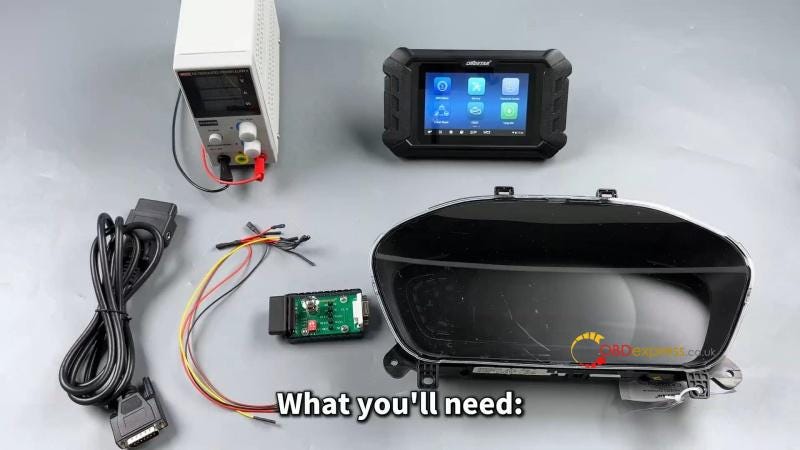
Required Tools

Odo Master/ X300 Classic G3

High-power DC regulated power supply

Main cable

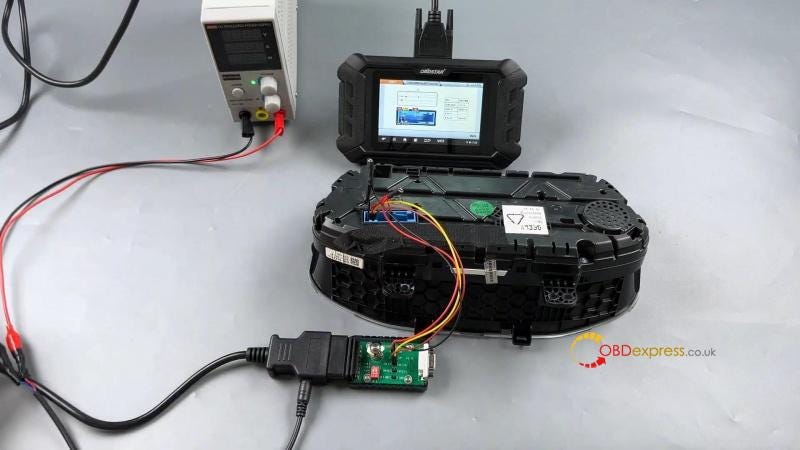
Jumper

P004 adapter

GEELY R7F701412 Dashboard

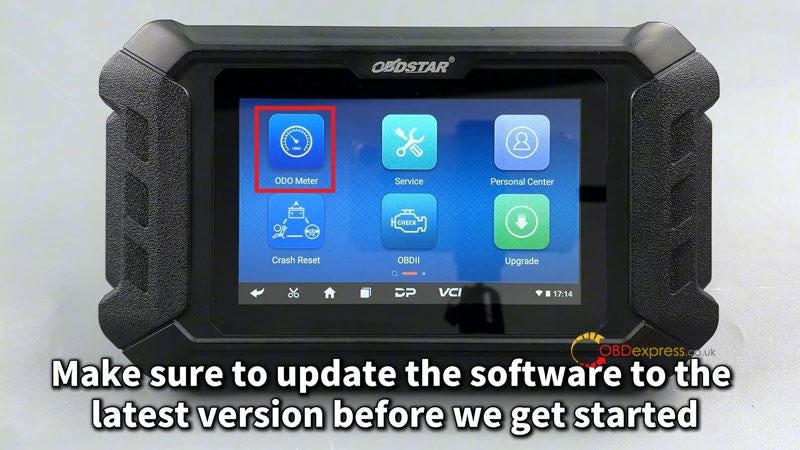
Make sure to update the software to the latest version before we get started.


OBDSTAR ODO Master Mileage Calibration for GEELY R7F701412

Procedure

ODO Meter >> AGREE >> Select the correct brand and MCU type: GEELY >> COOLRAV >> CONTINENTAL(R7F701412)

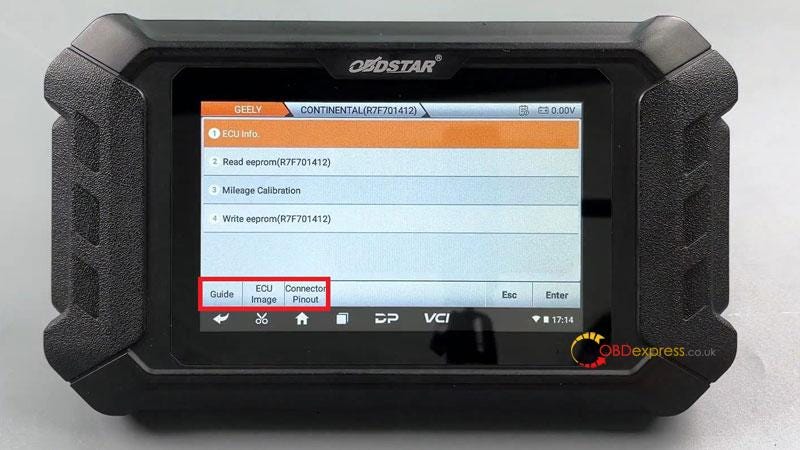
Tap [Guide] and carefully read the function introduction, menu description and connection methods.

Tap the [Connector Pinout].

Refer to the wiring diagram to make the connection.


OBDSTAR ODO Master Mileage Calibration for GEELY R7F701412

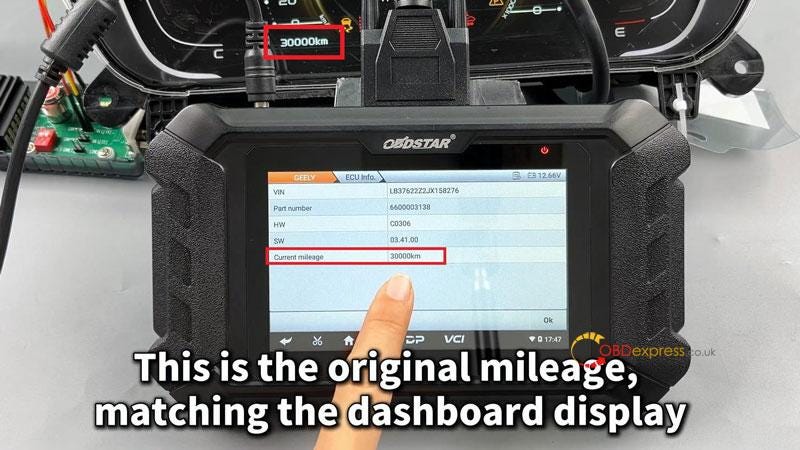
After connecting, check [ECU Info.] to verify the information.

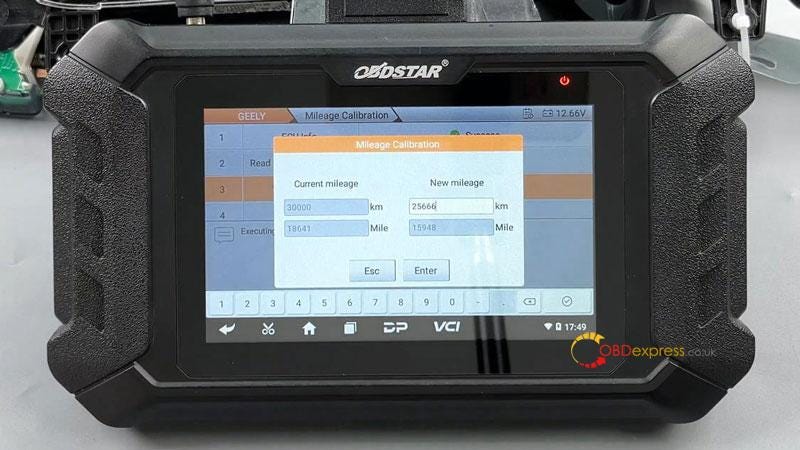
This is the original mileage: 30000km, matching the dashboard display.

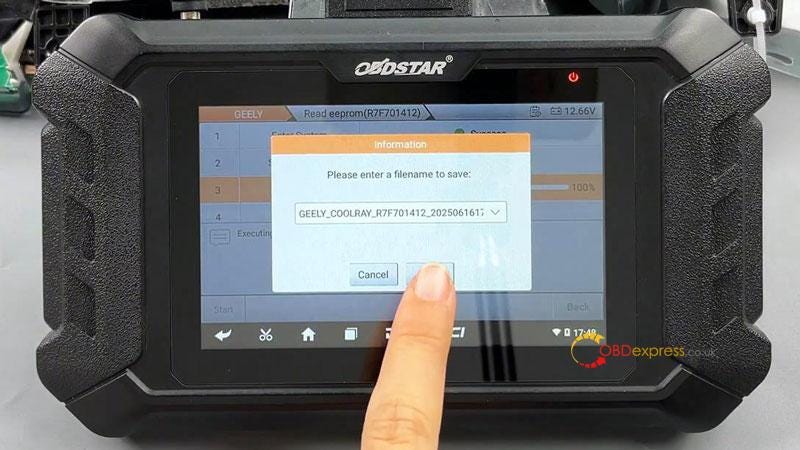
Before proceeding, back up the data.

Read eeprom(R7F701412) >> OK >> Start >> Save the file

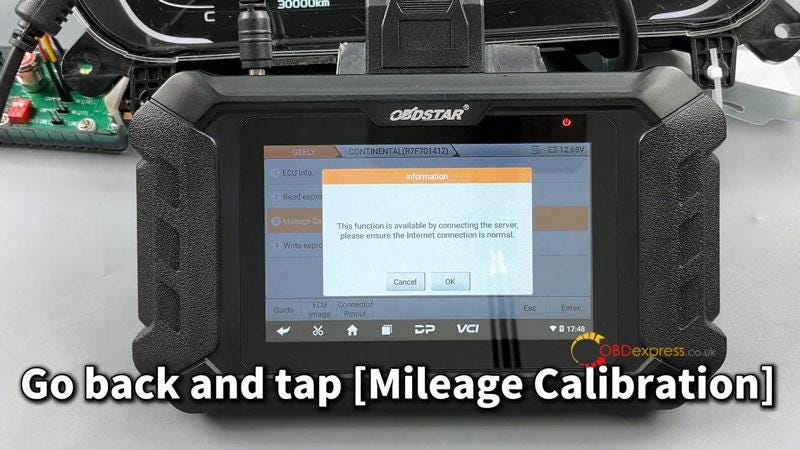
Follow device prompts, go back and tap [Mileage Calibration].

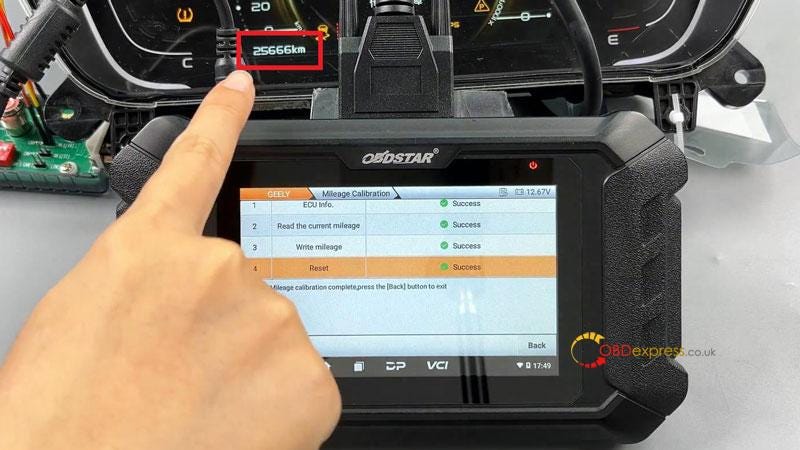
Enter the new mileage: 25666km

The mileage adjustment has been successfully done.

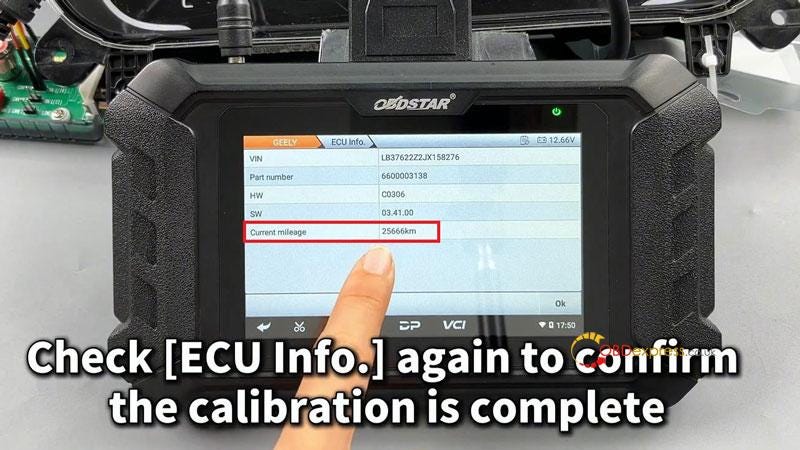
Check [ECU Info.] again to confirm the calibration is complete.


OBDSTAR ODO Master Mileage Calibration for GEELY R7F701412

www.obdexpress.co.uk

Monday, 30 June 2025

(Solved) Yanhua ACDP2 Connect PC with USB Cable Failure

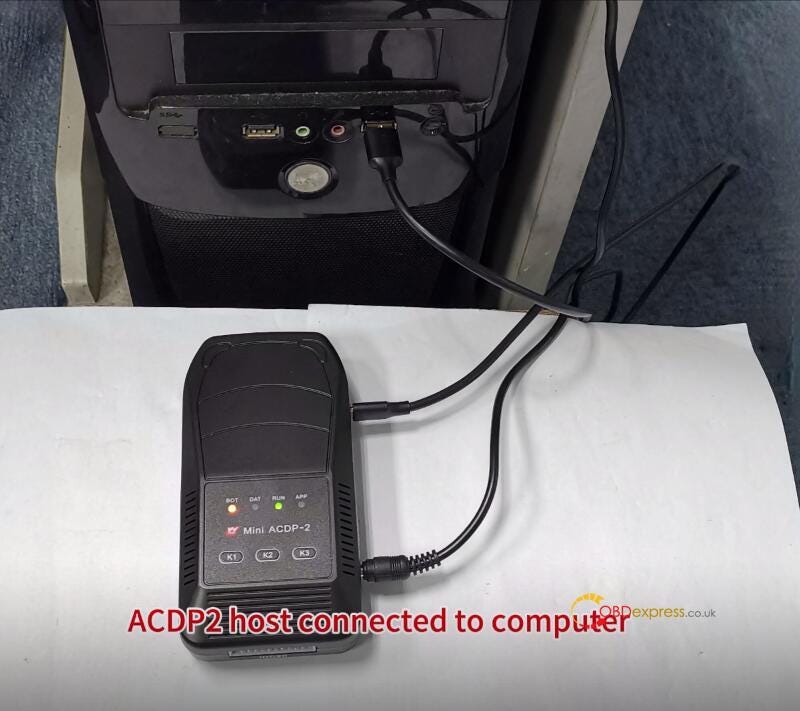
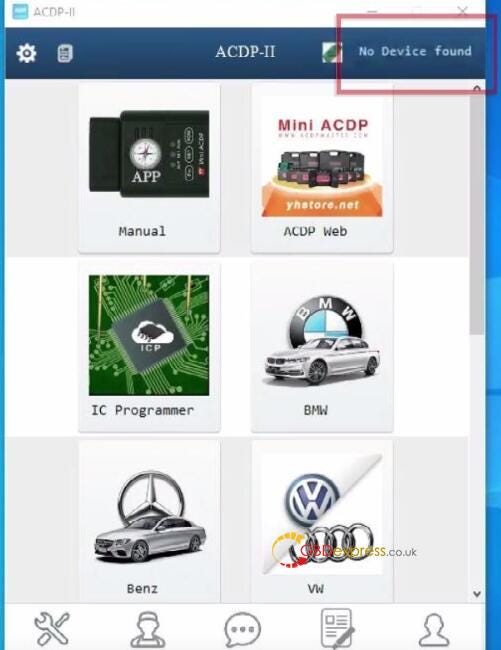
 Problem: When connecting the Yanhua ACDP2 to your PC via USB, the ACDP-II software shows:

  • "No Device found".
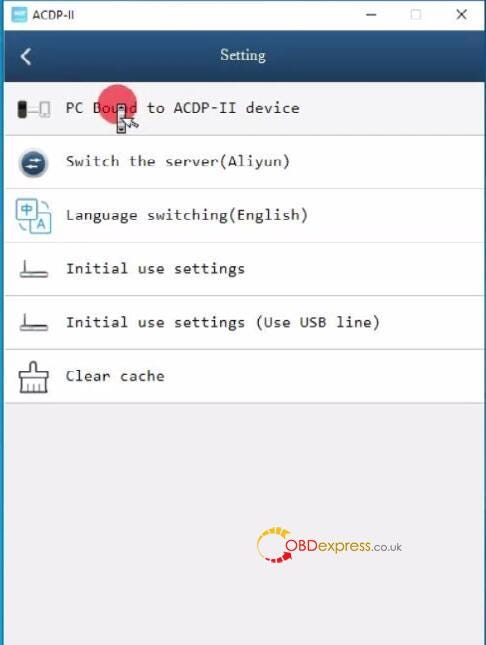
  • "Unbound" status in Settings > PC Bound to ACDP-II device.
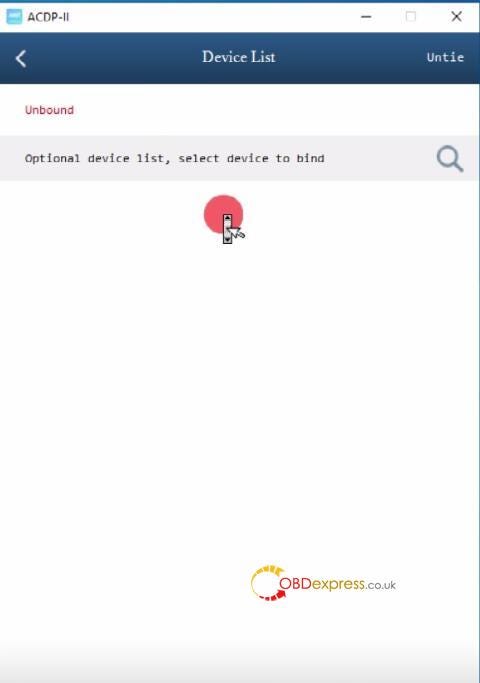
  • No device appears in the list.
Solved_Yanhua ACDP2 Connect PC with USB Cable Failure

Solution:

Manually configure the device’s IP settings.

Step-by-Step Fix:

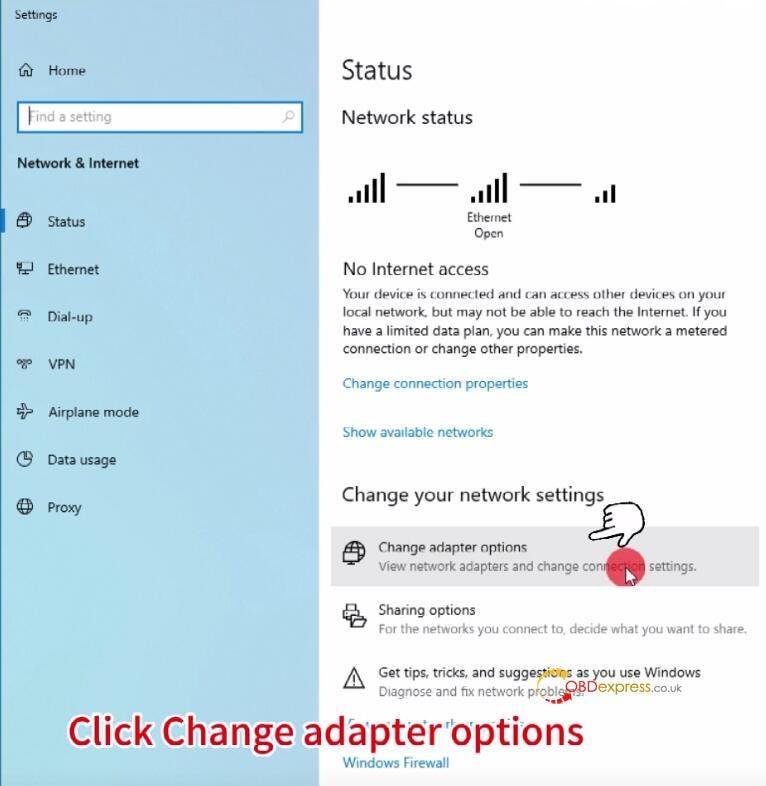
1.Open Network Settings

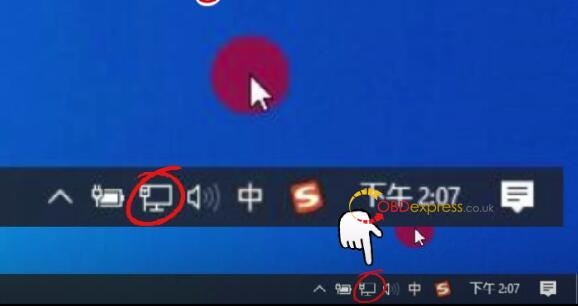
Right-click the network icon (bottom-right taskbar)

Select "Open Network & Internet settings"

Click "Change adapter options"


Solved_Yanhua ACDP2 Connect PC with USB Cable Failure

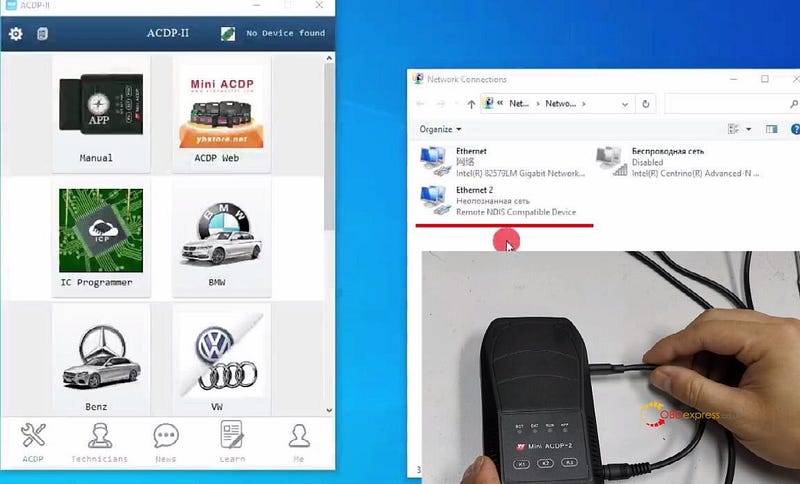
2.Identify the ACDP2 Adapter

Unplug and replug the USB cable to see which network interface appears/disappears.


Solved_Yanhua ACDP2 Connect PC with USB Cable Failure

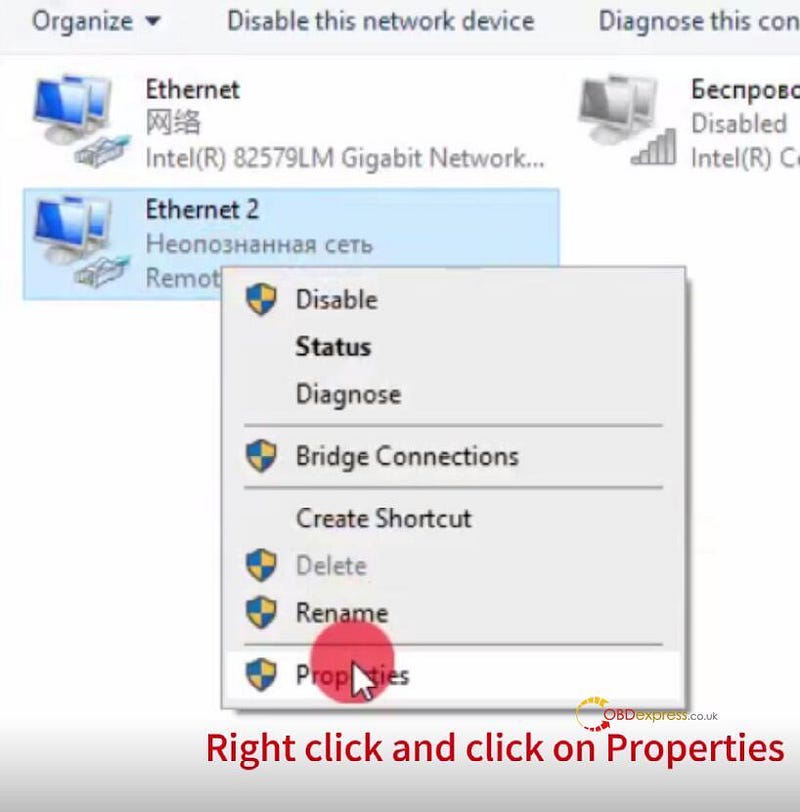
3.Set a Static IP

Right-click the correct adapter → Properties


Solved_Yanhua ACDP2 Connect PC with USB Cable Failure

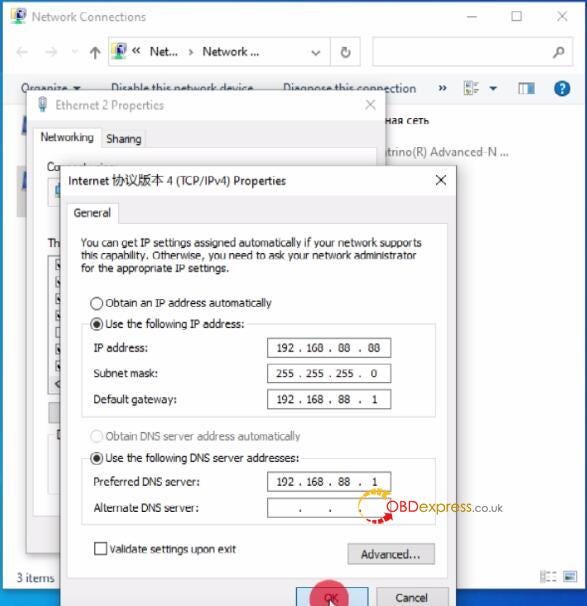
Select "Internet Protocol Version 4 (TCP/IPv4)" → Properties

Enter the following:

  • IP address: 192.168.88.88
  • Subnet mask: 255.255.255.0
  • Default gateway: 192.168.88.1
  • Preferred DNS: 192.168.88.1

Click OK to save.


Solved_Yanhua ACDP2 Connect PC with USB Cable Failure

4.Reconnect & Verify

Wait 10–15 seconds for the device to reconnect automatically.

Check if the ACDP-II software now detects the device.


Solved_Yanhua ACDP2 Connect PC with USB Cable Failure

Troubleshooting Tips:

✔ Use a high-quality USB cable (some cables only charge, no data transfer).

✔ Try a different USB port (preferably USB 2.0).

✔ Restart the software/PC if the issue persists.

www.obdexpress.co.uk

Renew Your Expired KESS3 Subscription Now & Save Hundreds!

 Attention all ALIENTECH KESS3 users! If your subscription has expired for more than 60 days, now is the perfect time to renew at an unbeatable price. For a limited time, we’re waiving the agreement completion fee, saving you extra costs while extending your subscription for a full 365 days!


Renew Your Expired KESS3 Subscription Now & Save Hundreds

Promotional Pricing:

Promotion Time:

The promotion will be held from Friday, June 27, 2025 to July 28, 2025.

Why Renew Now?

  • No Agreement Fee: During the promotion, avoid the usual agreement completion fee required after 30 days of expiration.
  • Full 12-Month Access: Enjoy uninterrupted service for another year, starting from the payment date.
  • Exclusive for Old Customers: This offer is specially designed for existing KESS3 Master and Slave users with expired subscriptions.


Renew Your Expired KESS3 Subscription Now & Save Hundreds

Don’t miss this chance to save big and keep your ALIENTECH KESS3 running smoothly. Act now — this promotion ends on July 28, 2025!

Renew Today: www.obdexpress.co.uk

How to Copy Xhorse XTPMS Sensor by Key Tool Max Pro?

 Replacing TPMS sensors is now faster than ever! With the Xhorse Key Tool Max Pro and XTPMS Sensor, you can copy the original sensor ID to a new one — eliminating the need for extra programming after installation.

What is Sensor Copying?

Copying transfers the original sensor’s ID to a new sensor. Once copied, the new sensor works immediately — no additional programming required.

3 Ways to Copy a Sensor ID

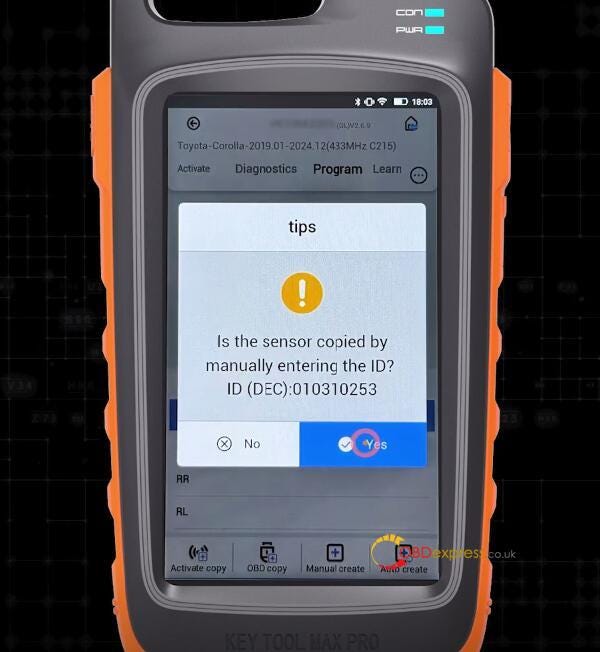
Method 1: Manual Entry (If ID is Visible)

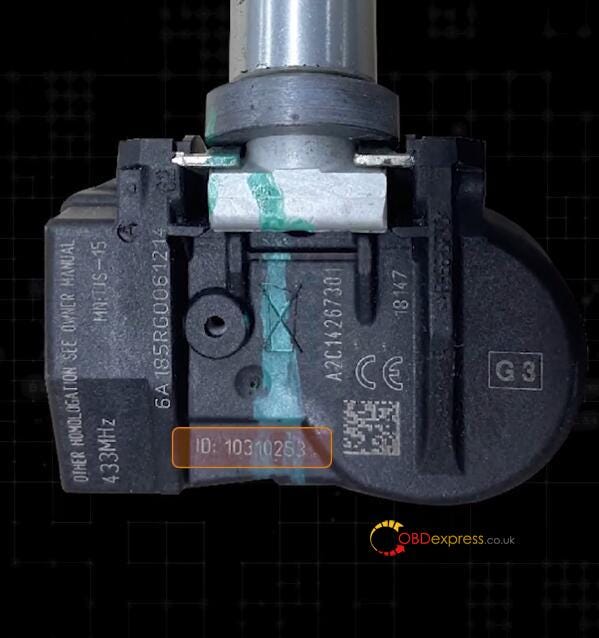
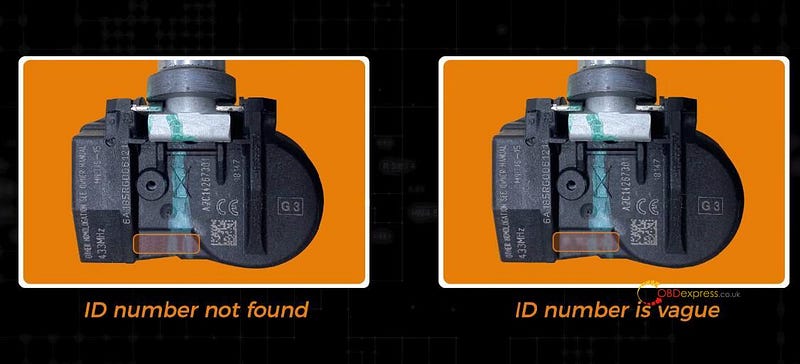
Locate the printed ID on the original sensor


How to Copy Xhorse XTPMS Sensor by Key Tool Max Pro

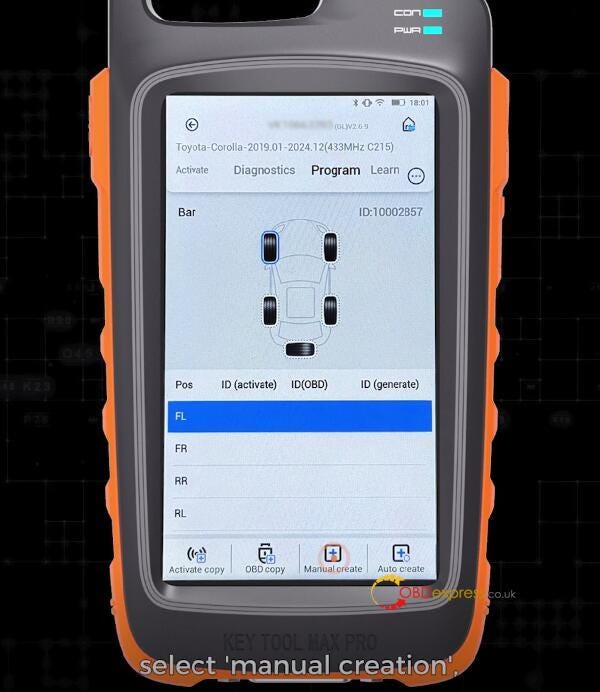
On Key Tool Max Pro, tap:

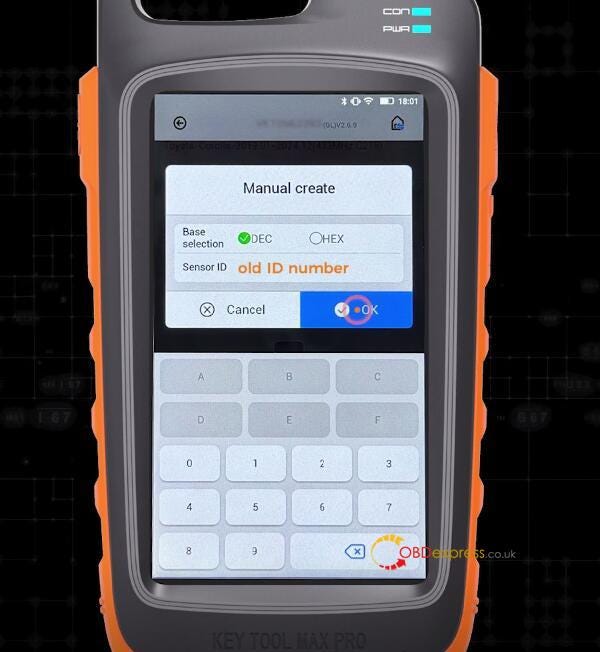
"Program" → "Manual Create"

Enter the ID → Tap "OK"


How to Copy Xhorse XTPMS Sensor by Key Tool Max Pro

Method 2: Retrieve ID via Activation (If ID is Missing/Unreadable)

Use Key Tool Max Pro to activate the sensor and read its ID


How to Copy Xhorse XTPMS Sensor by Key Tool Max Pro

Copy the retrieved ID to the new sensor.

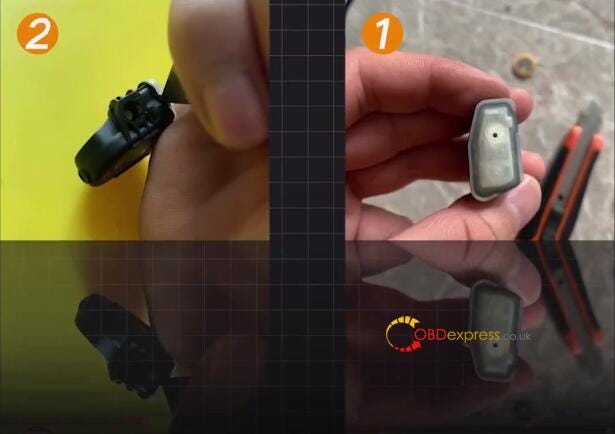
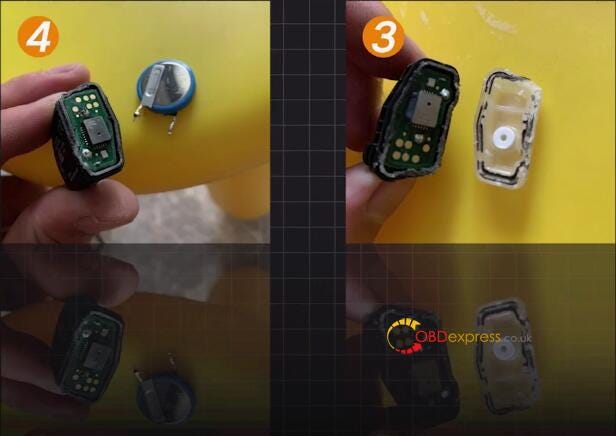
Method 3: Replace Battery (If Sensor is Dead)

Replace the sensor’s battery to reactivate it


How to Copy Xhorse XTPMS Sensor by Key Tool Max Pro

Retrieve the ID using VVDI Key Tool Max Pro and copy it.
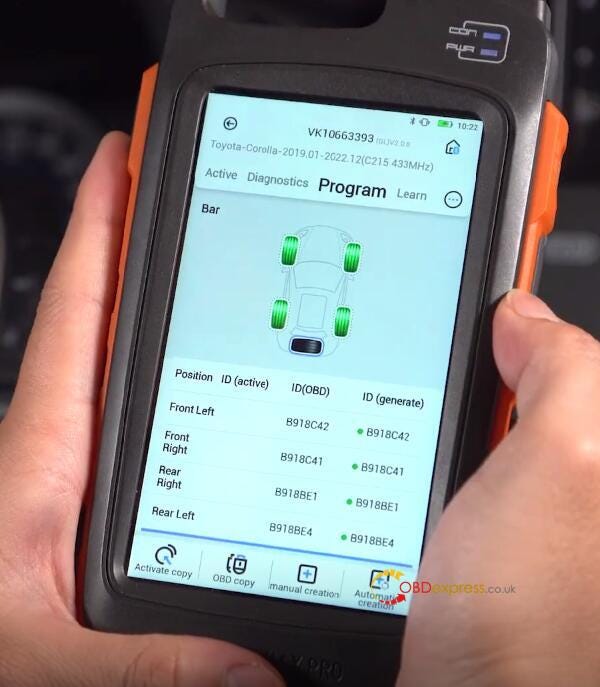
OBD Copying (For Supported Vehicles, e.g., Toyota Corolla)

For vehicles with OBD TPMS support, copying is even easier:

Connect Key Tool Max Pro to the OBD port.
Go to: TPMS → Select vehicle model & year.

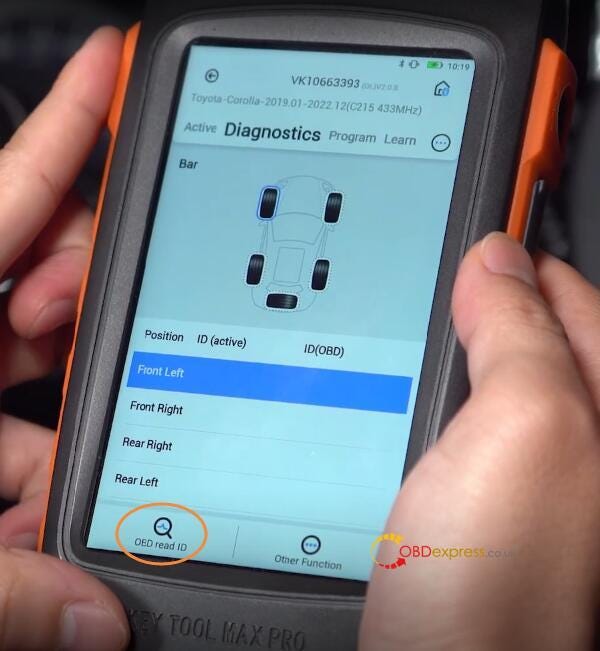
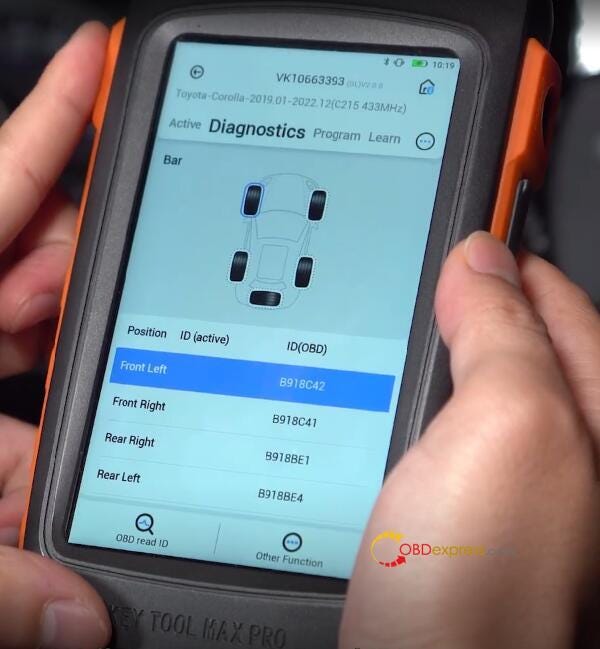
Choose "OBD Read ID" to retrieve sensor IDs


How to Copy Xhorse XTPMS Sensor by Key Tool Max Pro

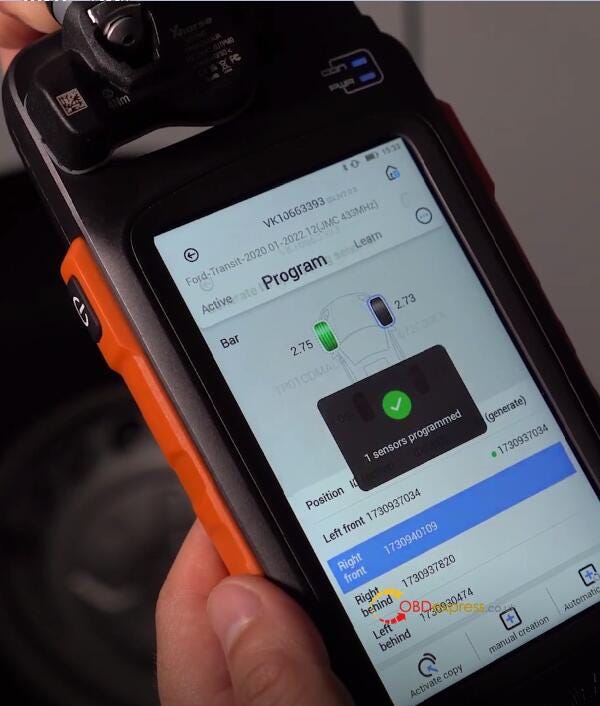
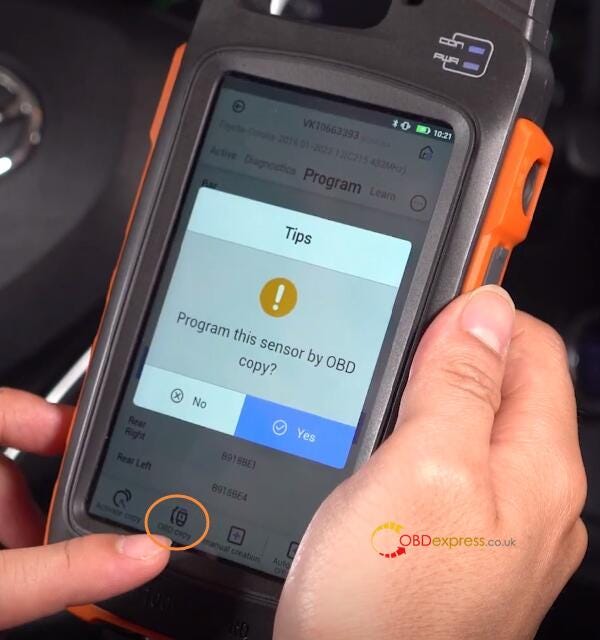
Select "OBD Copy", place the new sensor, and program


How to Copy Xhorse XTPMS Sensor by Key Tool Max Pro

Repeat for all four sensors


How to Copy Xhorse XTPMS Sensor by Key Tool Max Pro

Once copied, install the new sensors — no further programming needed!

Why Choose This Method?

✔ No dealership tools required

✔ Works even if the original sensor is dead (after battery replacement)

✔ OBD support makes it faster for compatible vehicles

✔ Xhorse Universal XTPMS sensors ensure broad compatibility

Conclusion

Perfect for shops & DIY enthusiasts!

Read also:

http://blog.obdexpress.co.uk/2025/06/12/how-to-program-xhorse-xtpms-sensors/


Tuesday, 24 June 2025

FormulaFlash ECU Data Service System Online Access Guide

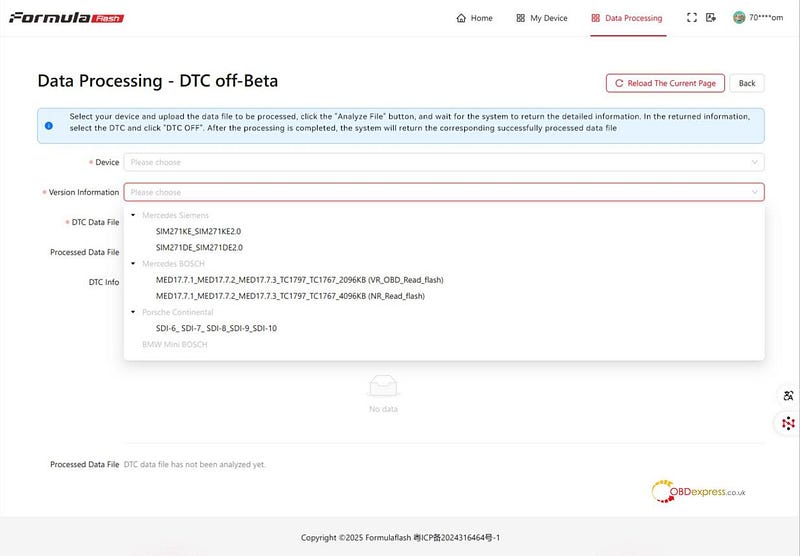
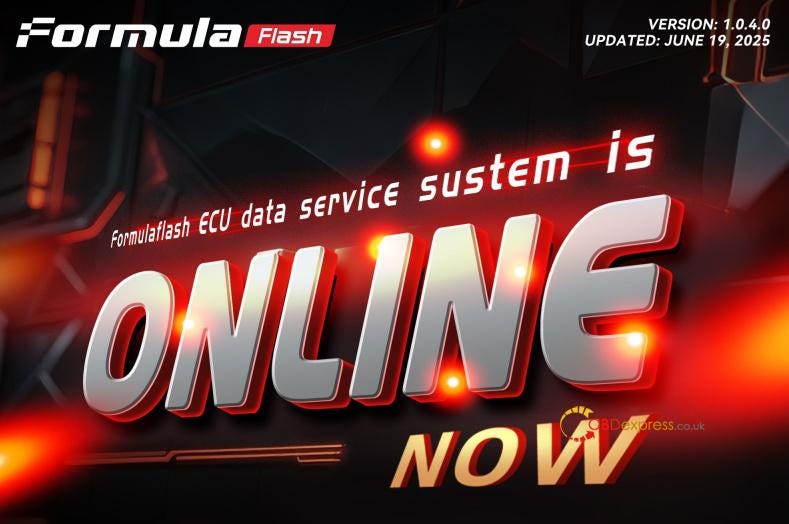
 FormulaFLash ECU Data Service System is Online Now![VERSION: 1.0.4.0] It provides users with access to an advanced ECU data service system, offering free DTC off services and upcoming database updates. This guide walks you through the simple process of accessing these services and submitting requests for unsupported ECU versions.


FormulaFlash ECU Data Service System Online Access Guide

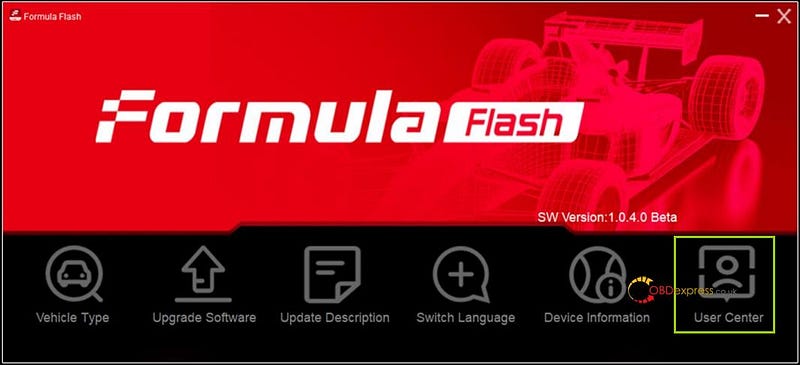
Step 1: Accessing the User Center

Begin by accessing the "User Center" to enter the ECU data service system. This is your gateway to all available services and features.


FormulaFlash ECU Data Service System Online Access Guide

Step 2: Registration and DTC Off Service

After completing "User Registration" and "Device Briefing," you’ll gain access to the DTC off interface. Key features include:

  • Currently free DTC off service.
  • Coming soon: Free updates to the "OPF/GPF/GPF/EGAE/GAAP-AGBlist" database.

The system provides a simple table interface for tracking your DTC off file processing history.


FormulaFlash ECU Data Service System Online Access Guide

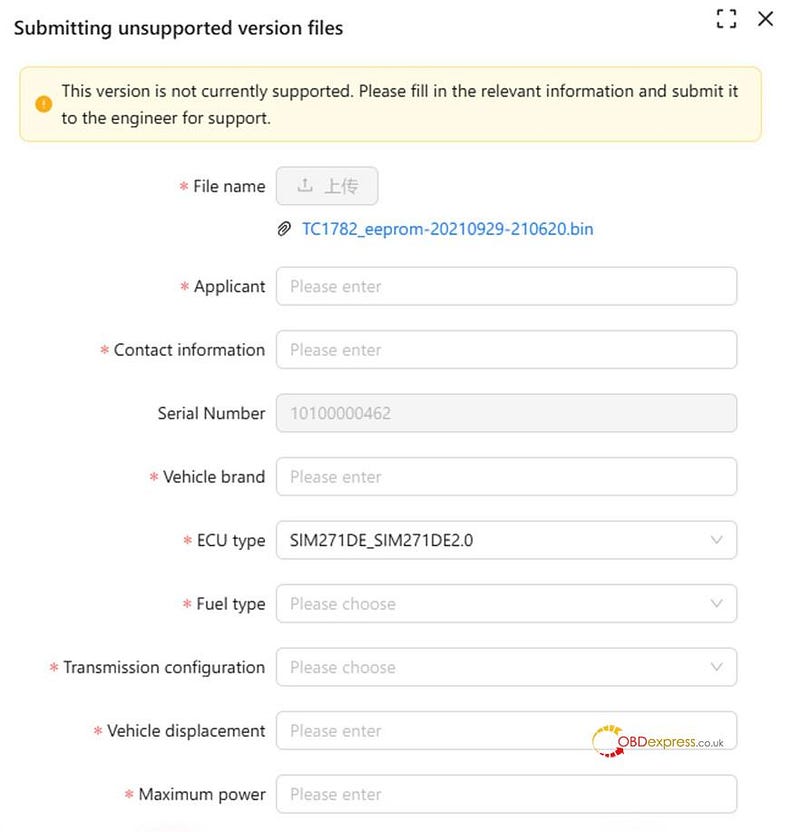
Step 3: Handling Unsupported ECU Versions

If you encounter an unsupported ECU version:

  • Submit your ECU file through the ticket system.
  • Our engineers typically process requests within 24 hours.
  • You’ll receive automatic email notifications.
  • These services remain completely free.

Submitting Unsupported Version Files

When submitting a request for an unsupported version, please provide the following information:

File name

Applicant Details

Contact information

Serial Number

Vehicle brand

ECU type

Fuel type

Transmission configuration

Vehicle displacement

Maximum power

This comprehensive information helps our engineers process your request efficiently.


FormulaFlash ECU Data Service System Online Access Guide

Conclusion

FormulaFLash ECU Programmer offers a user-friendly platform for ECU data services with free DTC off capabilities and prompt support for unsupported versions. By following these simple steps, users can maximize the benefits of this innovative service system.

Remember to check back regularly for updates to the free database services coming soon to the platform.

www.obdexpress.co.uk


KEYDIY New KD-Moto Adapter Adds Honda, Yamaha & Ducati

  Motorcycle key programming is now coming to the KEYDIY KD-X4 . The new KEYDIY KD-Moto Adapter adds dedicated motorcycle coverage for a w...