Showing posts with label YANHUA ACDP. Show all posts

Tuesday, 24 June 2025

YANHUA ACDP BMW BDC2 All Keys Lost Bench Solution & FAQs

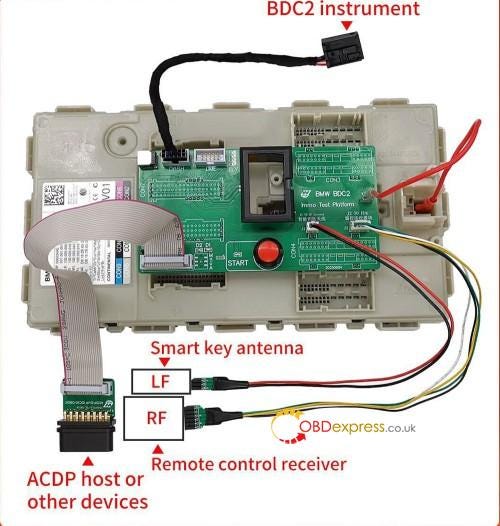
 YANHUA Mini ACDP2 + Module 38 is now support to program BMW BDC2 All Keys Lost. Need to work with the BDC2 Bench Test Platform & LF Smart Key Antenna + Remote Control Receiver.

The BMW BDC2 Keys Learning Bench Platform is an advanced tool designed to simplify and accelerate the process of programming keys for BMW vehicles equipped with BDC2 modules. This bench platform eliminates the need to reassemble the module back into the car, saving time and effort for automotive locksmiths and technicians.


YANHUA ACDP BMW BDC2 All Keys Lost

Q&A

Q1: ACDP can now do all keys lost on BDC2? Is that true?

A: Exactly yes. Need to use ACDP Master, Module 38 and the new BMW BDC2 Keys Learning Bench Platform.

Q2: Can the BDC2 Bench Platform work with other devices?

A: Yes. It can connect to other devices that can support this function.

Q3: How to read ISN?

A: It requires Moduel 3 + B48 Bench Interface Board to read ISN.

Q4: How to read ECU if locked?

A: The DME module is not locked.

For more details, visit www.obdexpress.co.uk or contact sales@OBDexpress.co.uk

Monday, 17 March 2025

Yanhua ACDP Correct Benz A247 W177 A-Class HU6 Cluster Mileage

 YANHUA MB HU6-R7F71403-B Interface Board New Arrivals!

It’s specially designed to work with Yanhua ACDP 1/ ACDP 2 and Module 37 for Mercedes-Benz A247 W177 A-class HU6 instrument mileage correction.


Yanhua ACDP Correct Benz A247 W177 A-Class HU6 Cluster Mileage

PART I

MB HU6-R7F71403-B Interface Board vs. Benz HU6- R7F71403 Interface Board


Yanhua ACDP Correct Benz A247 W177 A-Class HU6 Cluster Mileage

1.Similarities:

Both need to work with Yanhua Mini ACDP/ Mini ACDP-2 with Module 37.

Both are compatible with Yanhua MB HU6 YH-OBD Platform to reset mileage on bench, no need to install the original HU6 module on the car and operate via OBD on car.

2.Differences:

Yanhua Benz HU6- R7F71403 Interface Board comes with the Yanhua Module 37 package, and supports mileage correction for the MB HU6 instrument module (A167/A213/A247) with chip model R7F701403.

Supported vehicle models:

  • Support for Mercedes-Benz W247 A/B/CLA/GLA/GLB after 2019
  • Support for Mercedes-Benz W177 CLA/GLA after 2019
  • Support for Mercedes-Benz 167 GLE/GLS after 2019
  • Support for Mercedes-Benz W213 E/CLS after 2020
  • Support for Mercedes-Benz H243 EQA and X243 EQB after 2021

Yanhua ACDP MB HU6-R7F71403-B Interface Board supports mileage correction for Mercedes-Benz A247 W177 A-class HU6 instrument module.

PART II

How to use Yanhua MB HU6-R7F71403-B Interface Board?

1.Mini ACDP menu path

Benz>> HU6 ODO Module (IC77) mileage correction>> R7F71403 (A167/A213/A247)>> BENZ-HU6-B interface board (W177 A class)>> OBD+ ICP reset mileage>> Original module (YH platform)

Step 1: OBD Backup Data

Step 2: ICP Modify Data

Step 3: OBD Modify Mileage


Yanhua ACDP Correct Benz A247 W177 A-Class HU6 Cluster Mileage
  1. Connection Method
  • Unlock the interface board: Push the latch to the unlock position and identify the correct installation area using the positioning pins.
  • Locate positioning holes: Find the correct D1 — D5 positioning holes on the instrument panel.
  • Verify test point pin definition: Ensure proper alignment.
  • Align and secure the interface board: Position it with the probe holes on the odometer board.
  • Lock the interface board: Press down firmly, then push the PCB lock buckle to secure the installation.

Yanhua ACDP Correct Benz A247 W177 A-Class HU6 Cluster Mileage

YANHUA Mini ACDP MB HU6 R7F71403-B Interface Board is available now.

https://www.obdexpress.co.uk/wholesale/yanhua-mb-hu6-r7f71403-b-interface-board.html

Read also:

YANHUA ACDP Module 37: MB HU6 IC177 Mileage Correction

http://blog.obdexpress.co.uk/2025/01/16/yanhua-acdp-module-37-mb-hu6-ic177-mileage-correction/

How to Reset MB HU6 (IC177) ODO Module Mileage by Yanhua ACDP2 on Bench?

http://blog.obdexpress.co.uk/2025/02/14/how-to-reset-mb-hu6-ic77-odo-module-mileage-by-adcp2/

Sunday, 5 November 2023

How to Export Yanhua ACDP-1/ ACDP-2 Data on Android Smartphone?

 Here is the guide to exporting Yanhua Mini ACDP 2/ACDP 1 data on Android Smartphone.

https://youtu.be/DpX4D6J_koc

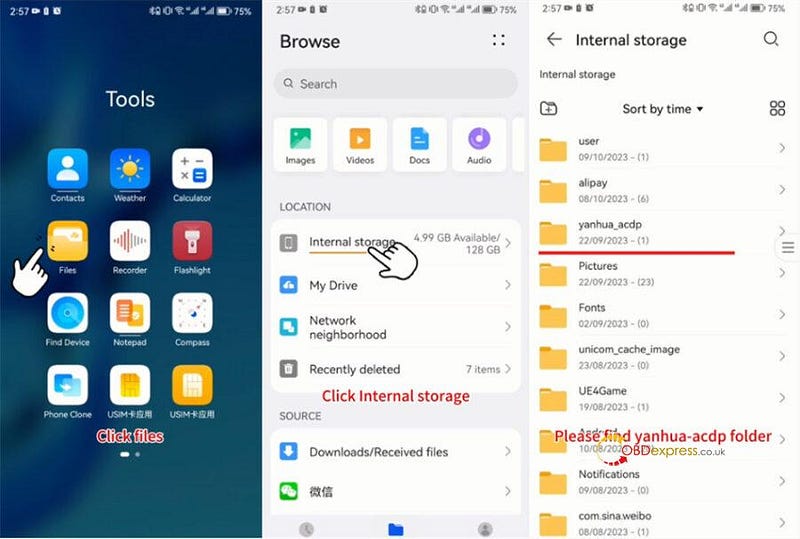
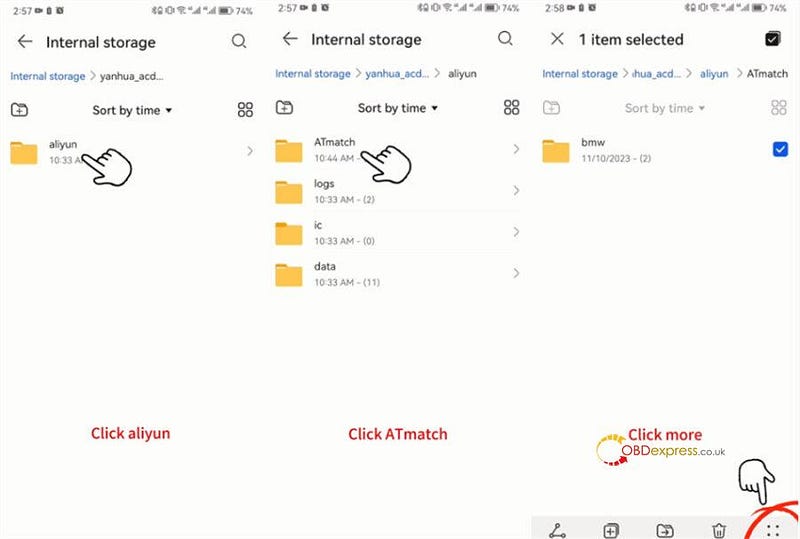
Click Tap "Files" in the "Tools" option

Select Internal storage>> yanhua_acdp folder>> aliyun>> ATmatch

Find the file that you want to export

Here take bmw as an example

Long press bmw, and it will be ticked

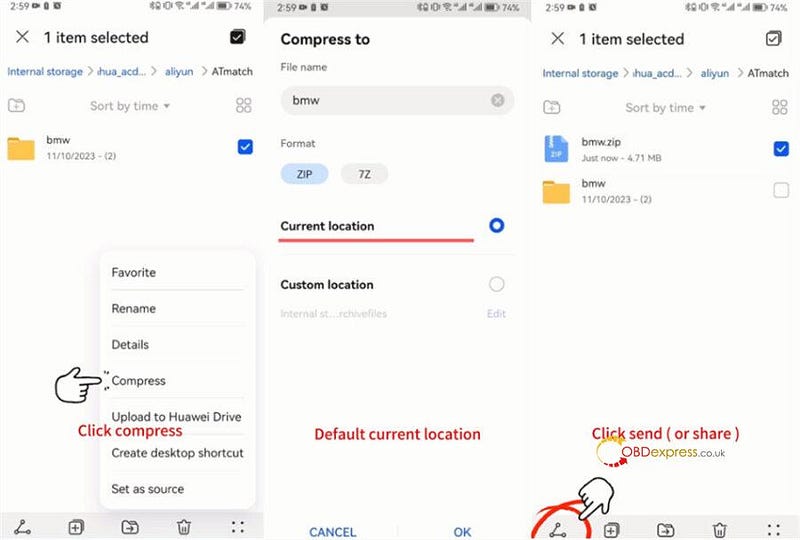
Click the "more" icon at the right bottom corner

Click "Compress"

Click the default current location and click "OK"

Long press the zip file you want to export (i.e. bmw.zip)

Click the send or share icon at the left bottom corner

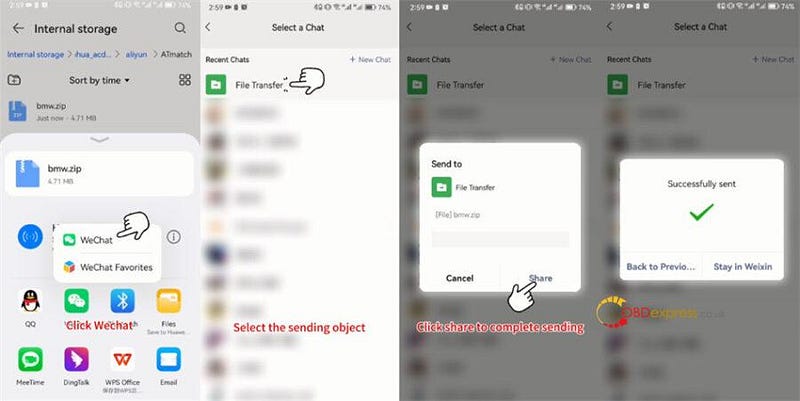
Here use WeChat as an example

Click WeChat icon>> WeChat

Select the sending object (i.e. File Transfer)

Click "Share" to complete sending

Successfully sent!

How to Export Yanhua ACDP Data on Android Smartphone

How to Export Yanhua ACDP Data on Android Smartphone

How to Export Yanhua ACDP Data on Android Smartphone

How to Export Yanhua ACDP Data on Android Smartphone

Mini ACDP data also can be exported on IOS System:

http://blog.obdexpress.co.uk/2022/05/03/yanhua-mini-acdp-ios-system-data-export-pc-bind-guide/

www.obdexpress.co.uk

Wednesday, 11 October 2023

How to calibrate the mileage of a BMW G chassis?

 If you own a 2020 BMW 3 Series with iDrive7 and Live Cockpit, adjusting the mileage is difficult, but not impossible. Here's what you need to know.

As we all know,bmw dashboards from August 2015 are equipped with a 35160WT/35128WT EEPROM which is not erasable and has page-id which locks this memory to its own dashboard-micro.

If you need to correct such dashboards you CANNOT erase or substitute the original memory with recovered/bought one. You have to emulate the original memory with our emulator.

The first thing to note is that on G-series chassis, the BDC mileage cannot be modified directly. The current solution is to install a filter.

While the BDC mileage can be reset to 0, adjusting it directly is not feasible on G series models, making the installation of a filter the primary solution for accurate mileage readings.

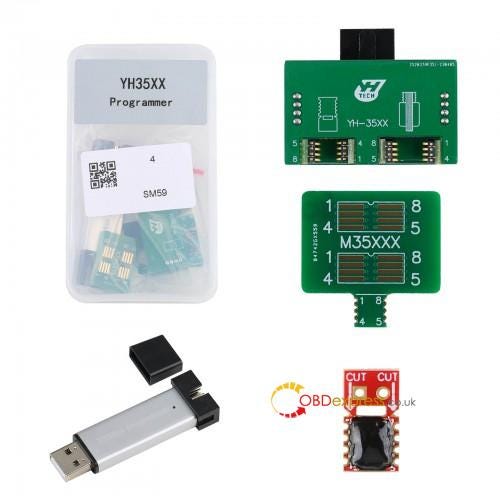
It can be done through YH35XX programmer + Simulator + BMW ID7 Special Filter. This process will reset the BDC (Body Domain Controller) mileage to 0, and you can set the meter to your desired mileage figure.

calibrate the mileage of a BMW G chassis

calibrate the mileage of a BMW G chassis


Thursday, 11 May 2023

How to Install YH35XX Chip Clip for 35128WT Read and Write?

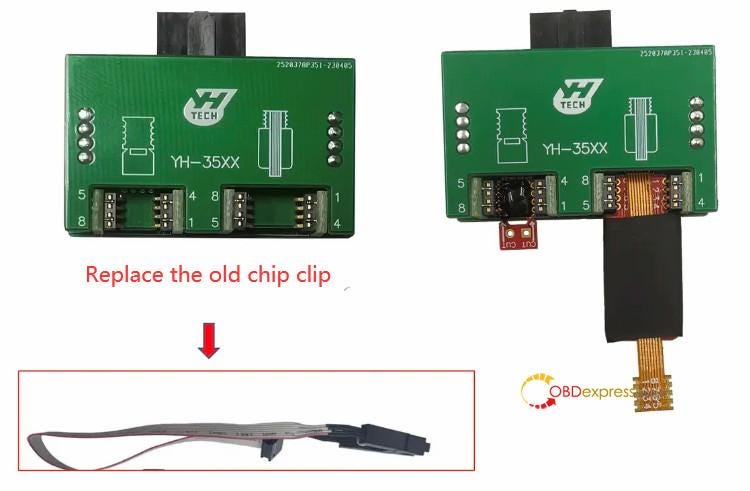
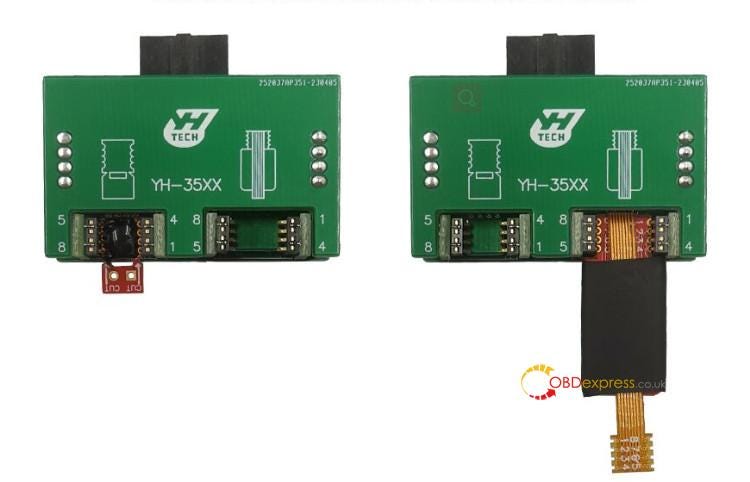
 Yanhua YH35XX Programmer & Simulator for 35128WT Read and Write has been upgraded. The programmer is the same, and the old chip clip is replaced by the new YH35XX chip clip. The prices are the same, but it's easier and more stable to install the chip, and faster to read the chip as well.

Install YH35XX Chip Clip for 35128WT Read and Write

Simple guide to install YH35XX Chip Clip:

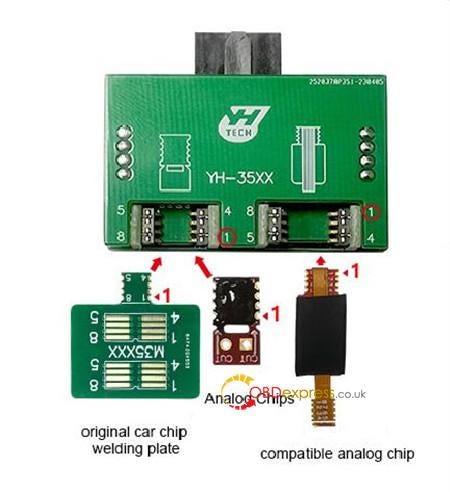
Step 1: Confirm the position and pin definition of the original car chip welding plate, analog chip, compatible analog chip and YH35XX chip clip before installation

Install YH35XX Chip Clip for 35128WT Read and Write

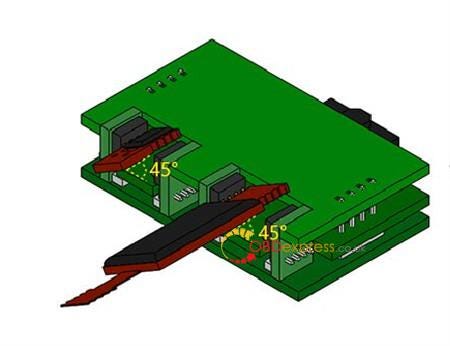
Step 2: Title the original car chip welding plate, analog chip or compatible analog chip at an angle of 45°and install it into the corresponding YH35XX chip clip from top to bottom

Install YH35XX Chip Clip for 35128WT Read and Write

Step 3: Confirm that the original car chip welding plate, analog chip or compatible analog chip is firmly installed

Install YH35XX Chip Clip for 35128WT Read and Write

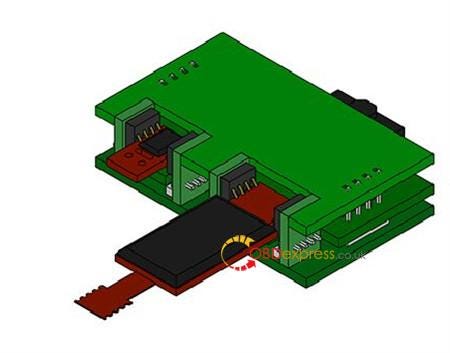
Here is the overall installation effect.

Install YH35XX Chip Clip for 35128WT Read and Write

How to read and write 35128WT with YH35XX Chip Clip?

It covers F classis odometer with 35128WT EEPROM, and G classis VDO odometer.

The operation guide is easy. No risk! No red dot on odometer.

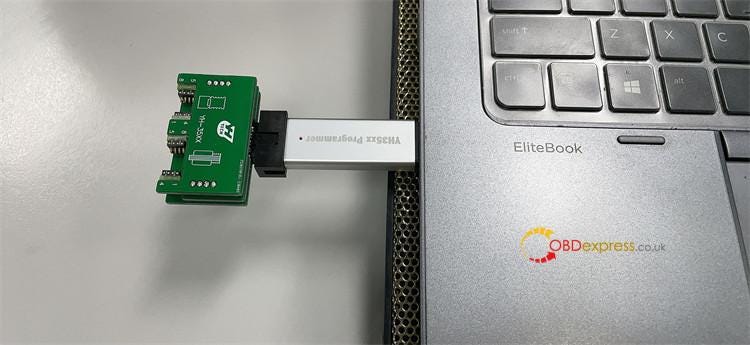
Connect the YH35XX Chip Clip and YH35XX programmer, and connect into the computer

Install YH35XX Chip Clip for 35128WT Read and Write

Then the independent software inside can be run directly

For more details, please refer to YH35XX programmer + Simulator User manual.

If you are interested in new upgrade Yanhua YH35XX Programmer + Simulator, don't hesitate to order one.

https://www.obdexpress.co.uk/wholesale/yanhua-yh35xx-programmer-simulator-35128wt.html

Thursday, 2 March 2023

Yanhua ACDP: The Solder-Free Solution for Audi BCM2 Key Programming

 Is it possible to use Yanhua Mini ACDP to add new key or do all keys lost on Audi Gen5 BCM2 IMMO no need soldering?

The answer is YES. Yanhua module 29 is specially designed and released for Audi Gen5 BCM2 IMMO new key adding and all keys lost. Works together with Mini ACDP no soldering, no risk!

Yanhua ACDP AUDI Gen5 BCM2 IMMO Module 29 overview:

Yanhua module 29 is equipped with two BCM2 interface boards: BCM2-A and BCM2-B.

1.Function:

  • Support Audi 5th non-encrypted version and partial encrypted version BCM2, read IMMO data by OBD.
  • Support Audi 5th encryption version BCM2, read IMMO data by ICP.
  • Support chip models: D70F3379 / D70F3380 / D70F3381 / D70F3382 / D70F3634 / D70F3635

2.Audi car models supported:

  • Support adding key and all keys lost for 2013–2018 Audi A4/A5/Q5 and other models.

BCM2 types: 0711, 0650, 0641.

  • Support adding key for 2013–2019 Audi A6/A7/A8 and other models.

BCM2 types: 0825, 0824, 0827.

Note: The BCM2 IMMO data can be read when all keys lost. But the sync data needs to be obtained from a third party.

3.Feature:

  • OBD identification function can know whether the vehicle supports OBD to read IMMO data, whether the BCM2 type is encrypted version, and whether the BCM2 module needs to be removed to read IMMO data.
  • Special interface board to read BCM2 IMMO data, pin intelligent detection, data read and write safe and reliable.

How to add key/AKL with Yanhua ACDP AUDI Gen5 BCM2 IMMO Module 29?

  • How to connect?

The installation steps for BCM2-A and BCM2-B interface board are the same as below.

Step 1. Prepare ACDP, OBP+ICP adapter, BCM2-A/B interface board and BCM2 module.

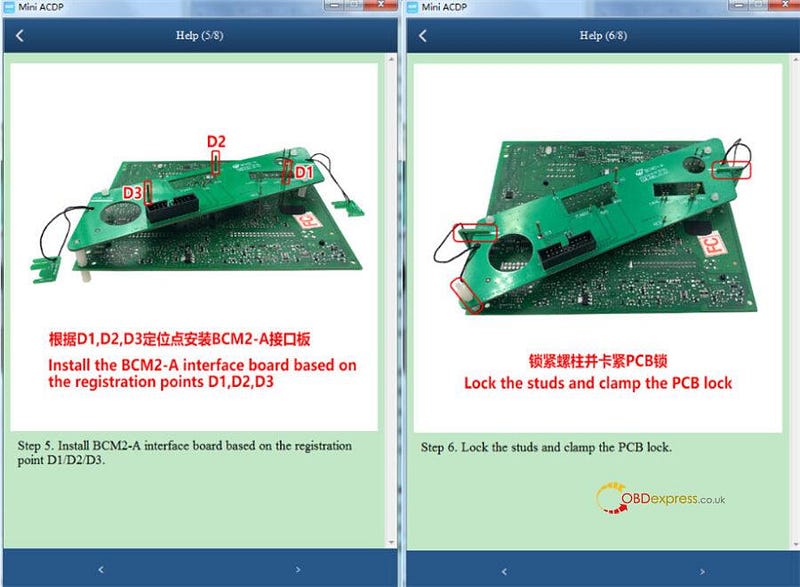
Step 2. Locate the D1, D2, D3 anchors on the BCM2 module.

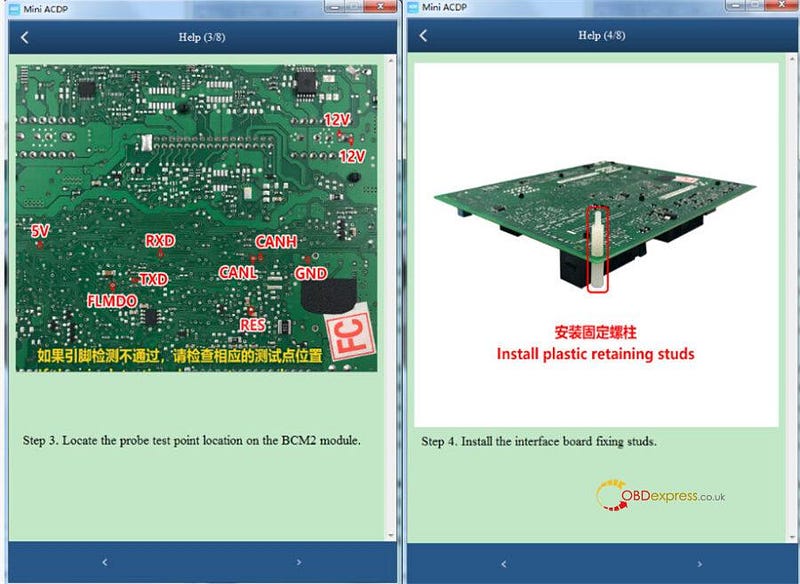
Step 3. Locate the probe test point location on the BCM2 module.

Step 4. Install the interface board fixing studs.

Step 5. Install BCM2-A interface board based on the registration point D1/D2/D3.

Step 6. Lock the studs and clamp the PCB lock.

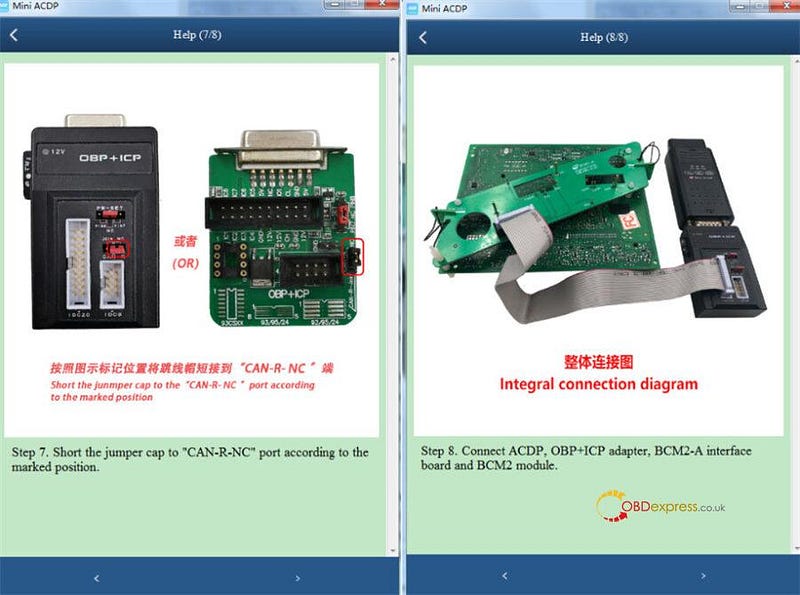
Step 7. Short the jumper cap to "CAN-R-NC" port according to the marked position.

Step 8. Connect ACDP, OBP+ICP adapter, BCM2-A interface board and BCM2 module.
Yanhua ACDP-The Solder-Free Solution for Audi BCM2 Key Programming

Yanhua ACDP-The Solder-Free Solution for Audi BCM2 Key Programming

Yanhua ACDP-The Solder-Free Solution for Audi BCM2 Key Programming

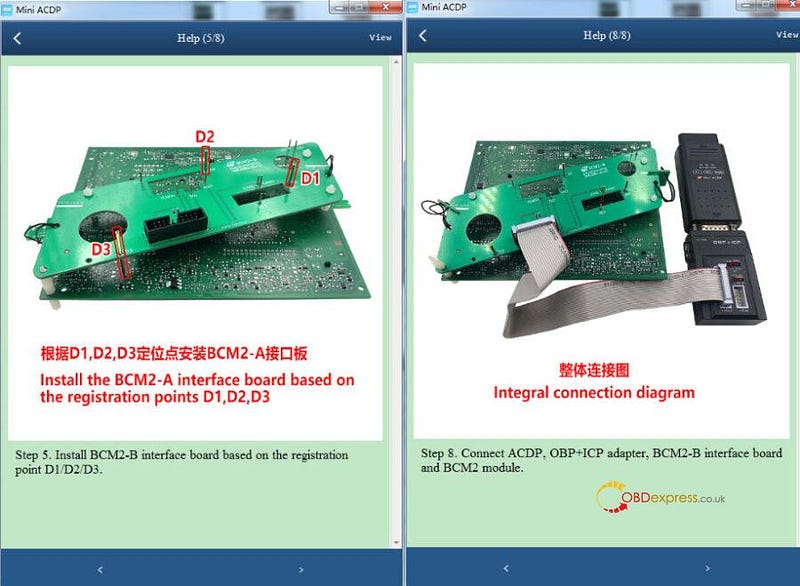
  • For BCM2-B interface board:

Yanhua ACDP-The Solder-Free Solution for Audi BCM2 Key Programming

Note: The connection images of step 2, step 4, step 6, and step 7 are the same as BCM2-A interface board. Just refer to it.

Run Mini ACDP APP

Select VW>> Audi 5th BCM2 IMMO>> Step 1: OBD Identify>> Step 2: Get BCM2 IMMO data>> Step 3: Make dealer key>> Step 4: OBD learn key

It supports special function as well.
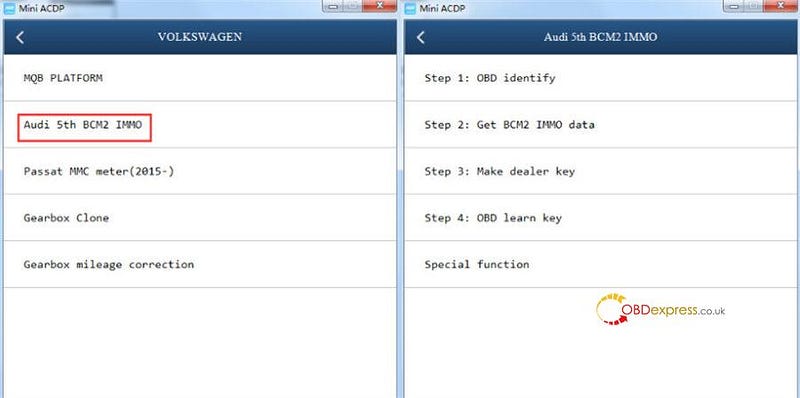
Yanhua ACDP-The Solder-Free Solution for Audi BCM2 Key Programming

In detail…

Step 1: OBD Identify

Tap read vehicle info to start

Notes:

  • Connect ACDP to vehicle OBDII, and it is forbidden to power off or unplug the device during operation!
  • If have working key, please insert to/near ignition switch and light the meter.
  • If all key lost, please open the car headlight and press the brake for several times!

Step 2: Get BCM2 IMMO data

1.OBD read IMMO data

Tap Start read data

Notes:

  • Connect ACDP to vehicle OBDII, and it is forbidden to power off or unplug the device during operation!
  • If have working key, please insert to/near ignition switch and light the meter.
  • If the working key is already in car, take out and insert in again (also switch START/STOP button).
  • If all key lost, open the car headlight and step on the brake.
  • If ACDP prompts that the BCM2 module needs to be powered off, disassemble/install the BCM2 module connector according to the illustration!

2.ICP Read IMMO data- BCM2 not encrypted

Select the corresponding BCM2 chip models below:

BCM2 (D70F3381)

BCM2 (D70F3382)

BCM2 (D70F3634)

BCM2 (D70F3635)
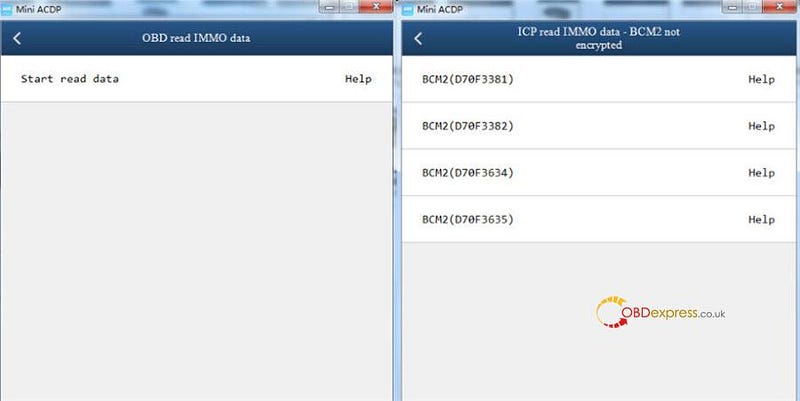
Yanhua ACDP-The Solder-Free Solution for Audi BCM2 Key Programming

Notes:

  • Confirm BCM2 chip model, this feature is suitable for unencrypted BCM2 module read IMMO data, DFLASH and PFLASH.
  • Disassemble/install the BCM2 module connector according to the illustration, don't close the trunk!

Read IMMO data

Read chip data:

  • Read DFLASH data
  • Read PFLASH data
  • Write DFLASH data
  • Write PFLASH data

3.ICP Read IMMO data- BCM2 encrypted

Select the corresponding BCM2 chip models below:

A4L/A5/Q5 2014- add key or lost all key (All version)

A6L/A7/A8 2015- Lost all key (0824/0825/0827)

A6L/A7/A8 2015- Lost all key (0510/0521/0551/0560/0572/0582)

Pay attention to the note for every BCM chip

1.This feature is risky, all consequences are borne by the user.

2.Forbidden to move the module and harness and power supply during operation, don't close the trunk and keep the network connect.

3.

  • For A4L/A5/Q5:

It is suitable for A4L/A5/Q5 key add and all key lost to read BCM2 IMMO data after 2013 (all key lost don't need to sync data).

Such models don't support OBD direct read BCM2 IMMO data, and BCM2 is locked and don't support programmer direct reading.

  • For A6L/A7/A8:

It is suitable for A6L/A7/A8 all key lost to read BCM2 IMMO data after 2013 (sync data needs to contact a third party).

Such models key add support for OBD to read BCM2 IMMO data, and don't perform this function.

Read IMMO data (Automatic)

Read IMMO data (Single step):

Step 1: Read BCM2 CONF data

Step 2: Online make IMMO/serve data

Step 3: Write BCM2 serve data
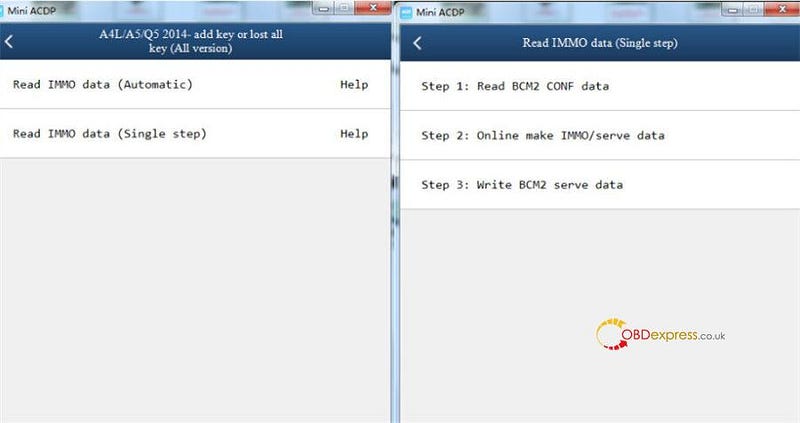
Yanhua ACDP-The Solder-Free Solution for Audi BCM2 Key Programming

Step 3: Make dealer key

A4L/A5/Q5 2014- add key or lost all key- Don't need working key

A6L/A7/A8 Touareg add key- Must have a working key

A6L/A7/A8/Touareg lost all key- should have the sync data

Notes:

1.Prepare the BCM2 IMMO data obtained in the step 2, and then put the blank key into the BAV-KEY adapter.

2.When the A4L/A5/Q5 add key or lost all key, make the dealer key don't need working key.

When the A6L/A7/A8/Touareg add key, make the dealer key need to get sync data from the working key.

When the A6L/A7/A8/Touareg lost all key, make the dealer key need to get sync data from a third party.
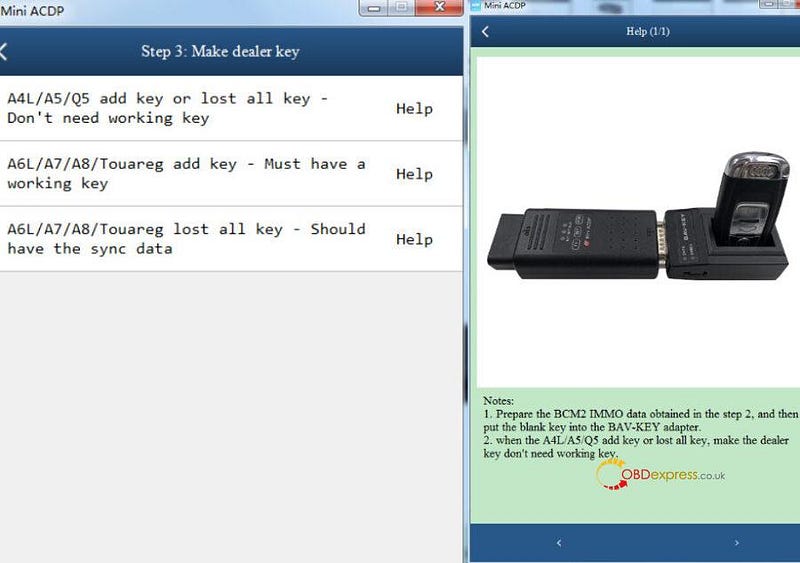
Yanhua ACDP-The Solder-Free Solution for Audi BCM2 Key Programming

Step 4: OBD learn key

Tap Start learn key

Notes:

  • Connect ACDP to vehicle OBDII correctly, and don't cut the power nor pull out the device during the operation.
  • Prepare all the keys of the current car, the unlearned keys will not be able to start the car.
  • Insert the key to be learned into the ignition switch in turn, and when successfully learn a key, the X of X/Y in the instrument screen will be added by 1.
  • If there is only an induction coil, need to close and open the start button after each key learned.
  • All operations of learning the key should be completed within two minutes.
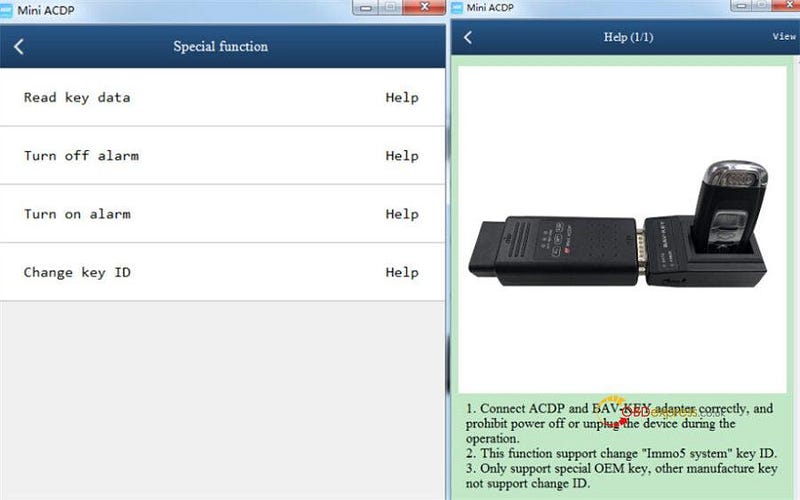
    1. Special function:

      • Read key data

      Note: Connect ACDP and BAV-KEY adapter correctly, and prohibit power off or unplug the device during the operation.

      • Turn off alarm

      Note: Connect ACDP and vehicle OBDII correctly, and prohibit power off or unplugging the device during the operation.

      • Turn on alarm
      • Change key ID

      Notes:

      1.Connect ACDP and BAV-KEY adapter correctly, and prohibit power off or unplug the device during the operation.

      2.This function support change "Immo5 system" key ID.

      3.Only support special OEM key, other manufacture key not support change ID.
      Yanhua ACDP-The Solder-Free Solution for Audi BCM2 Key Programming

      With the detailed instruction inside the APP, it's very easy and convenient to use Yanhua ACDP with module 29 to add new key and do all keys lost for AUDI Gen5 BCM2 IMMO.

      Both Yanhua Mini ACDP and module 29 are available at obdexpress.co.uk.

      Yanhua Mini ACDP Programming Tool Master Basic Module with License A801:

      https://www.obdexpress.co.uk/wholesale/yanhua-bmw-mini-acdp-key-master.html

      Yanhua ACDP Audi Gen5 BCM2 IMMO Module 29 with License A603:

      https://www.obdexpress.co.uk/wholesale/yanhua-audi-gen5-bcm2-immo-module29.html

      www.obdexpress.co.uk

      Monday, 13 June 2022

      Will there be red dots when Yanhua tool erases 35128 chip data?

       Hello everyone, I used Yanhua module 4 to erase the 35128 chip. Will red dots appear when erasing the chip data under normal circumstances?

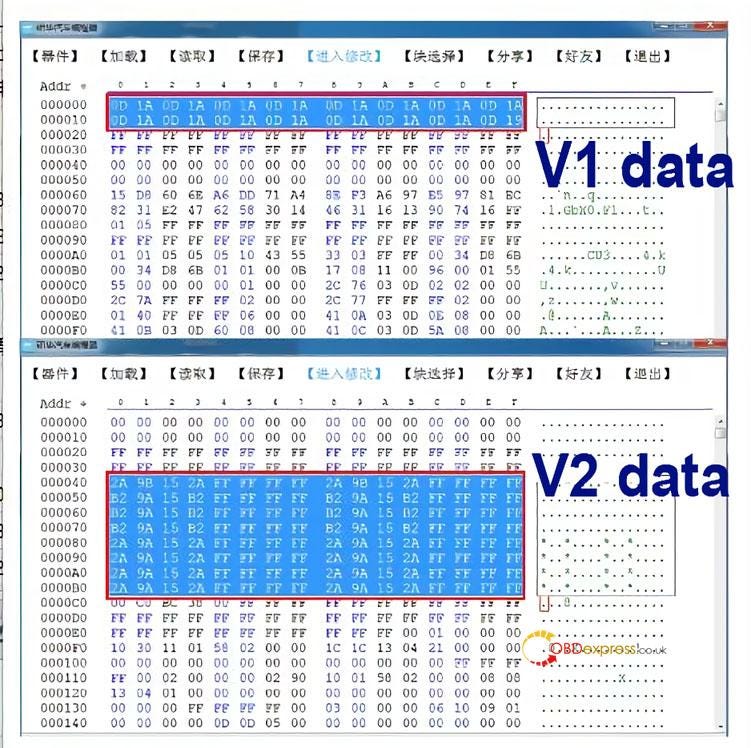
      Yanhua engineer replies: 35128 chip has two kinds of data (V1 and V2)

      Precautions for Yanhua ACDP erasing 35128 chip data

      V2 can directly wipe data without red dots.

      V1 cannot directly erase data, and the analog chip needs to be replaced. Users can use Yanhua 35XX programmer + Simulator to read and modify data with Yanhua Mini ACDP or Digimaster 3.

      Thanks for the reply from the engineer, one more question: I put can file wrong, it jumped back mileage. Then i try make again, but cannot read or write. Can the simulator only change the mileage once?

      Yanhua engineer replied:

      The simulator can modify the mileage many times, but chip soldering is not an easy task. If the chip is soldered many times, the chip is easy to break.

      It is recommended that you check whether there is a problem with the soldering of the chip. If there is no problem, you should consider whether the chip is damaged.

      Technical support: obdexpress.co.uk

      Thursday, 31 March 2022

      How to Connect Yanhua Mini ACDP to Android Phone Hotspot?

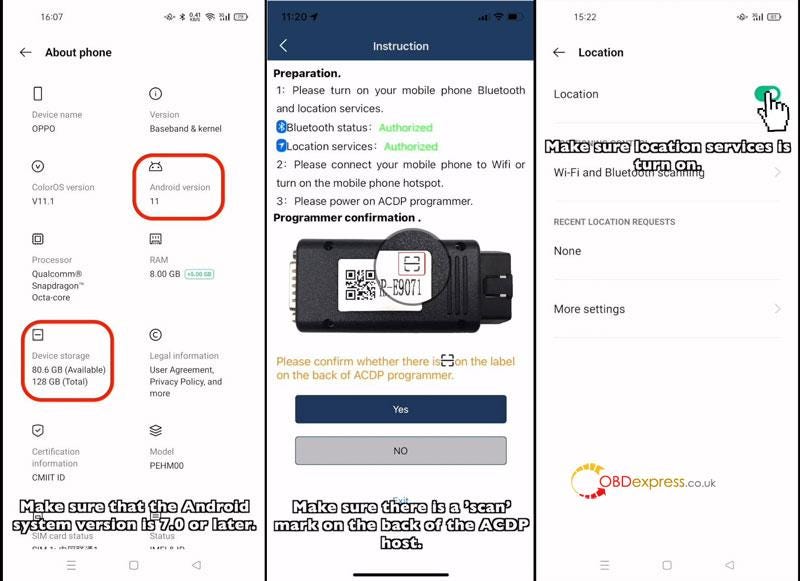
       Here we have introduced 2 methods to connect Yanhua Mini ACDP with hotspot on Android phone, including scanning & non-scanning mode. Noticed to find if there’s a “scan” mark on your device backside, then start setup.

      Read also

      How Yanhua Mini ACDP Connect to WIFI on IOS Android phone?

      ACDP Connect via Android Hotspot Scanning

      Note: This is for users who have a “scan” mark on ACDP device backside.

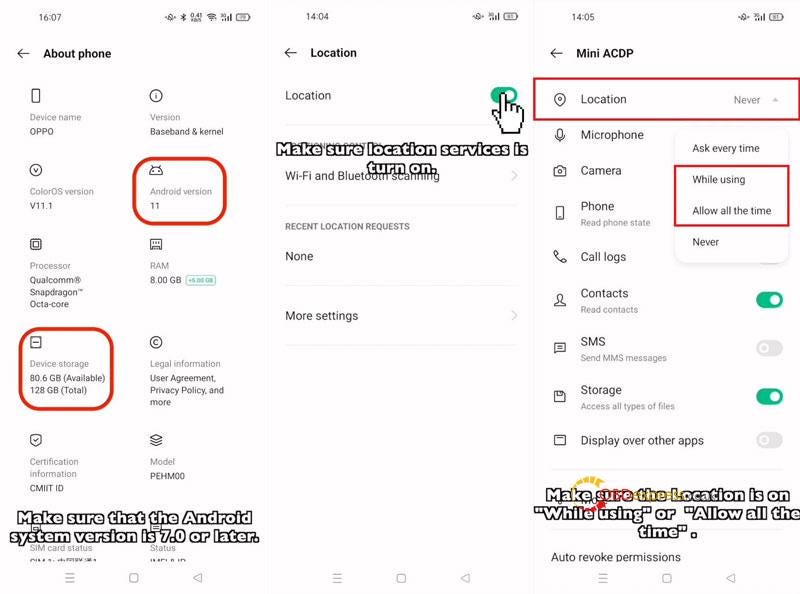
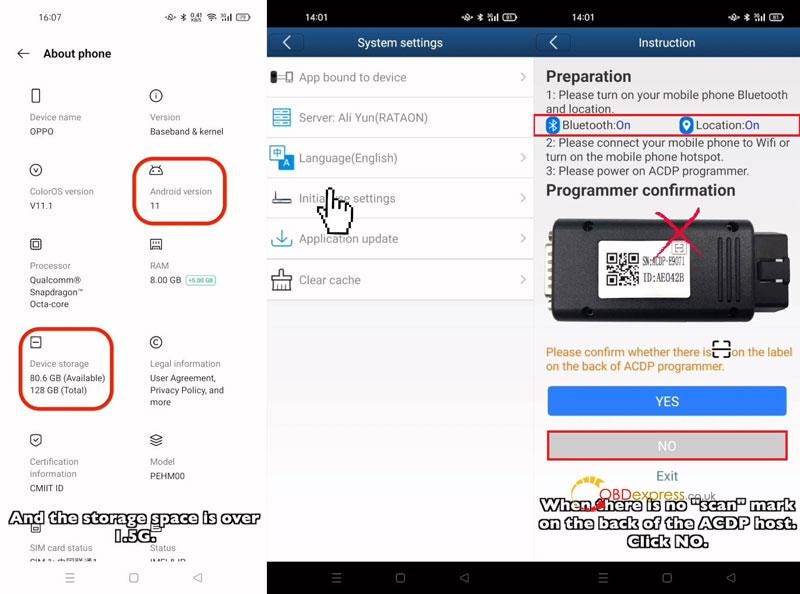
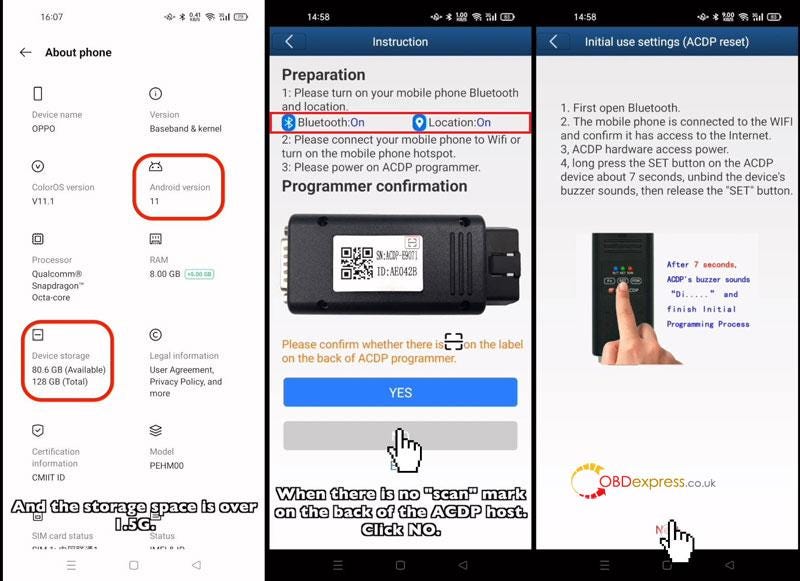
      Make sure Android system version is 7.0 or above. Storage space is over 1.5G.

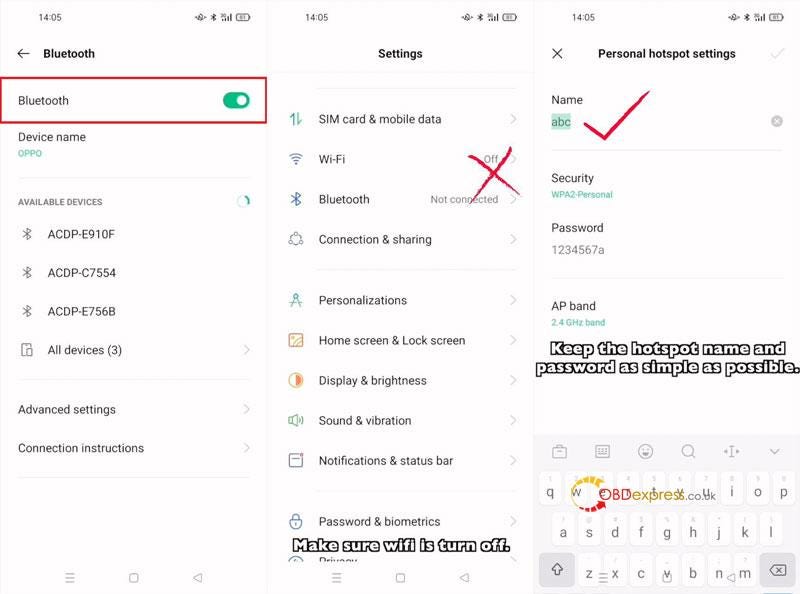
      Make sure Wi-Fi is turn off.

      Phone Settings

    2. Settings >> Privacy >> Location >> Turn on Location button
    3. Settings >> App management >> App list >> Mini ACDP >> Permissions >> Make sure Location is on and “While using” or “Allow all the time”
    4. Settings >> Bluetooth >> Turn on Bluetooth button
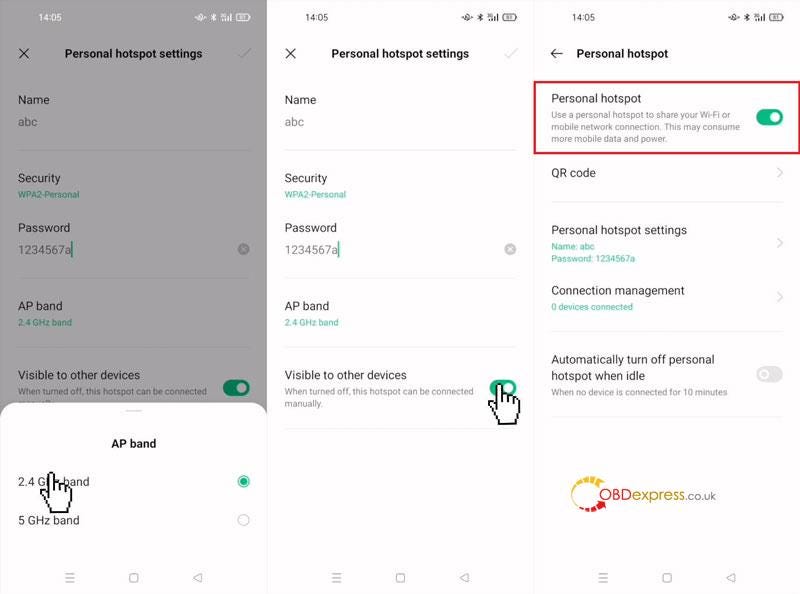
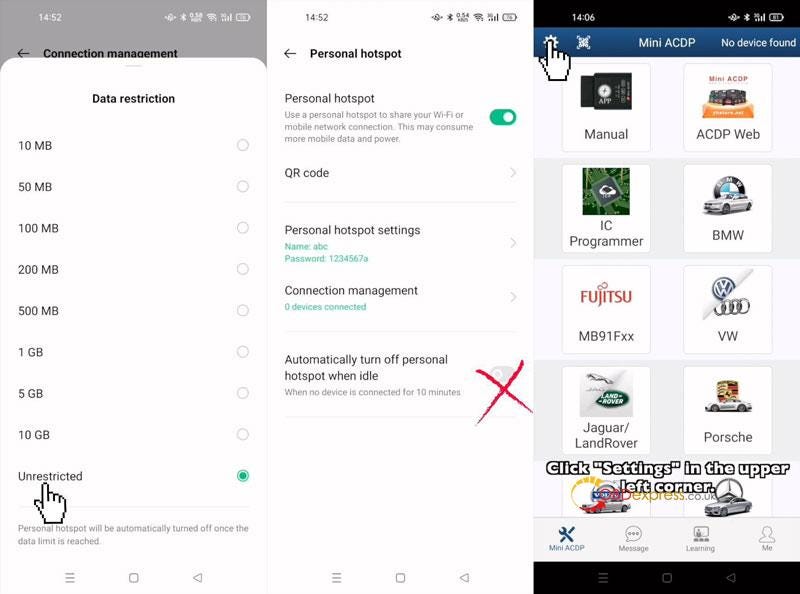
    5. Settings >> Connection & sharing >> Personal hotspot >> Personal hotspot settings >> Keep the hotspot name and password as simple as possible >> 2.4GHz band >> Turn on Visible to other devices button >> Turn on Personal hotspot button >> Connection management >> Data restriction >> Unrestricted
      1. *Make sure “Automatically turn off personal hotspot when idle” button is off.

        Yanhua Mini ACDP connected to the mobile APP(Android phones)Yanhua Mini ACDP connected to the mobile APP(Android phones)Yanhua Mini ACDP connected to the mobile APP(Android phones)Yanhua Mini ACDP connected to the mobile APP(Android phones)

        Mini ACDP APP Settings

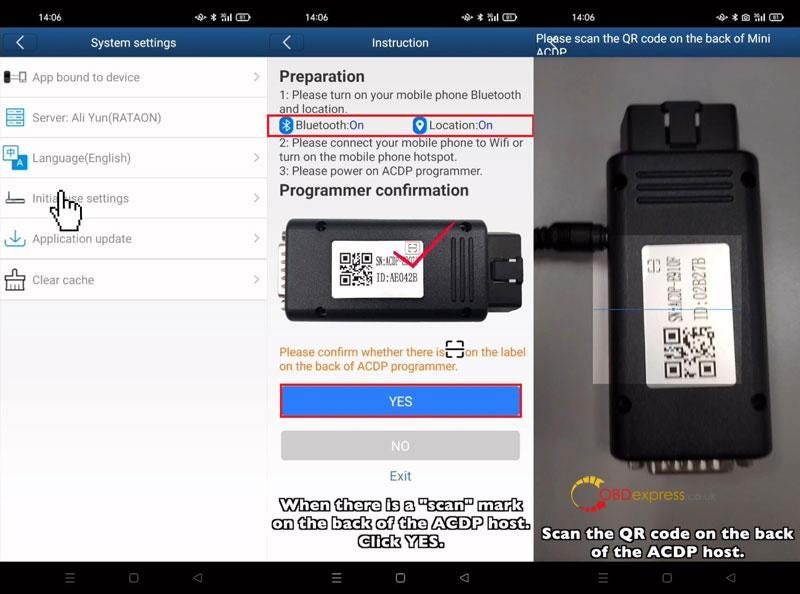
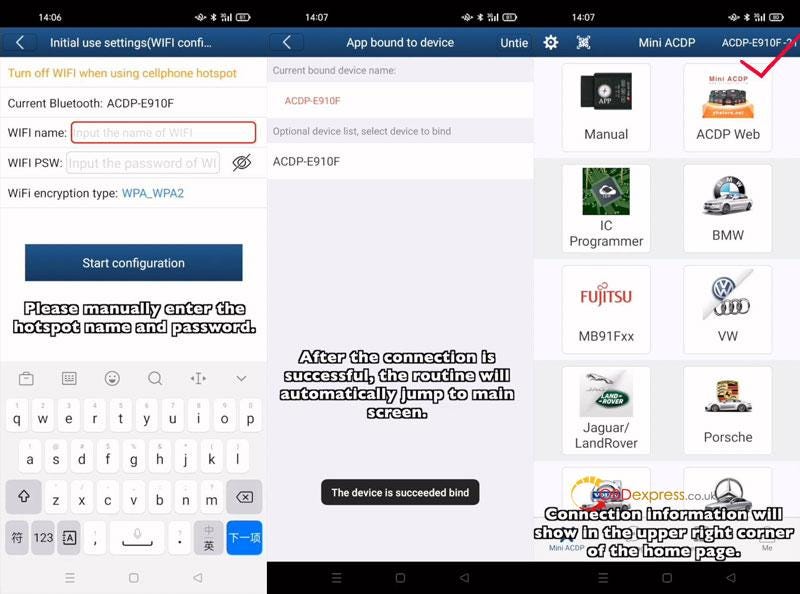
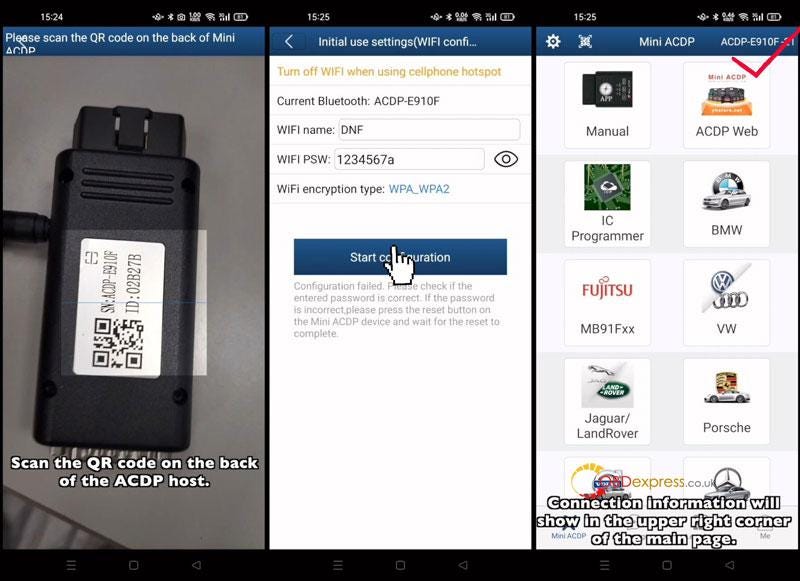
        Mini ACDP >> Settings >> Initial use settings

        Make sure Bluetooth & Location are ON.

        Yes >> Scan the QR code on ACDP backside >> Manually input the hotspot name & password >> Start configuration

        After connections is successful, it’ll jump to main screen automatically.

        You can see the info at the upper right corner.

        Yanhua Mini ACDP connected to the mobile APP(Android phones)Yanhua Mini ACDP connected to the mobile APP(Android phones)

        ACDP Connect via Android Hotspot Non-Scanning

        Note: This is for users who do not have a “scan” mark on ACDP device backside.

        Make sure Android system version is 7.0 or above. Storage space is over 1.5G.

        Wi-Fi is turn off.

        Phone settings are ALL SAME as above Android Hotspot Scanning method.

        Mini ACDP APP Settings

        Mini ACDP >> Settings >> Initial use settings

        Make sure Bluetooth & Location are ON.

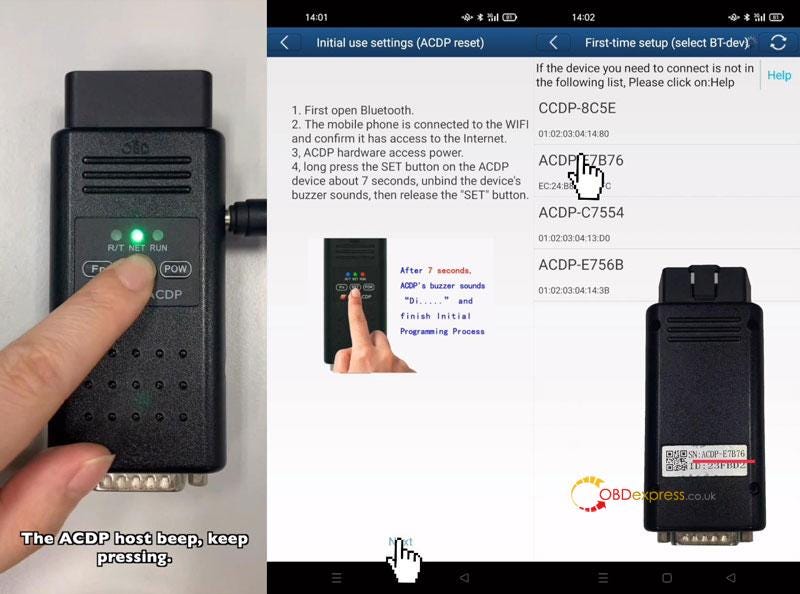
        No >> Follow the prompts to operate:

      2. Press SET button. ACDP beeps once.
      3. Keep pressing. When ACDP beeps twice that meant starting programming.
      4. Keep pressing until hearing a long beep, initial programming finished. Release SET button.
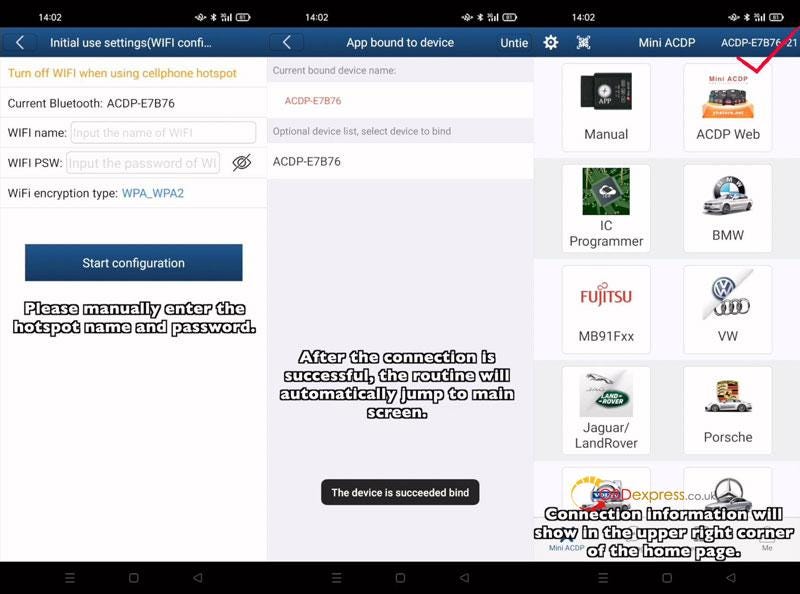
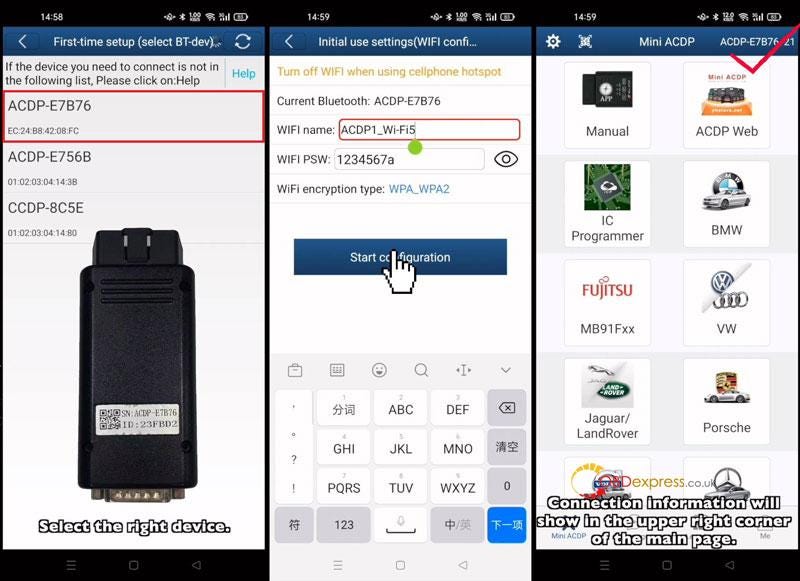
        1. Next >> Select ACDP SN >> Manually input the hotspot name & password >> Start configuration

          After connections is successful, it’ll jump to main screen automatically.

          Info is shown at the upper right corner of screen.

          Yanhua Mini ACDP connected to the mobile APP(Android phones)Yanhua Mini ACDP connected to the mobile APP(Android phones)Yanhua Mini ACDP connected to the mobile APP(Android phones)


          Monday, 21 March 2022

          How Yanhua Mini ACDP Connect to WIFI on IOS Android Phone?

           This is a tutorial on how to connect Yanhua Mini ACDP app to WIFI on a smart phone. Including scanning/ non-scanning mode in IOS & Android system.

          ACDP Connect via IOS WIFI Scanning

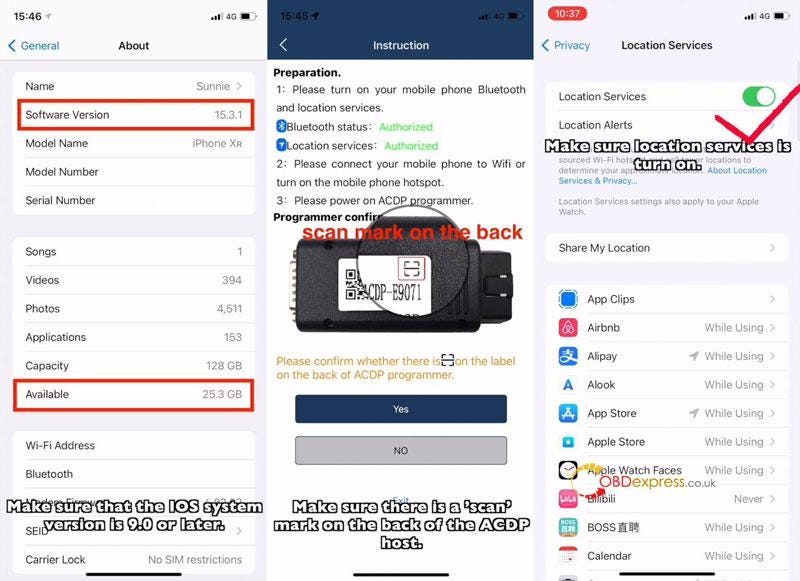
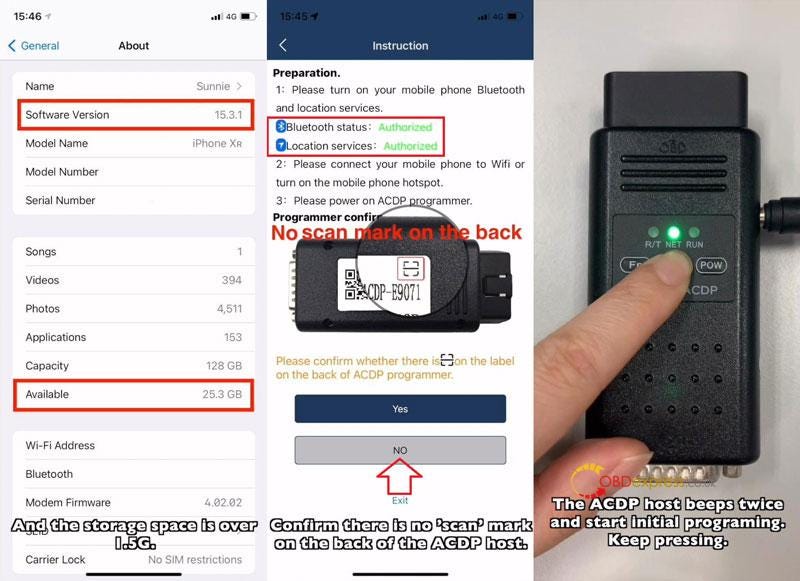
          Make sure the IOS system version is 9.0 or above, storage space is over 1.5G.

          Make sure there’s a SCAN mark on the ACDP host backside.

          Phone Settings

        2. Settings >> Privacy >> Location Services >> Turn on location services button
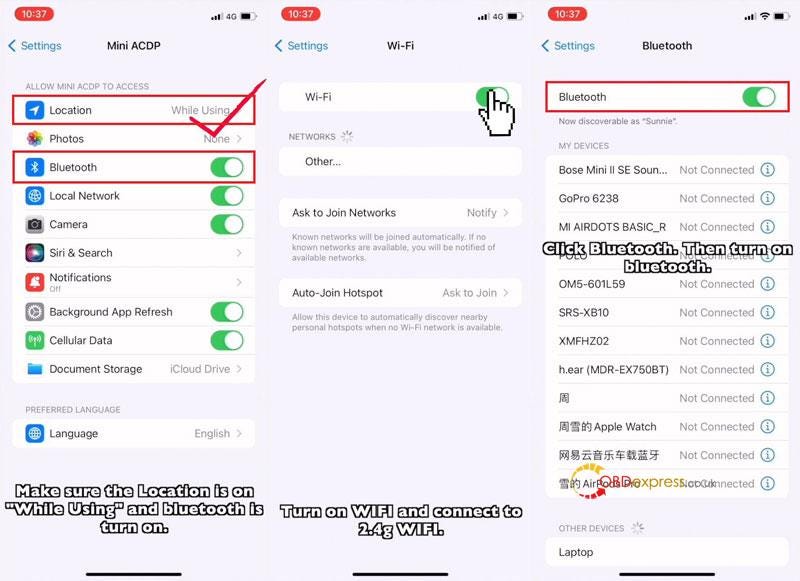
        3. Settings >> Mini ACDP >> Make sure location is on “While Using”& Bluetooth is turn on.
        4. Settings >> Wi-Fi >> Turn on WIFI & connect to 2.4G WIFI
          1. (5G WIFI is unsupported. And the WIFI name cannot contain Chinese characters or special characters.)

          2. Settings >> Bluetooth >> Turn on Bluetooth button
            1. Yanhua Mini ACDP Connect to WIFI on IOS Android PhoneYanhua Mini ACDP Connect to WIFI on IOS Android Phone

              Mini ACDP App Settings

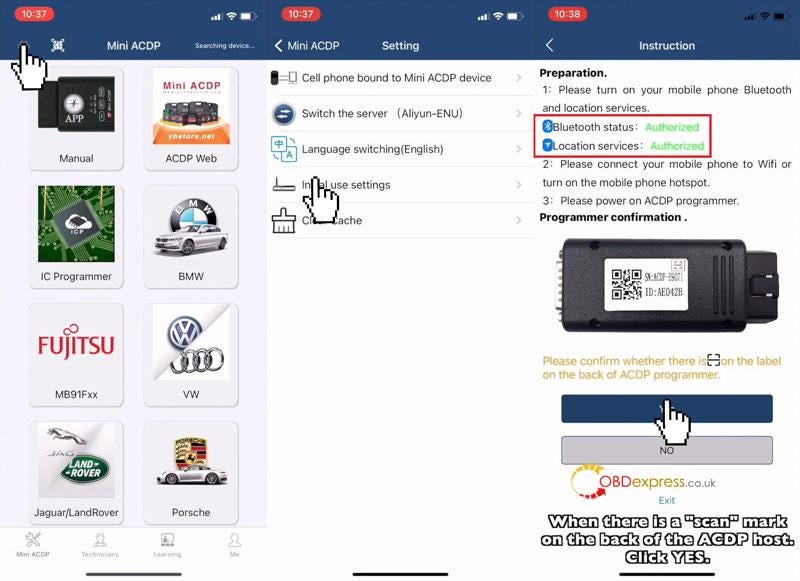
              Mini ACDP>> Setting >> Initial use settings

              Make sure Bluetooth & location services are authorized.

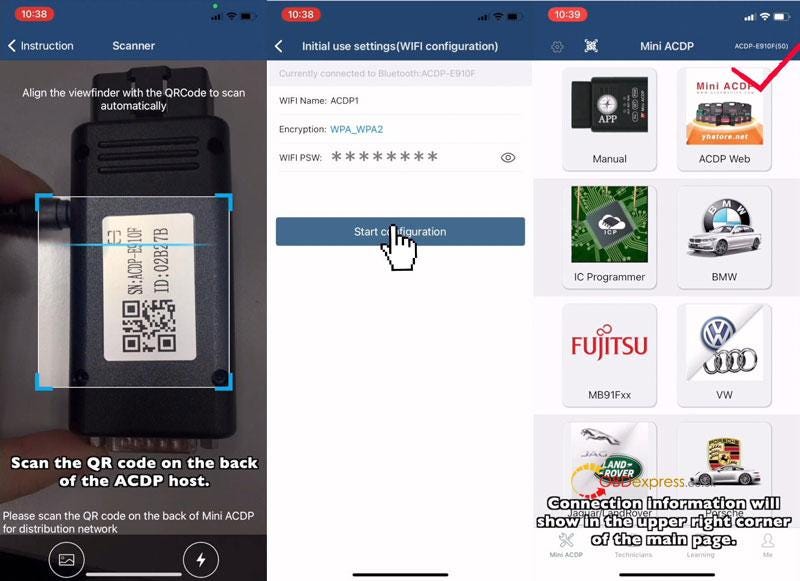
              Yes >> Scan the QR code on ACDP

              WIFI name & password will be automatically entered. If the password is not automatically entered, manually enter the WIFI password.

              Click “Start configuration”.

              Once successful, the routine will automatically jump to main screen.

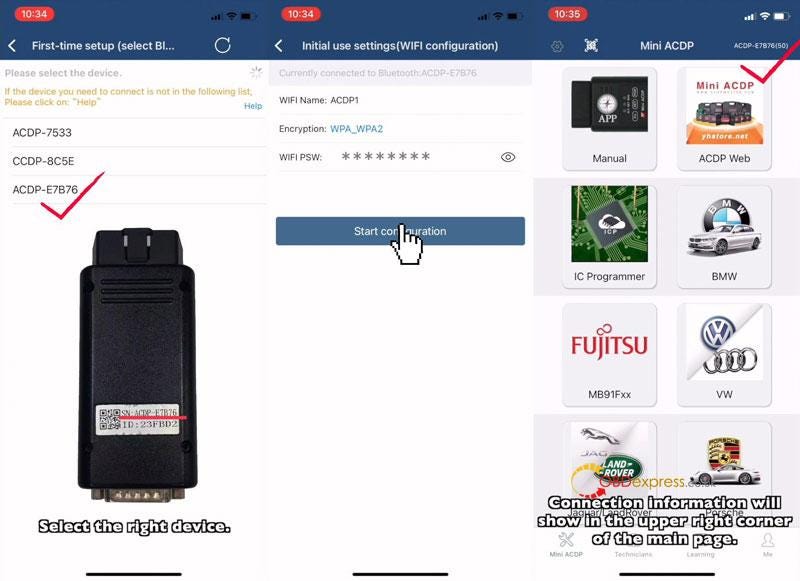
              Connection info will show in the upper right corner of main page.

              Yanhua Mini ACDP Connect to WIFI on IOS Android PhoneYanhua Mini ACDP Connect to WIFI on IOS Android Phone

              ACDP Connect via IOS WIFI Non-Scanning

              Confirm there’s no SCAN mark on the ACDP host backside.

              Make sure iphone settings are same as above IOS WIFI Scanning.

              Mini ACDP App Settings

              Mini ACDP >> Setting >> Initial use settings

              Make sure Bluetooth & location services are authorized.

              Click “No” and follow the instructions:

              Press and hold SET button on ACDP. During the process, it’ll sound a short beep, then 2 short beeps, just keep pressing until hearing a long beep, then release.

              Select right device >> Start configuration

              *WIFI name & password will be automatically entered. If the password is not automatically entered, manually enter the WIFI password.

              Done.

              Yanhua Mini ACDP Connect to WIFI on IOS Android PhoneYanhua Mini ACDP Connect to WIFI on IOS Android Phone

              ACDP Connect via Android WIFI Scanning

              Make sure Android system version is 7.0 or above, storage space is over 1.5G.

              Make sure there’s a SCAN mark on the ACDP host backside.

              Phone Settings

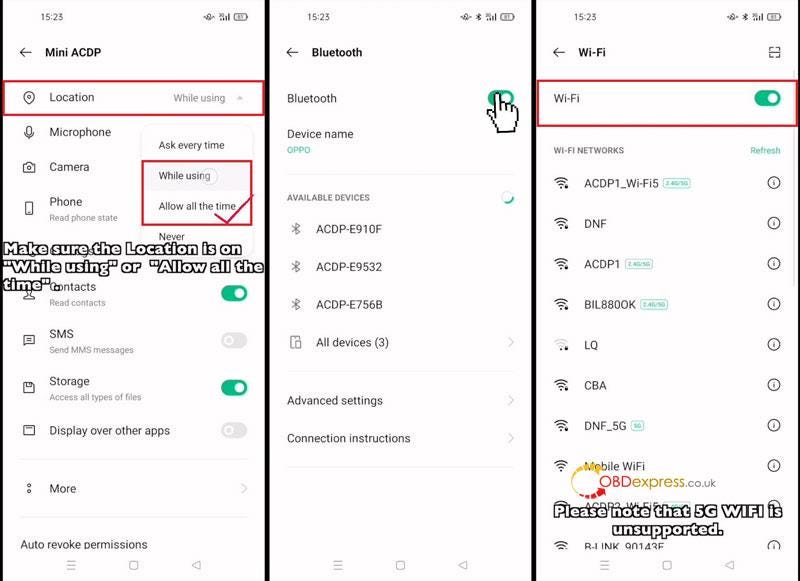
            2. Settings >> Privacy >> Location >> Turn on Location button
            3. Settings >> App management >> App list >> Mini ACDP >> Permissions >> Make sure locations is on “While using” or “Allow all the time”
            4. Settings >> Bluetooth >> Turn on Bluetooth button
            5. Settings >> Wi-Fi >> Turn on WIFI & connect to 2.4G WIFI
              1. (5G WIFI is unsupported. And the WIFI name cannot contain Chinese characters or special characters.)

                Yanhua Mini ACDP Connect to WIFI on IOS Android PhoneYanhua Mini ACDP Connect to WIFI on IOS Android Phone

                Mini ACDP App Settings

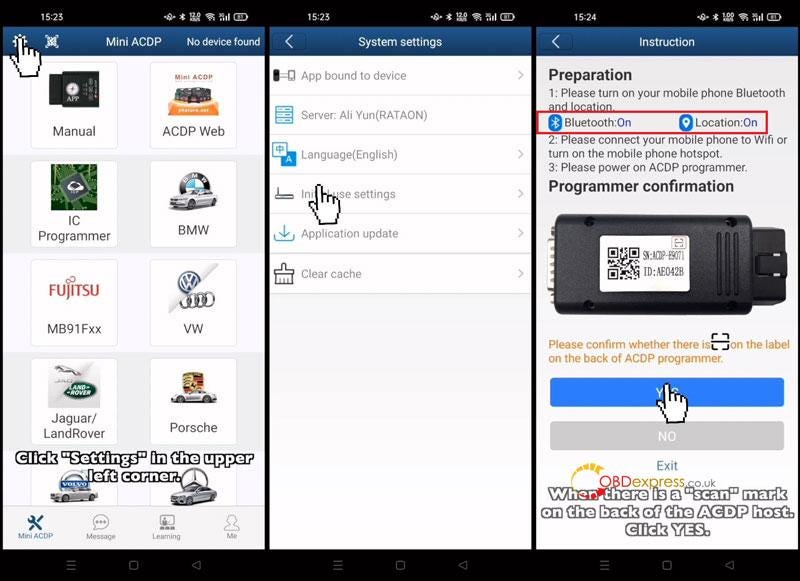
                Mini ACDP >> Setting >> Initial use settings

                Make sure Bluetooth & location services are ON.

                Yes >> Scan QR code on ACDP >> Manually enter WIFI password >> Start configuration

                Once connection is successful, the routine will automatically jump to main screen and show info in the upper right corner.

                Done.

                Yanhua Mini ACDP Connect to WIFI on IOS Android PhoneYanhua Mini ACDP Connect to WIFI on IOS Android Phone

                ACDP Connect via Android WIFI Non-Scanning

                Make sure there’s no SCAN mark on the ACDP host backside.

                Make sure phone settings are same as above Android WIFI Scanning.

                Mini ACDP App Settings

                Mini ACDP >> Setting >> Initial use settings

                Make sure Bluetooth & location services are ON.

                Click “No” and follow the instructions:

                Press and hold SET button, ACDP will sound a short beep, then 2 short beeps. Keep pressing until hearing a long beep, then release.

                Select right device >> Manually enter WIFI password

                Once succeeded bind, connection info will show in the upper right corner of main page.

                Done.

                Yanhua Mini ACDP Connect to WIFI on IOS Android PhoneYanhua Mini ACDP Connect to WIFI on IOS Android Phone

                www.obdexpress.co.uk
                How to Unlock Ford BOSCH MD1CP006 with OBDSTAR ECU Master via Boot?
                 This guide covers the procedure for unlocking, reading, and writing locked Bosch MD1 CP006 engine control units found on Ford F-250 and F-...