Showing posts with label Godiag GD101. Show all posts

Wednesday, 6 September 2023

Godiag GD101 J2534 Passthru Interface Renault Software User Guide

 The newest Renault software V230 is compatible with Godiag GD101 J2534 Passthru Cable for Renault vehicles diagnosis.

Free download Renault software V230

Password: RenaultCan230clip

Full installation kit with Activation

* Setup

* Reg file

* KG

* Clear instructions for DIY

Software information:

Version: V230

Last version from 22.08.2023

Language: English, German, Denish, Spanish, Finnish, French, Italian, Norwegian, Dutch, Portuguese, Romanian, and Swedish.

Operating system: Windows 7, Windows 10 and java required.

No new vehicle integrated on this version.
Godiag GD101 J2534 Passthru Interface Renault Software User Guide

Godiag GD101 J2534 Passthru Interface Renault Software User Guide

Godiag GD101 J2534 Passthru Interface Renault Software User Guide

Godiag J2534 Driver V2.3 is required.

Free download here.

Steps to Activate Renault software V230:

  • Open the Activation folder and run Crack Renault CLIP.reg
  • Open the clip 230 file and run setup.exe
  • Open the desktop CLIP shortcut icon to get the ID to activate the software (the keygen is in the Activation folder)
  • Run godiag _canclip.reg
    1. Steps to install Godiag J2534 driver:

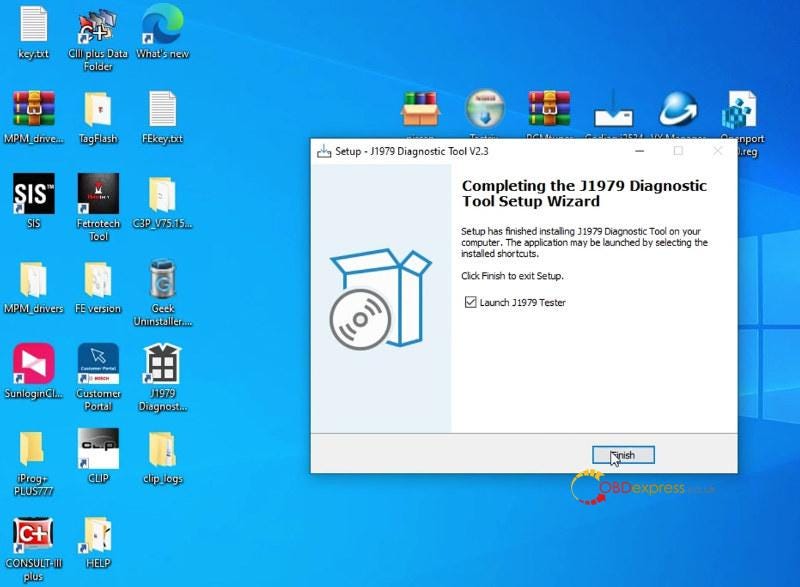
      1.Run godiag j2534 v2.3 program on the desktop

      2.Select language, destination location, components, start menu folder, and additional tasks

      3.Start to install

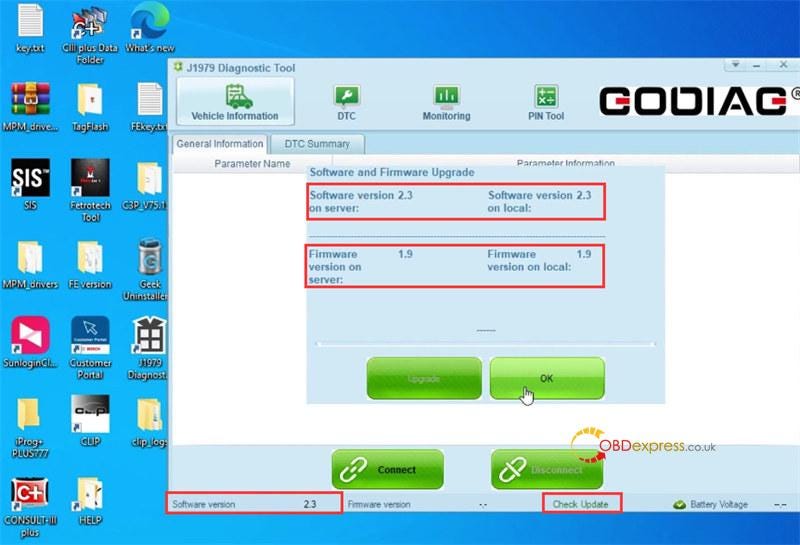
      4.After installation, launch J1979 diagnostic tool v2.3, click "Check update", the software and firmware version are the newest.
      Godiag GD101 J2534 Passthru Interface Renault Software User Guide

      Godiag GD101 J2534 Passthru Interface Renault Software User Guide

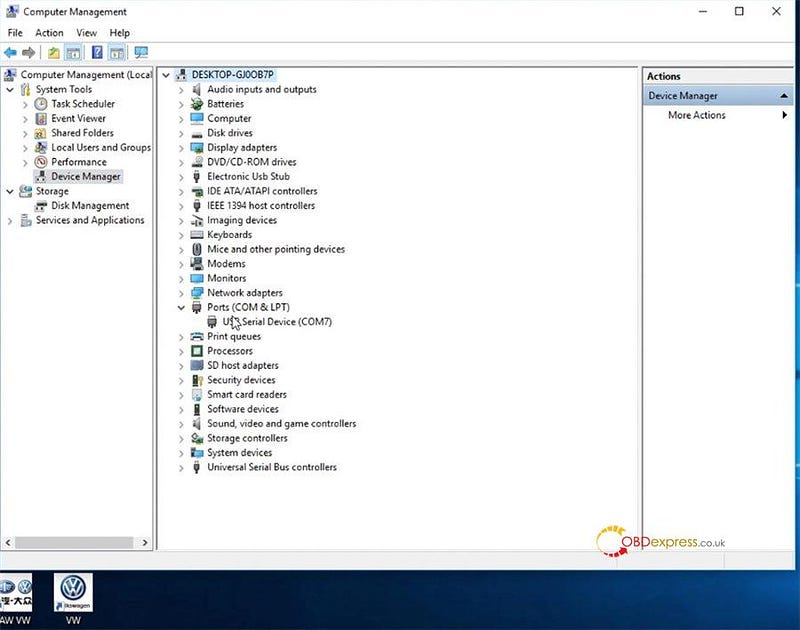
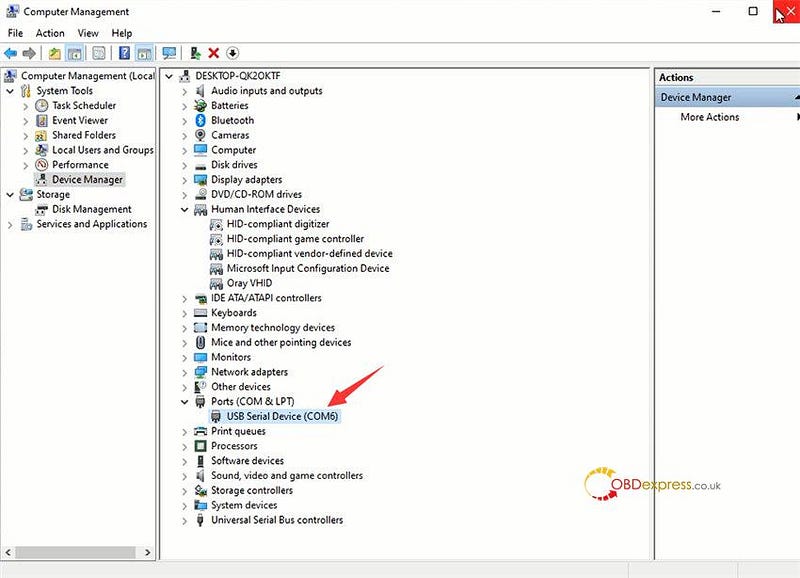
      Go to Computer Management>> Device Manager>> Ports (COM& LPT) to see if there is a USB Serial Device port. If yes, it means the Godiag J2534 driver is installed successfully.
      Godiag GD101 J2534 Passthru Interface Renault Software User Guide

      Tips to set up Renault software with Godiag J2534 Passthru interface:

      Set "Vendor"= "79B" and "Name"= "1B" on your passthru registry settings in HKEY_LOCAL_MACHINE\SOFTWARE\PassThruSupport.04.04\<VCI>.

      Recommend creating a new vci entry by exporting from the registry and editing the reg file.

      Simple steps to diagnose Renault:

      Connect Godiag J2534 Cable to the Renault vehicle and computer

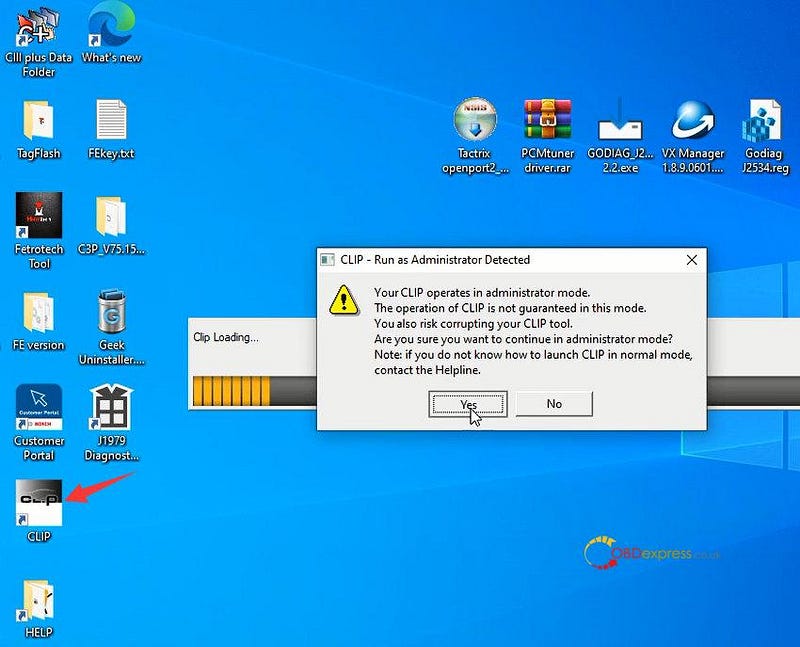
      Run CLIP software in administrator mode on the desktop

      Accept the information collection

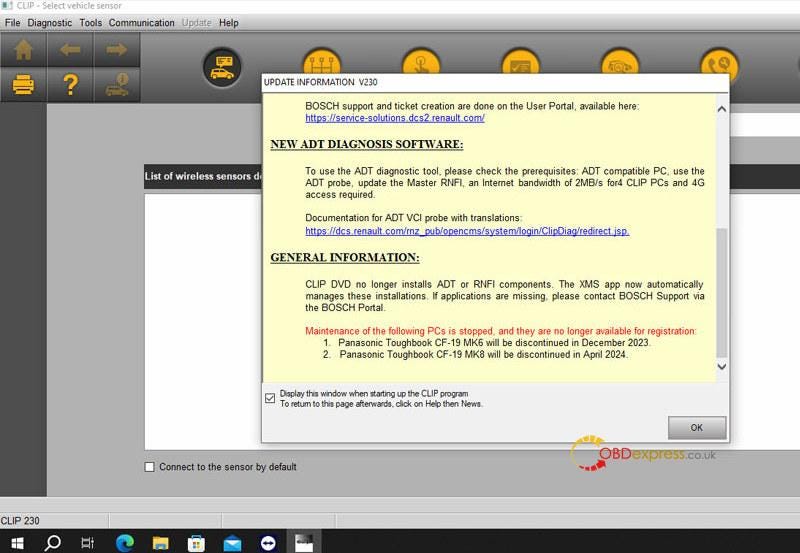
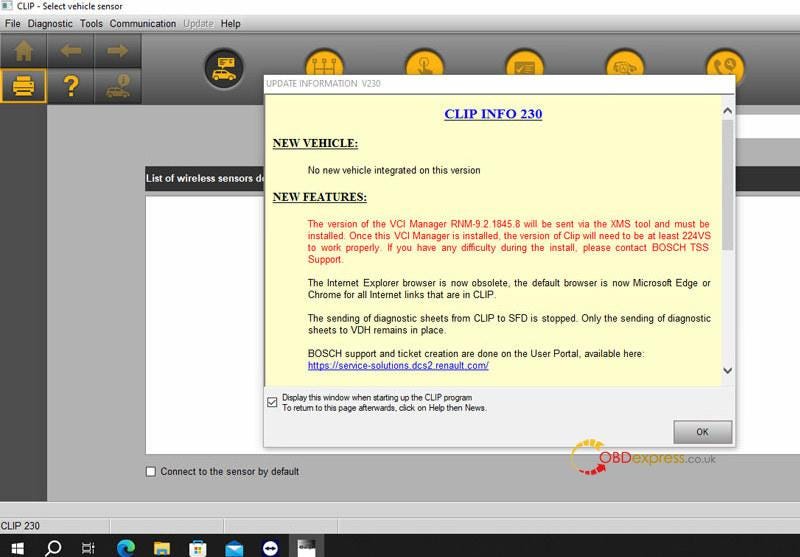
      Read the Clip software update info, and click "OK" to continue

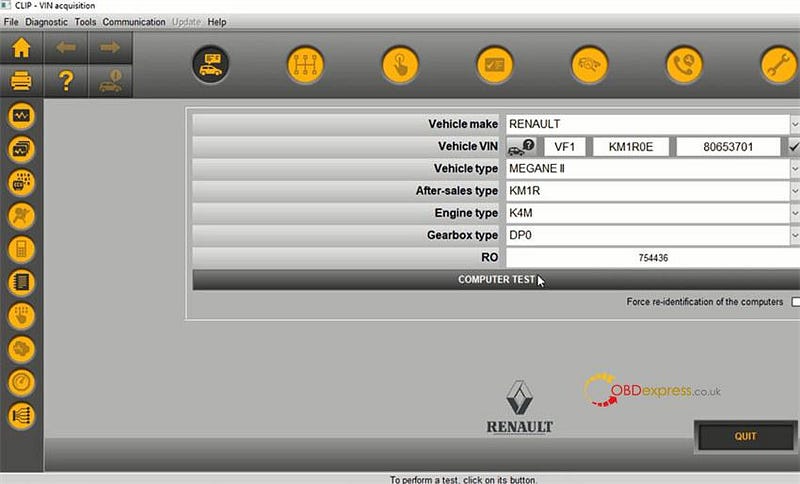
      Select the Renault vehicle type and click "COMPUTER TEST"

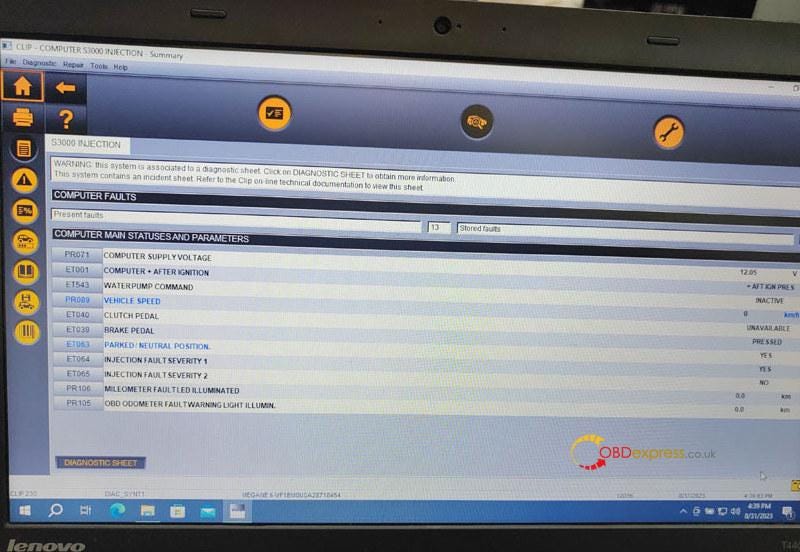
      Then follow the prompt to complete the diagnostic process.
      Godiag GD101 J2534 Passthru Interface Renault Software User Guide

      Godiag GD101 J2534 Passthru Interface Renault Software User Guide

      www.obdexpress.co.uk


      Wednesday, 19 April 2023

      JLR SDD V164 Download Free for Godiag GD101 J2534/ JLR Mangoose SDD Pro

       Free download the newest software JLR SDD V164 for Godiag GD101 J2534 Passthru Diagnostic Cable, JLR Mangoose SDD Pro, VXDIAG VCX SE JLR DOIP and VXDIAG VCX NANO JLR, etc. on Windows7/8/10.

      JLR SDD V164 free download link:

      https://mega.nz/folder/N54GHRoY#jMF3dtazFC3nASGwNxaLBw

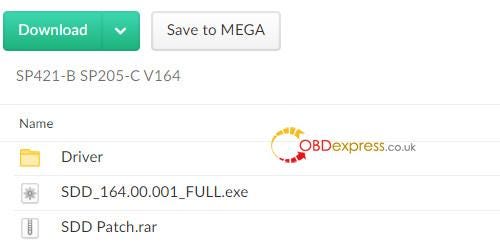
      The folder contains Driver, SDD patch, SDD_164.00.001_FULL.

      JLR SDD V164 Download Free for Godiag GD101 J2534 and JLR Mangoose SDD Pro

      After downloading, install all software, patch, and corresponding driver.

      JLR SDD V164 Download Free for Godiag GD101 J2534 and JLR Mangoose SDD Pro

      SDD function:

      Data Lists+ Active Tests+ Monitor+ Utility tests+ Reprogramming+ Diagnose trouble codes

      Vehicle coverage:

      • Jaguar Land rover 2005–2017
      • Supports L316, L319, L320, L322, L359, L538 Land Rover Vehicle Lines
      • Supports X100, X150, X202, X250, X350, X351, X400 Jaguar Vehicle Lines

      Language: English, German, Russian, French, Dutch, Portuguese, Japanese, Korean, Spanish, Italian and Simplified Chinese.

      www.obdexpress.co.uk

      Tuesday, 11 April 2023

      How to Upgrade Godiag GD101 J2534 Firmware Online?

       It's easy and fast to update Godiag GD101 J2534 firmware. Download and Install Godiag J2534 Driver, then run J1979 Diagnostic Tool program to update online directly.

      Detailed procedure:

      Free download Godiag J2534 Driver V2.1 (newest)

      O.S: Windows 8/10/11, 32/64bit

      Steps to install Godiag GD101 J2534 Driver:

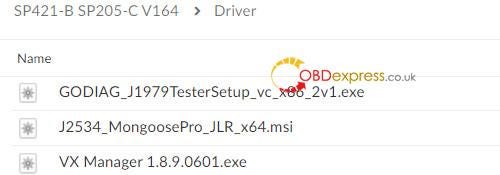
      1.After downloading, open Godiag_J1979TesterSetup_vc_x86_2v1.exe on the desktop

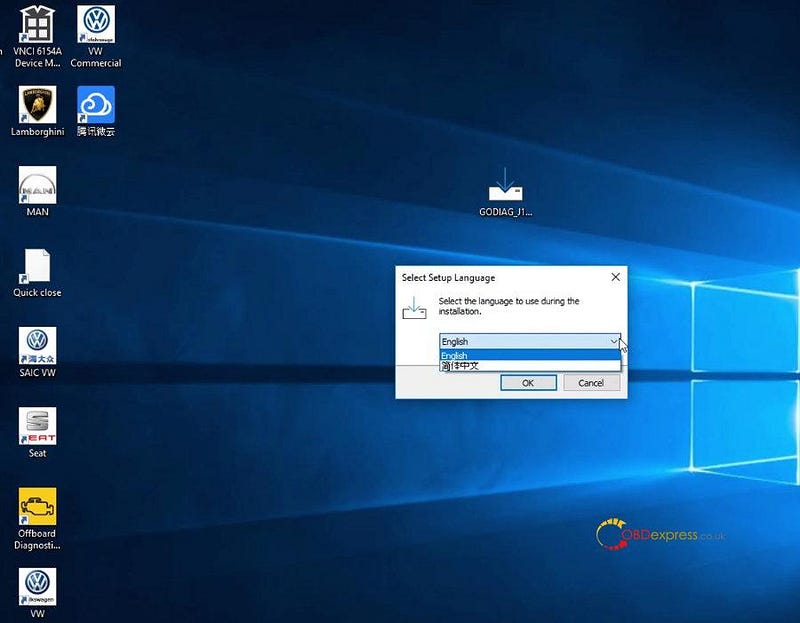
      2.Select language (English or Simplified Chinese)

      Upgrade Godiag GD101 J2534 Firmware Online

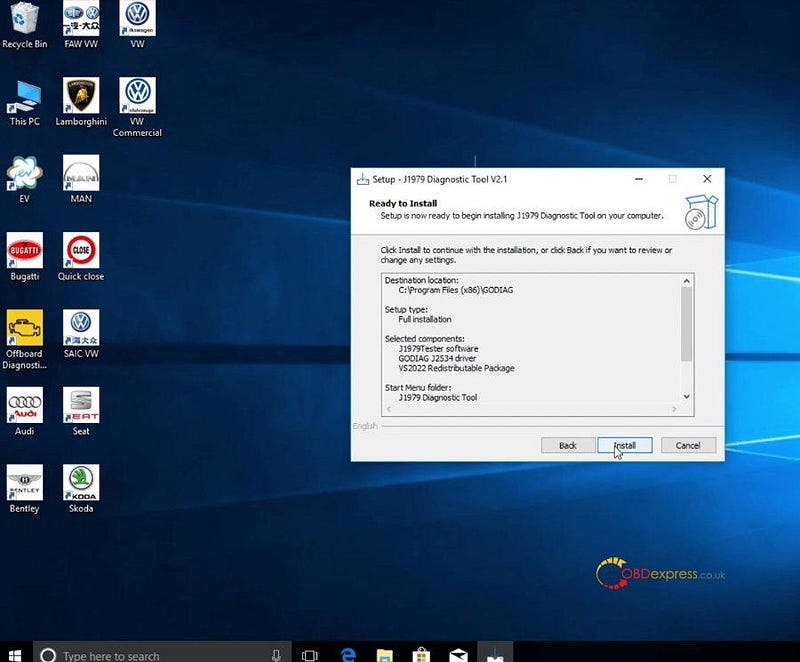
      3.Select Destination location>> Components>> Start Menu folder>> Additional tasks

      Just default the system selection and click "Next"

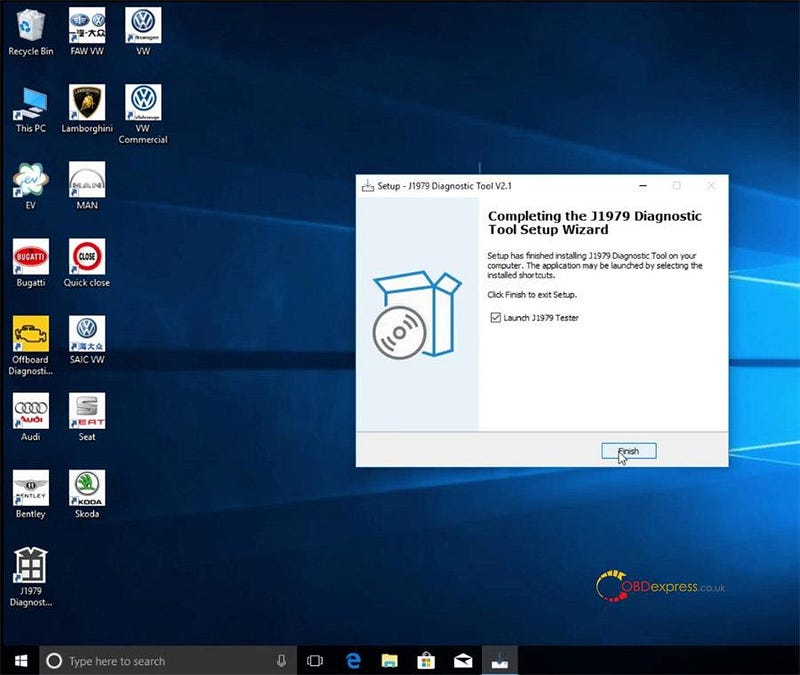
      4.Click "Install" and wait a moment till the Godiag J1979 Diagnostic Tool V2.1 Setup is installed completely

      Upgrade Godiag GD101 J2534 Firmware Online

      Upgrade Godiag GD101 J2534 Firmware Online

      Tips to check if Godiag J1979 driver is installed successfully or not:

      Go to computer management>> Device Manager>> Network adapters

      If there is USB Serial Device item appearing, that means the Godiag J2534 Driver is installed successfully.

      Upgrade Godiag GD101 J2534 Firmware Online

      Guide to update Godiag GD101 J2534 firmware:

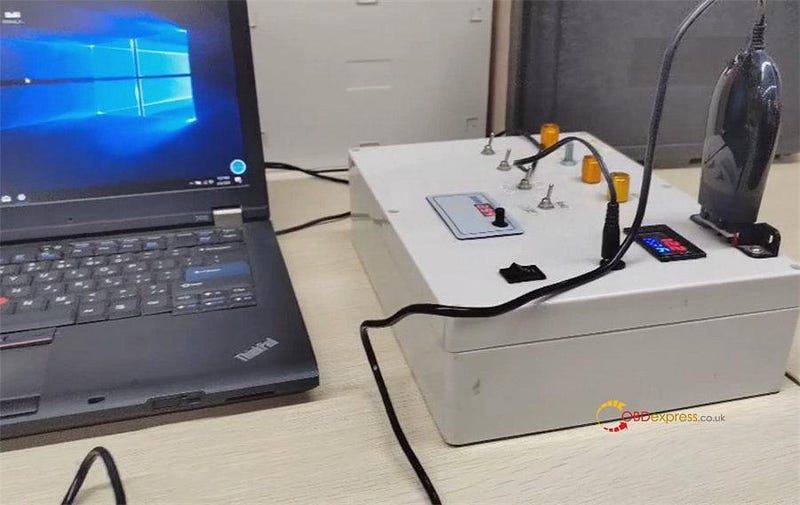
      Connect Godiag GD101 J2534 Passthru diagnostic cable and vehicle/ECU, and connect to computer via USB cable

      Upgrade Godiag GD101 J2534 Firmware Online

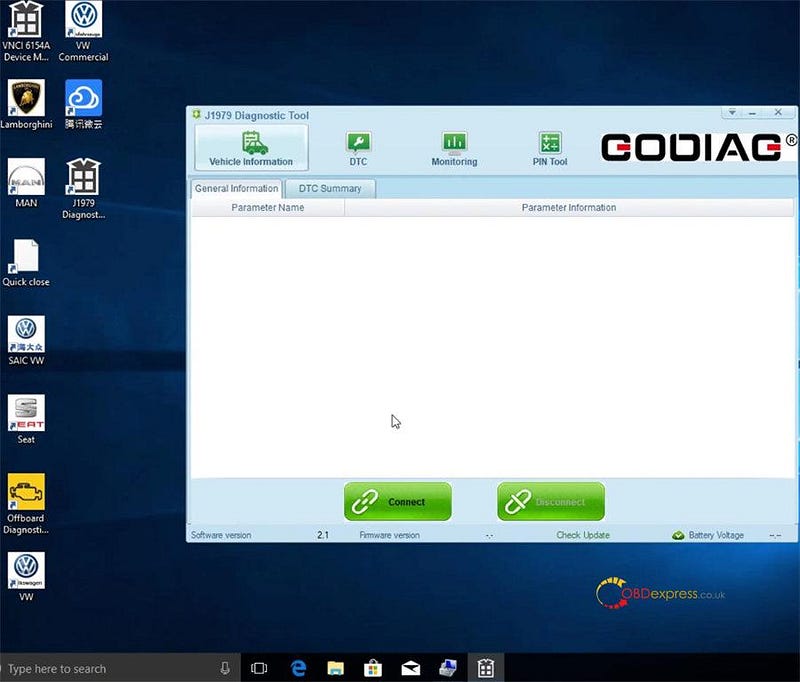
      Run J1979 Diagnostic Tool program on the desktop

      There are four functions supported: Vehicle information, DTC, Monitoring and PIN Tool.

      Go to Vehicle information>> General information

      Then you can see the Godiag J2534 Driver software version and battery voltage info, but there is no firmware version info.

      Upgrade Godiag GD101 J2534 Firmware Online

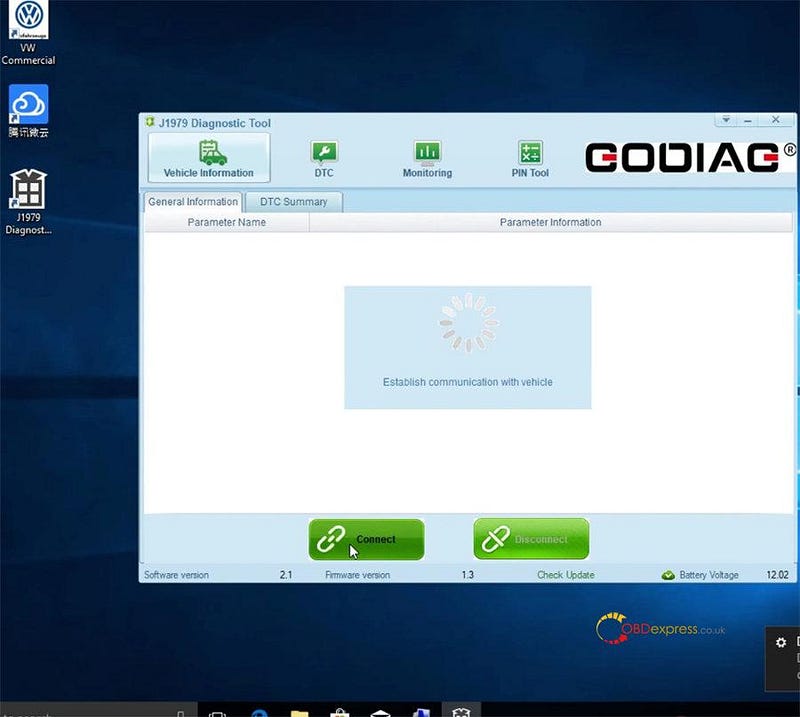
      Click "Connect" to establish communication with vehicle

      Upgrade Godiag GD101 J2534 Firmware Online

      Then you can see the interface will appear protocol, ECU count, ECU#1 ID, and the firmware version at the bottom shows 1.3 now.

      Click "Check Update"

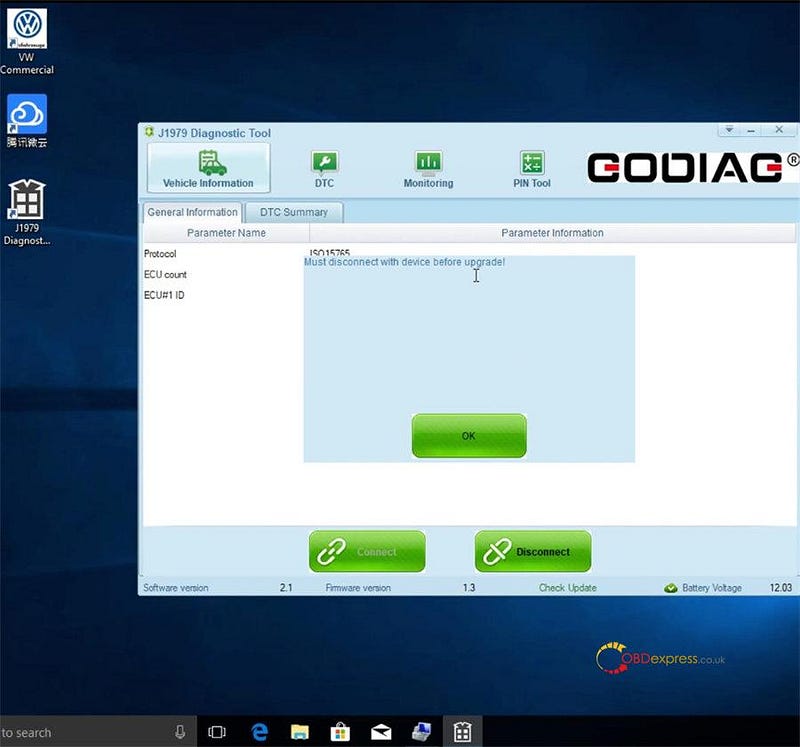
      There is a message popping up on the screen "Must disconnect with device before upgrade!"

      Upgrade Godiag GD101 J2534 Firmware Online

      Click "OK" and then click "Disconnect"

      Click "Check Update" again

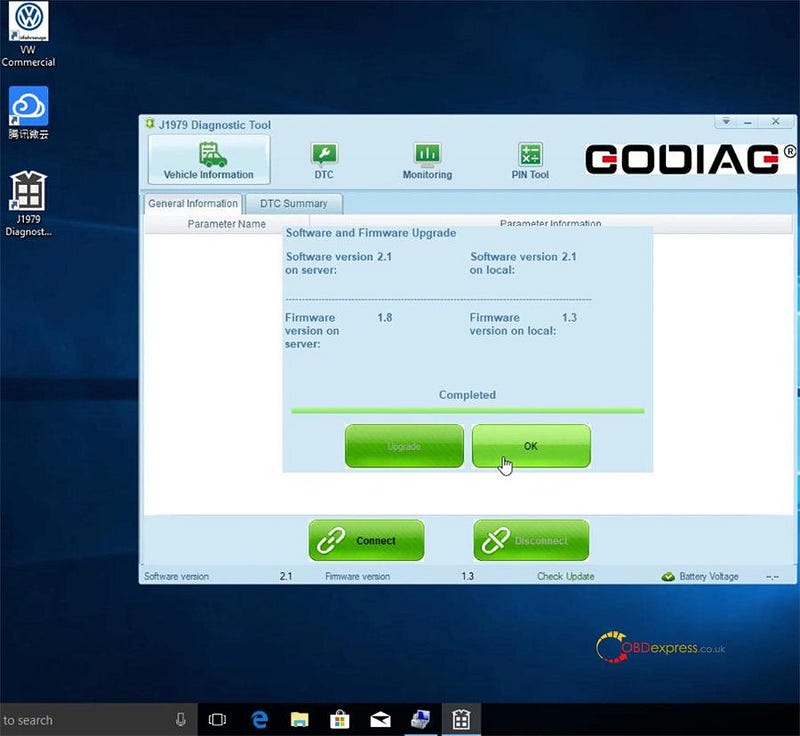
      Click "Upgrade" to download from server

      After upgrade, click "OK"

      Upgrade Godiag GD101 J2534 Firmware Online

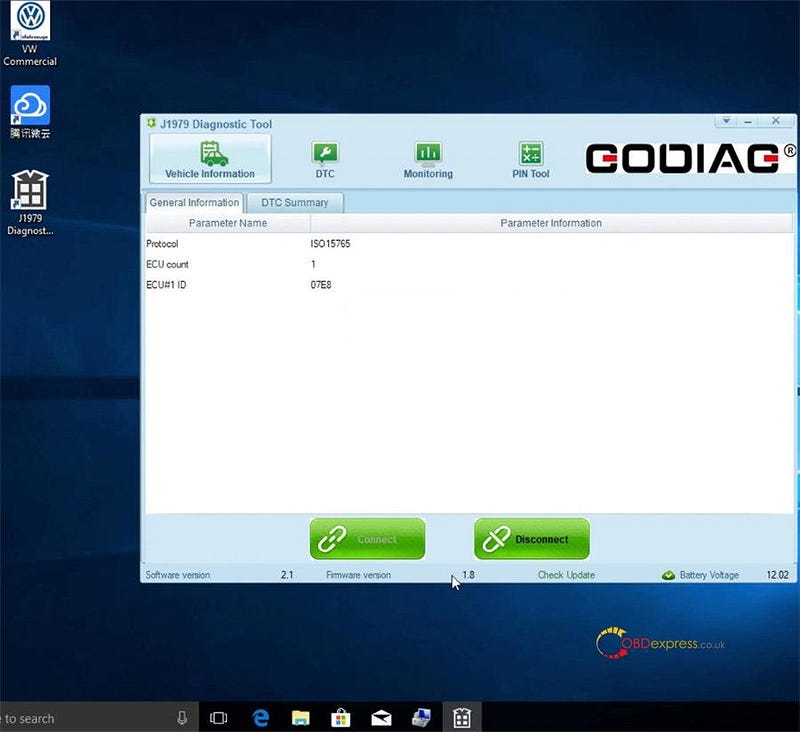
      Finally, click "Connect" again, now the firmware version becomes to 1.8.

      Upgrade Godiag GD101 J2534 Firmware Online

      Alright! That's the whole process to update Godiag GD101 J2534 USB cable firmware.

      www.obdexpress.co.uk


      KEYDIY New KD-Moto Adapter Adds Honda, Yamaha & Ducati

        Motorcycle key programming is now coming to the KEYDIY KD-X4 . The new KEYDIY KD-Moto Adapter adds dedicated motorcycle coverage for a w...