Showing posts with label Xhorse Smart Key Box. Show all posts

Friday, 3 September 2021

How to Download & Start to Use Xhorse Smart Key Box?

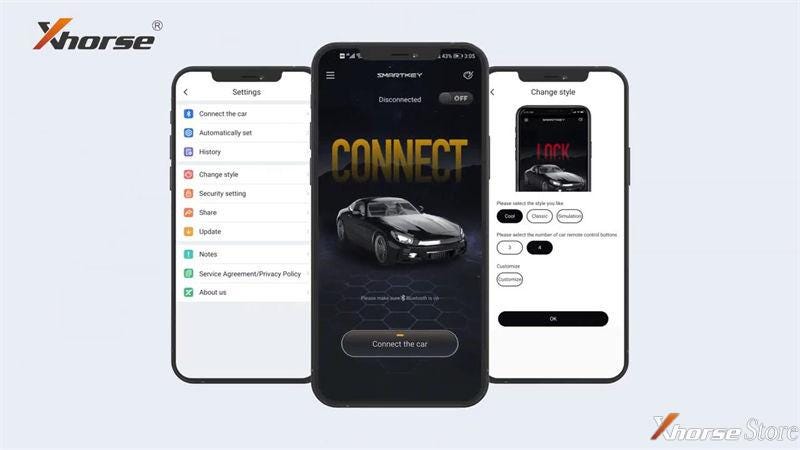
 Xhorse Smart Key Box is an adapter released recently, aim to access a vehicle IMMO system via Bluetooth. Through installing the Smart Key Box app, car owner can lock or unlock a car via a mobile phone. No longer have to worry about carrying a key anywhere.
Xhorse Smart Key Box Quick Installation Guide

  • Where & how to download Smart Key Box app?
  1. Scan the QR code to download directly;
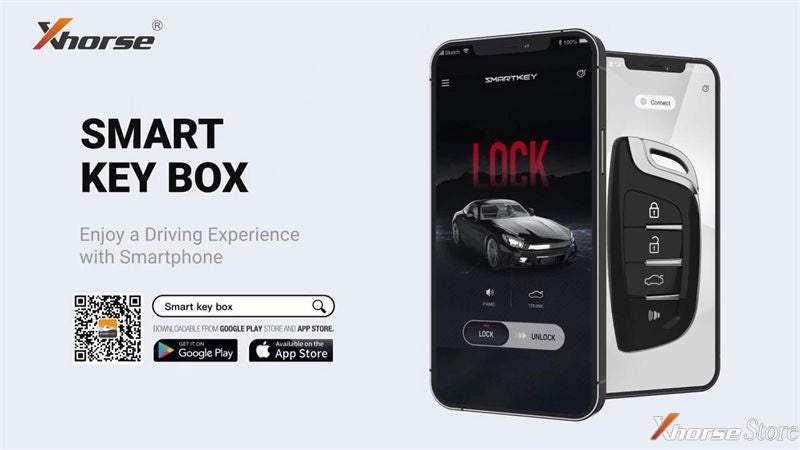
Xhorse Smart Key Box Quick Installation Guide

  1. Search “Smart Key Box” in Google Play or APP Store to download.
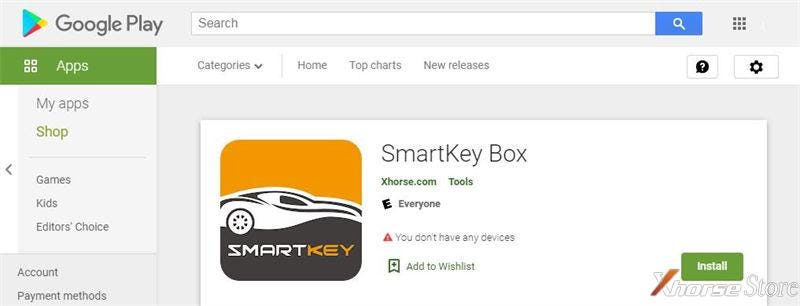
Xhorse Smart Key Box Quick Installation Guide

  • How to start to use Smart Key Box?

A Smart Key Box is able to add 6 smart phones & 6 keys at most.


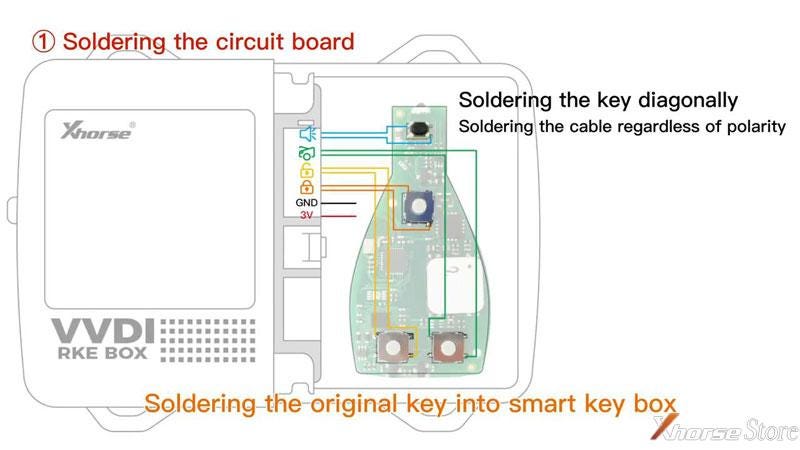
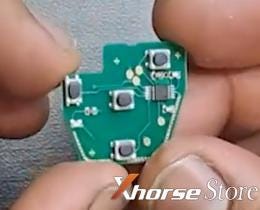
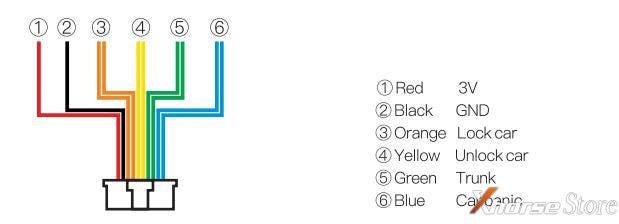
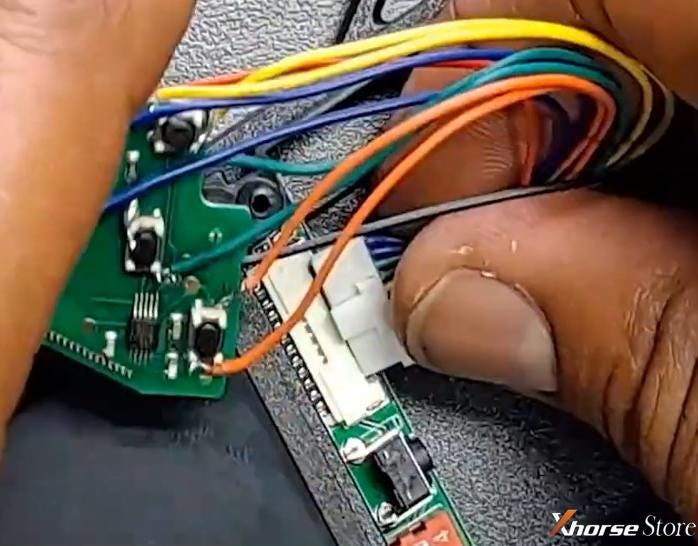
  1. Soldering the circuit board of original key into Smart Key Box;
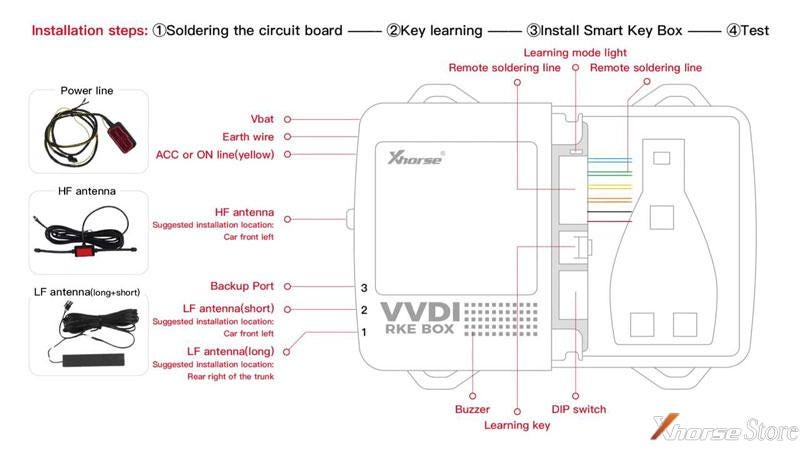
Xhorse Smart Key Box Quick Installation Guide

Xhorse Smart Key Box Quick Installation Guide

  1. Long press the learning key to learn the mobile phone and remote control. The indicator lighting up means to be learning, the indicator went out means to exit.
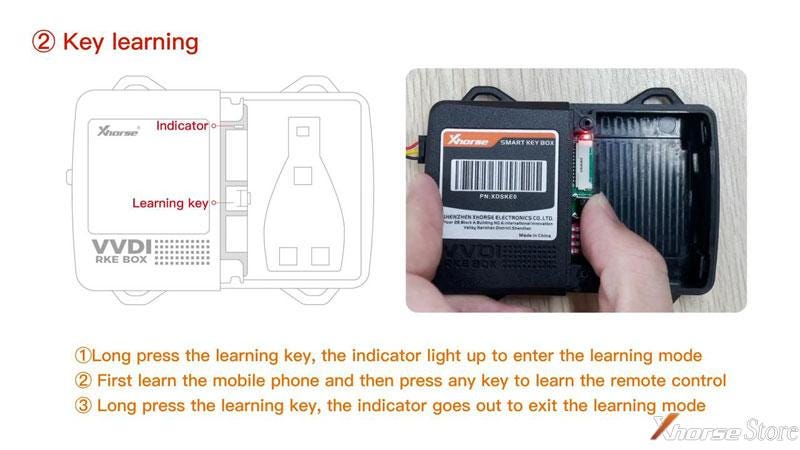
Xhorse Smart Key Box Quick Installation Guide

  1. Install Smart Key Box;

Note: If you’re using Bluetooth to control the car only, no need to match more remotes or install HF/LF antenna.


- Insert long LF antenna into Port1, insert short LF antenna into Port2;

- Insert HF antenna into HF Port;

- connect power supply to Smart Key Box.
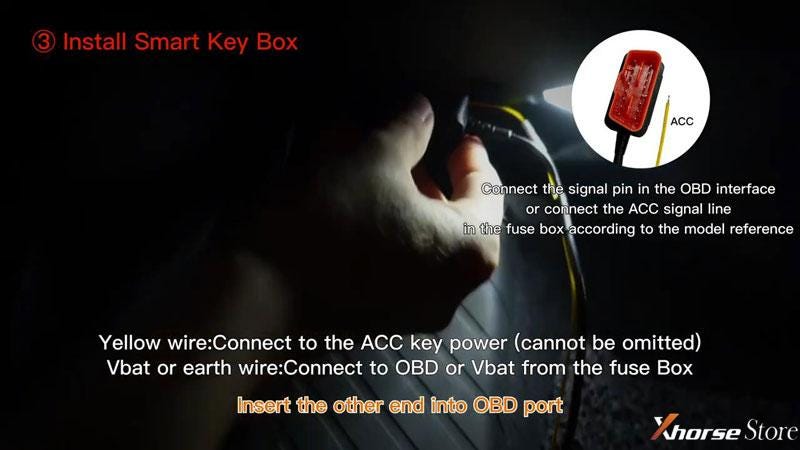
Xhorse Smart Key Box Quick Installation Guide

  1. Test Keyless Entry/Go function.

Test the lock/unlock function on smart phone by going away and approaching the car.

Done!
Xhorse Smart Key Box Quick Installation Guide

Come on to get one Xhorse Smart Key Box , one button to enter the era of digital keys!


Technical support by: xhorse uk store

Monday, 30 August 2021

How to Set Xhorse Smart Key Box for Nissan Versa 2014?

 Xhorse Smart Key Box is aiming to help users achieve a non-remote driving experience. By installing the tool into your car, your smartphone is able to work as an independent car key. Here we’re going to show you from remote programming to installing an Xhorse smart key box for a Nissan Versa 2014.


Part 1.Remote programming

Connect Xhorse VVDI Mini OBD Tool to the vehicle, and

Connect Xhorse VVDI Key Tool Max to VVDI Mini OBD.

Press

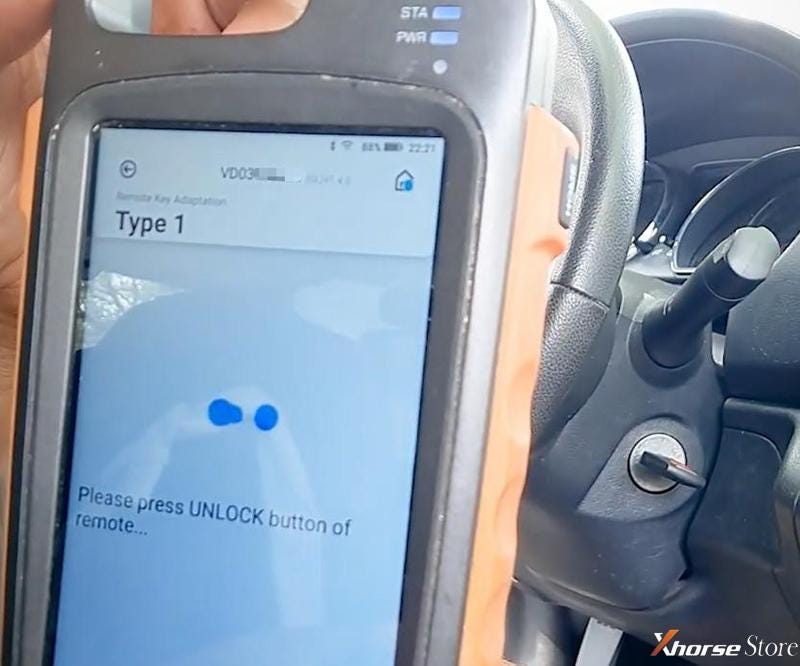
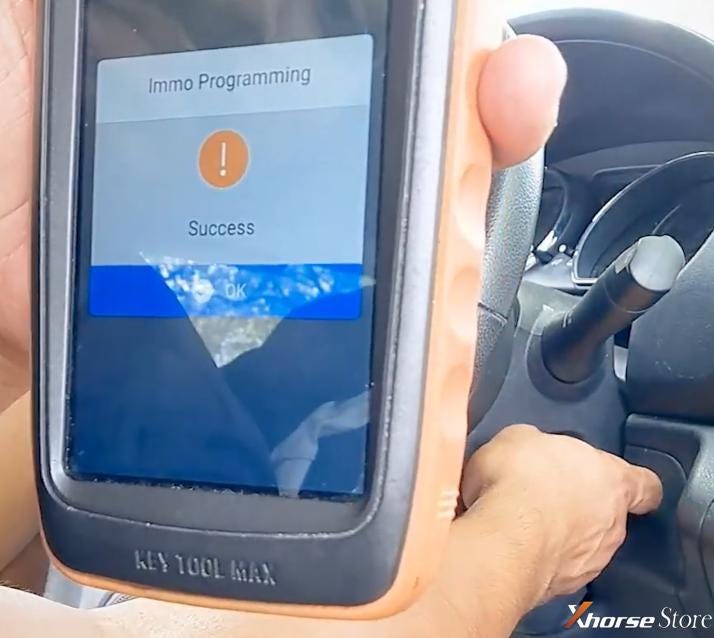
Immo Programming>>Nissan>>Select from system>>Remote Key Adaptation>>Type 1>>Start execution>>Program remote

Then follow the prompt to program a new remote.

Xhorse Smart Key Box installation example: Nissan Versa

Xhorse Smart Key Box installation example: Nissan Versa

Part 2.Xhorse smart key box setup

Remove screws and open up the smart key box.

Xhorse Smart Key Box installation example: Nissan Versa

Then remove the outer shell to get the PCB.

Xhorse Smart Key Box installation example: Nissan Versa

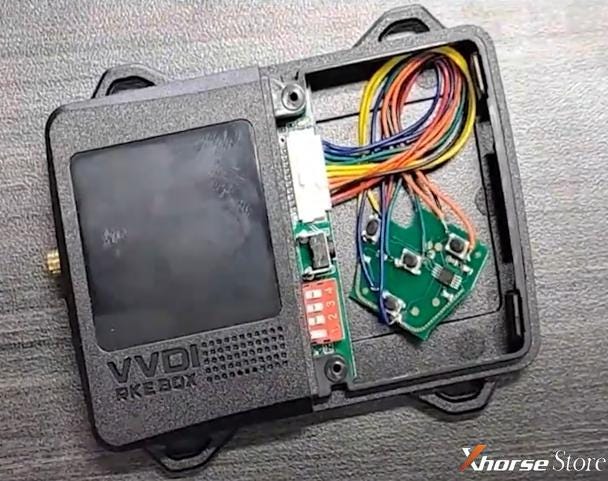
Take out the 10-wire rainbow connector and make sure the wires are soldered to the correct points.

Xhorse Smart Key Box installation example: Nissan Versa


Then insert the connector into the smart key box board.

Xhorse Smart Key Box installation example: Nissan Versa

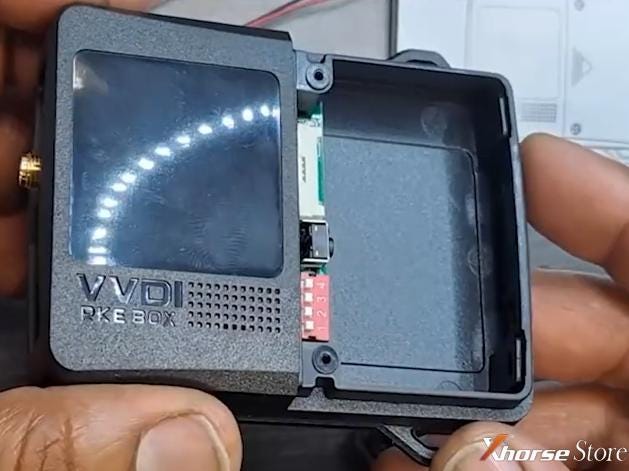
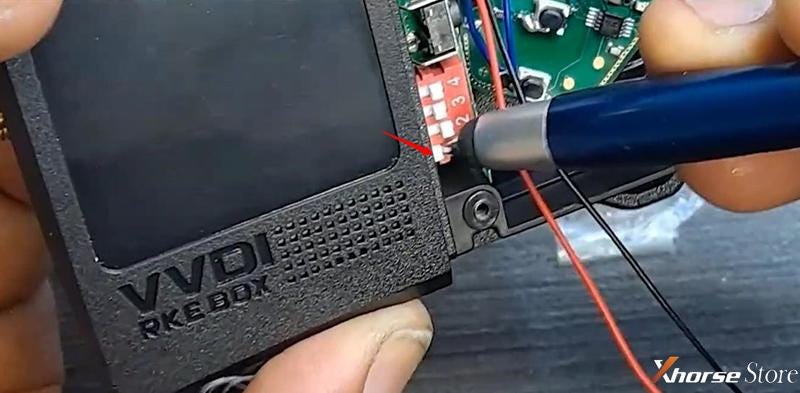
Go ahead and set dip switch 1 to “ON”.

Xhorse Smart Key Box installation example: Nissan Versa

Xhorse Smart Key Box installation example: Nissan Versa

Part 3.Xhorse smart key box installation

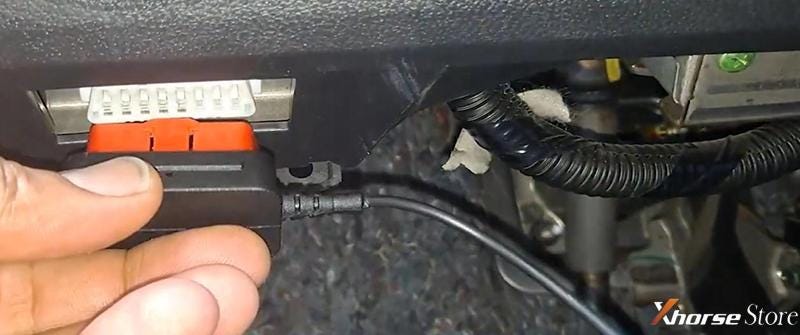
Inset power supply cable to the OBD port.

Xhorse Smart Key Box installation example: Nissan Versa

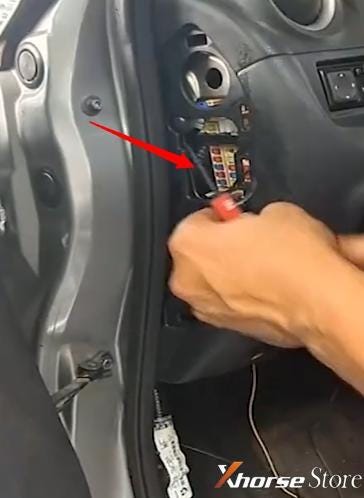
Take out the RF antenna to install on or under driver dashboard.

Xhorse Smart Key Box installation example: Nissan Versa


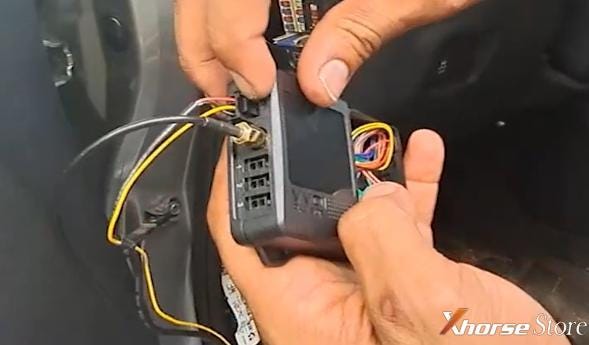
Connect RF antenna and OBD power supply cable to the rear of the smart key box.

Xhorse Smart Key Box installation example: Nissan Versa

Part 4.Xhorse smart key box and app setting

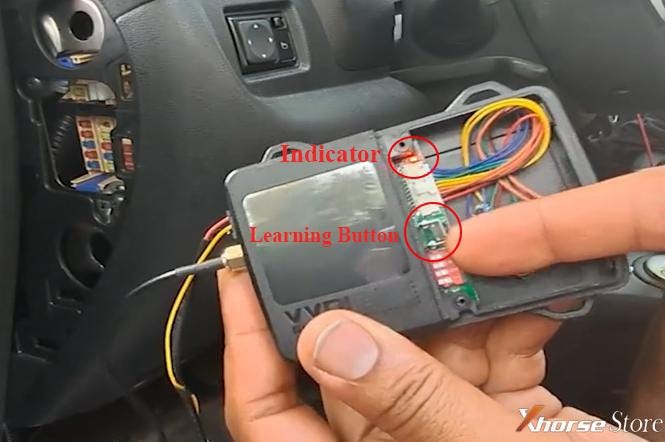
Press and hold the learning button until 3 seconds of beep and the indicator lighting on, which means the learning process has begun.

Xhorse Smart Key Box installation example: Nissan Versa

Then open up the Xhorse SmartKey app.

Press the “Connect the car” button, turn on Bluetooth and select your smart key box.

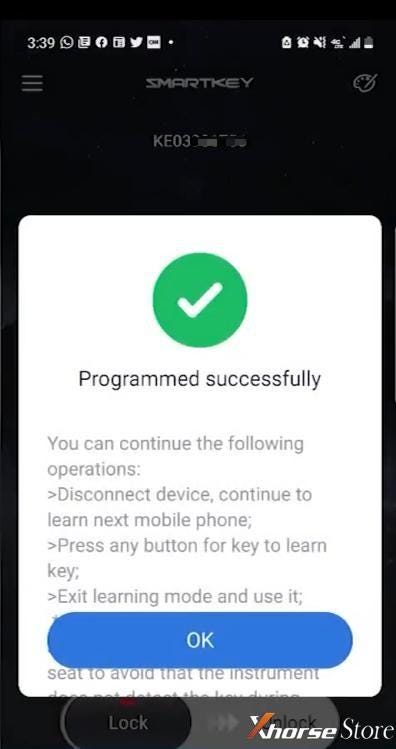
Programmed successfully.

Xhorse Smart Key Box installation example: Nissan Versa


Then you can exit the process, or the smart key box can save and connect to six remotes or phones at a time except the original remote.

End the learning process by holding the button again until 3 seconds of beep and the indicator off.


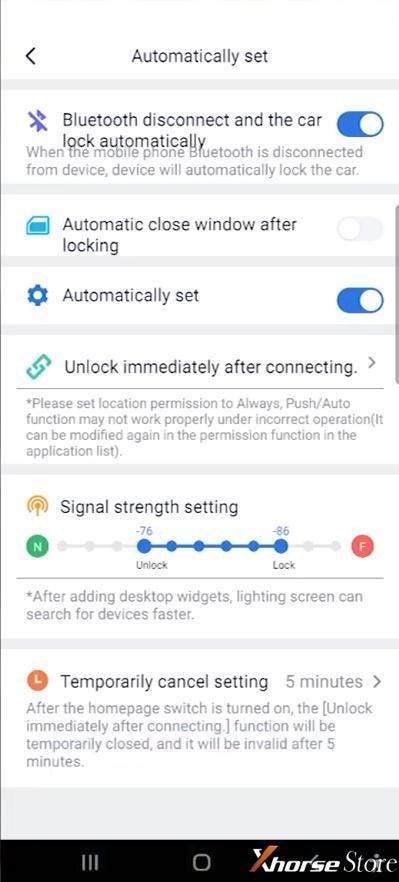
Besides, you can adjust the settings.

Select “Automatically set” and turn Bluetooth to automatic set, or adjust the signal strength as you like.

Xhorse Smart Key Box installation example: Nissan Versa


Done! Simple and nice!

That’s the Xhorse SmartKey Box that makes you unlock the car by your phone.


Technical support by:

www.xhorsestore.co.uk

Best 5 Key Cutting Machines: Xhorse vs. 2M2 Buying Guide

  Choosing an automotive key cutting machine depends on five factors: portability, operation method, cutting efficiency, key coverage, and ...