Showing posts with label Opel diagnostic tool. Show all posts

Monday, 1 March 2021

Xtool X100 Pad2 program oven key for Opel 2015

 Today, used Xtool X100 Pad2 to program Oven Key Opel 2015 successfully (both all keys lost and add new key) and I'd like to share with all of you my test reports. One friend feedbacks he done one in the past. A Insignia , had the Carpass, it worked very well too.

This is Opel 2015, connect Xtool X100 Pad2 to it.
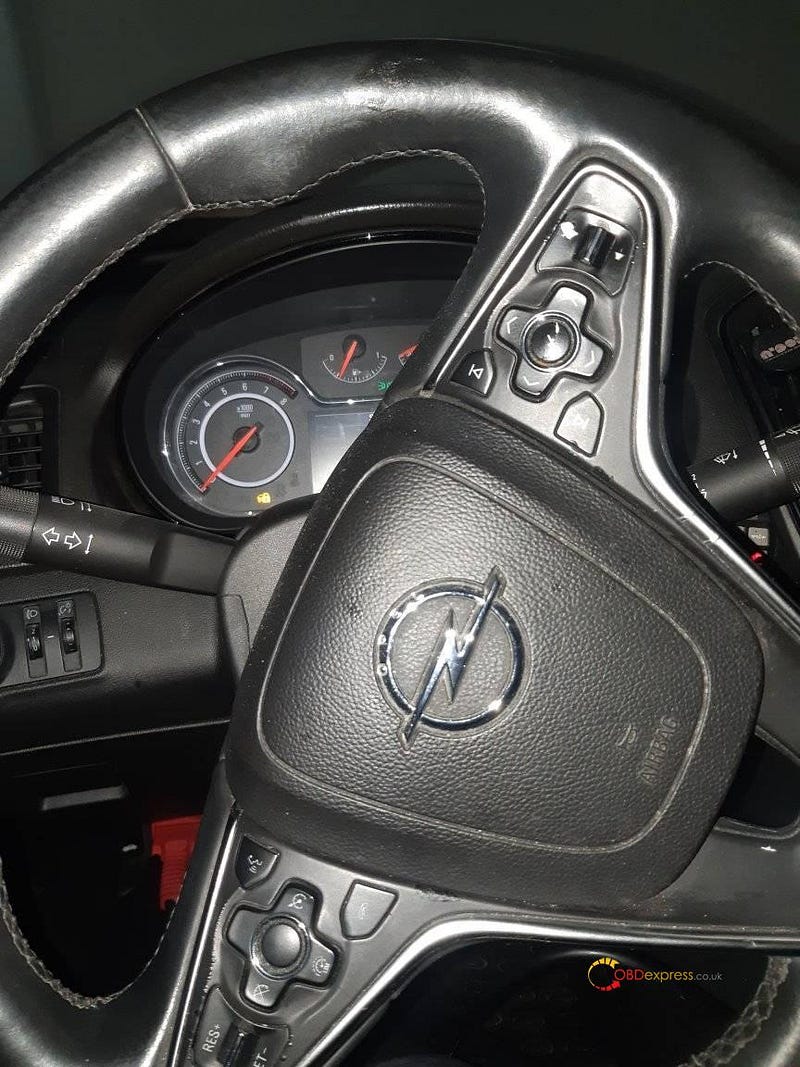
Xtool X100 Pad2 Program Oven Key Opel 2015 Successfully

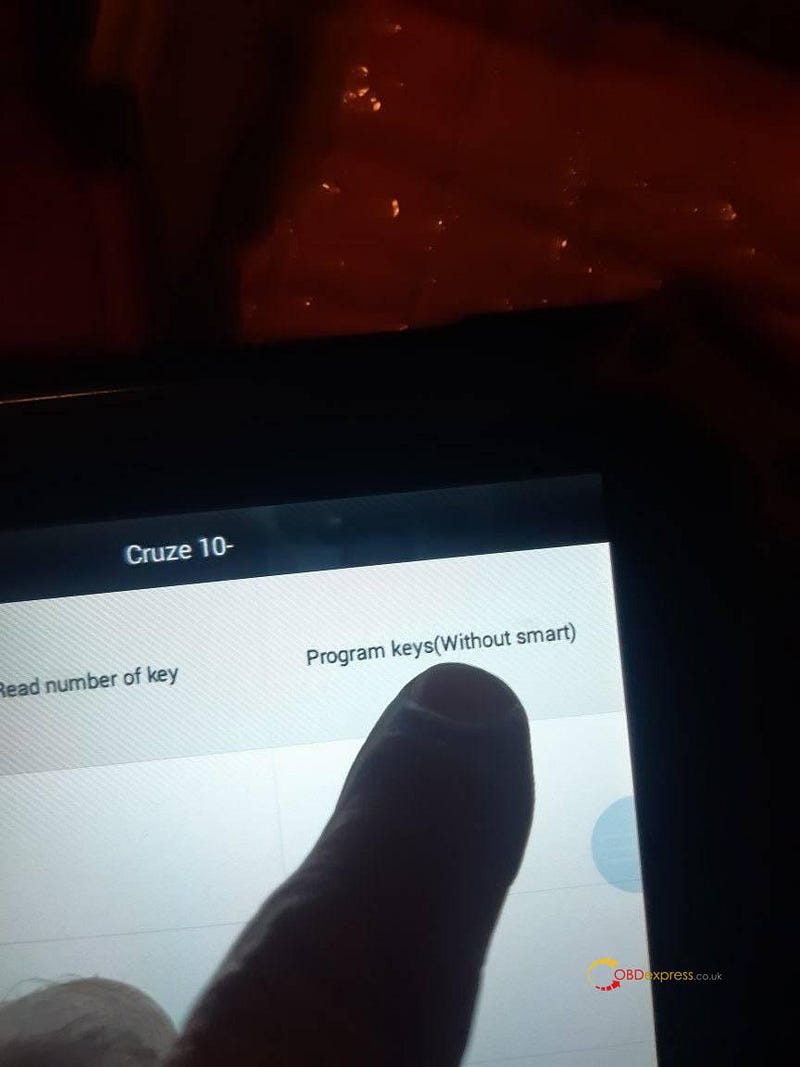
Select “Program keys (Without smart)

Xtool X100 Pad2 Program Oven Key Opel 2015 Successfully

It is going to read PIN, tap “Yes” to continue.
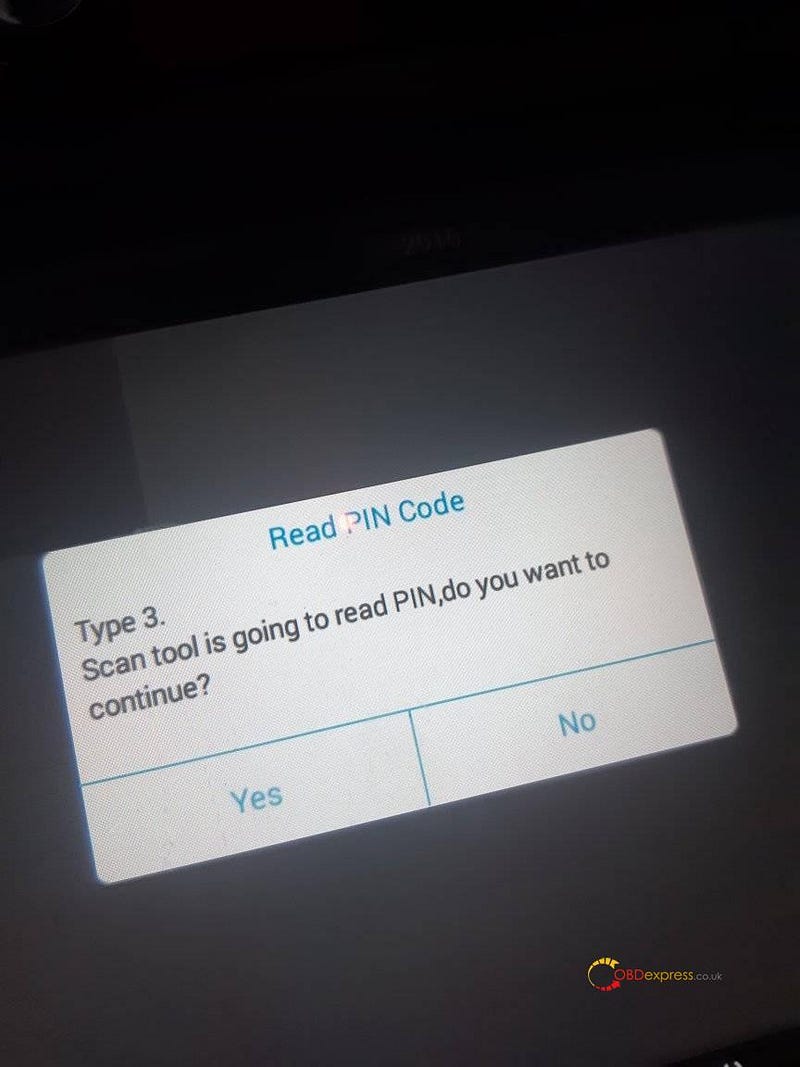
Xtool X100 Pad2 Program Oven Key Opel 2015 Successfully

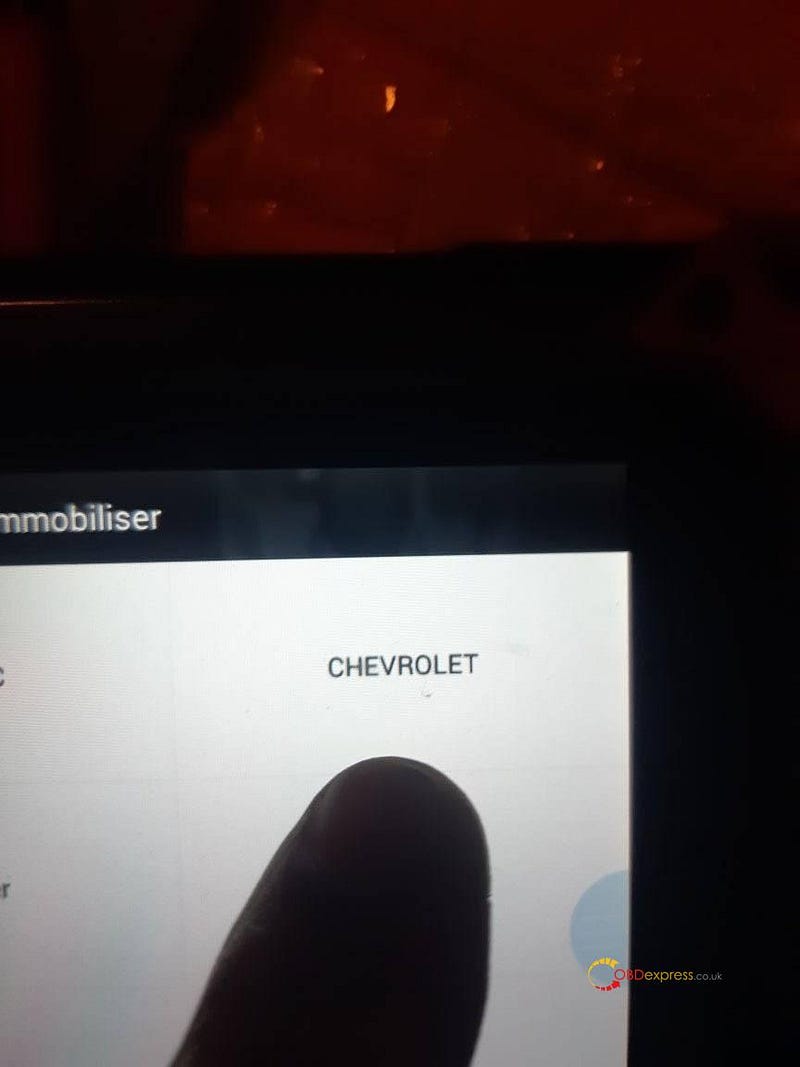
Immobilizer -> Chevrolet

Xtool X100 Pad2 Program Oven Key Opel 2015 Successfully

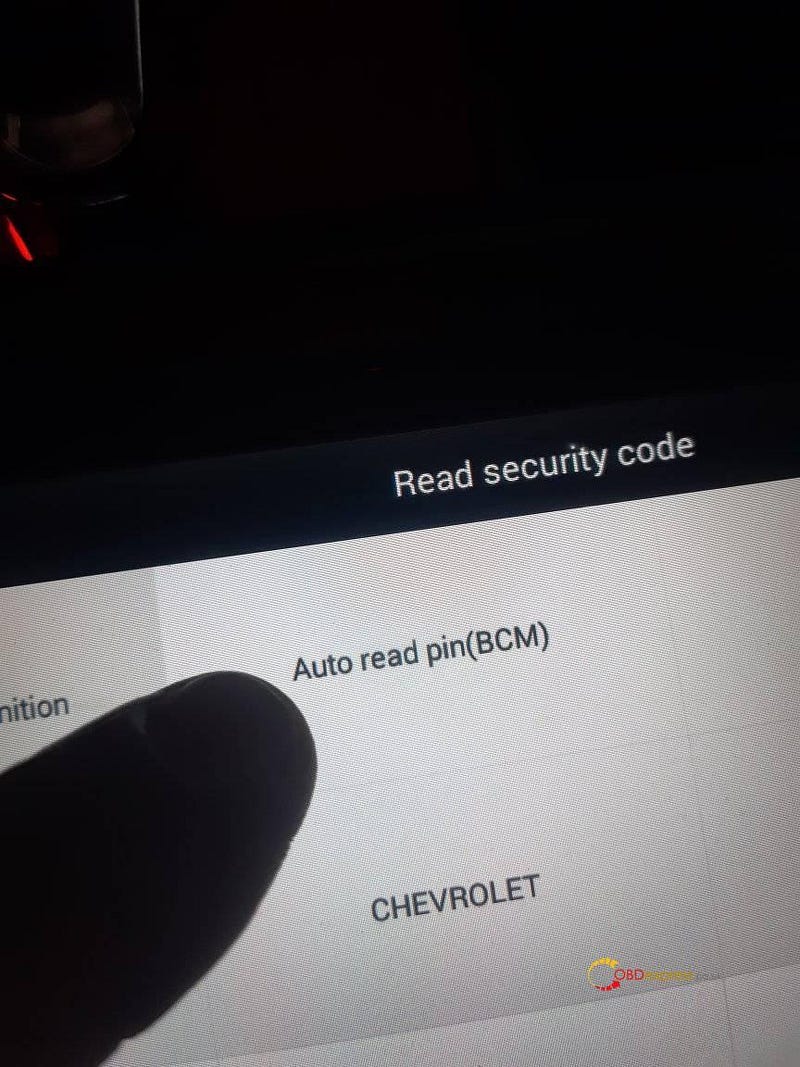
Read security code.

Xtool X100 Pad2 Program Oven Key Opel 2015 Successfully

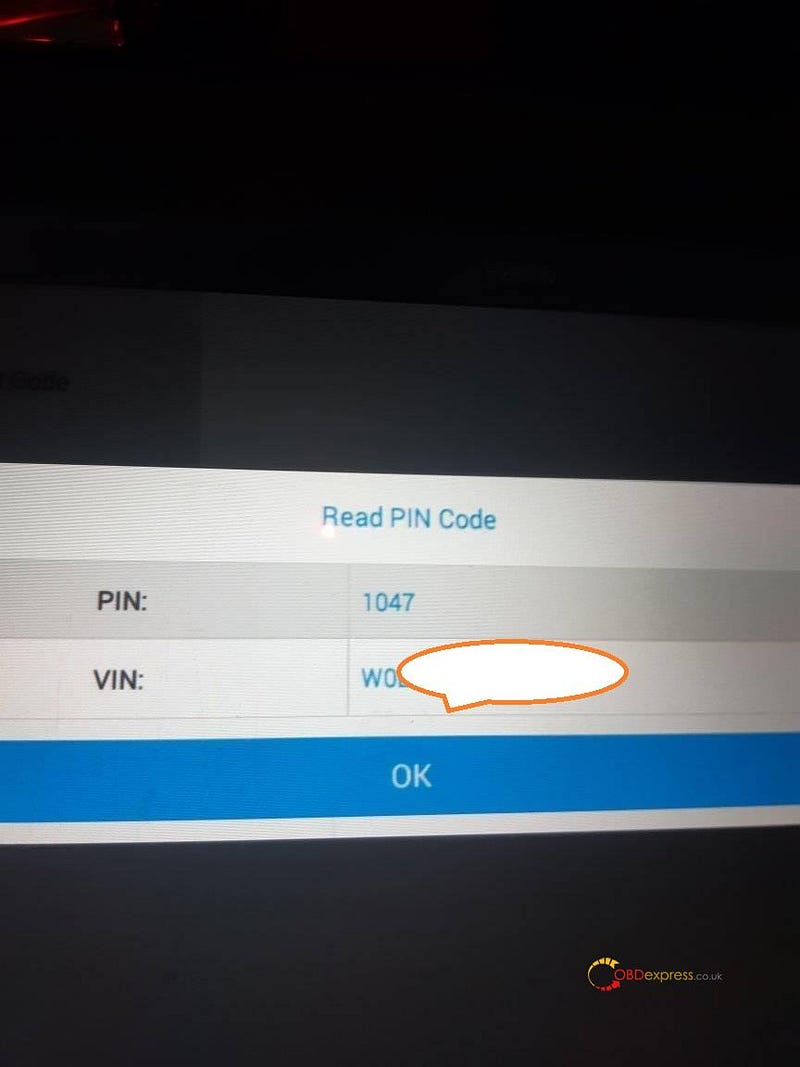
Obtain the PIN and VIN.

Xtool X100 Pad2 Program Oven Key Opel 2015 Successfully

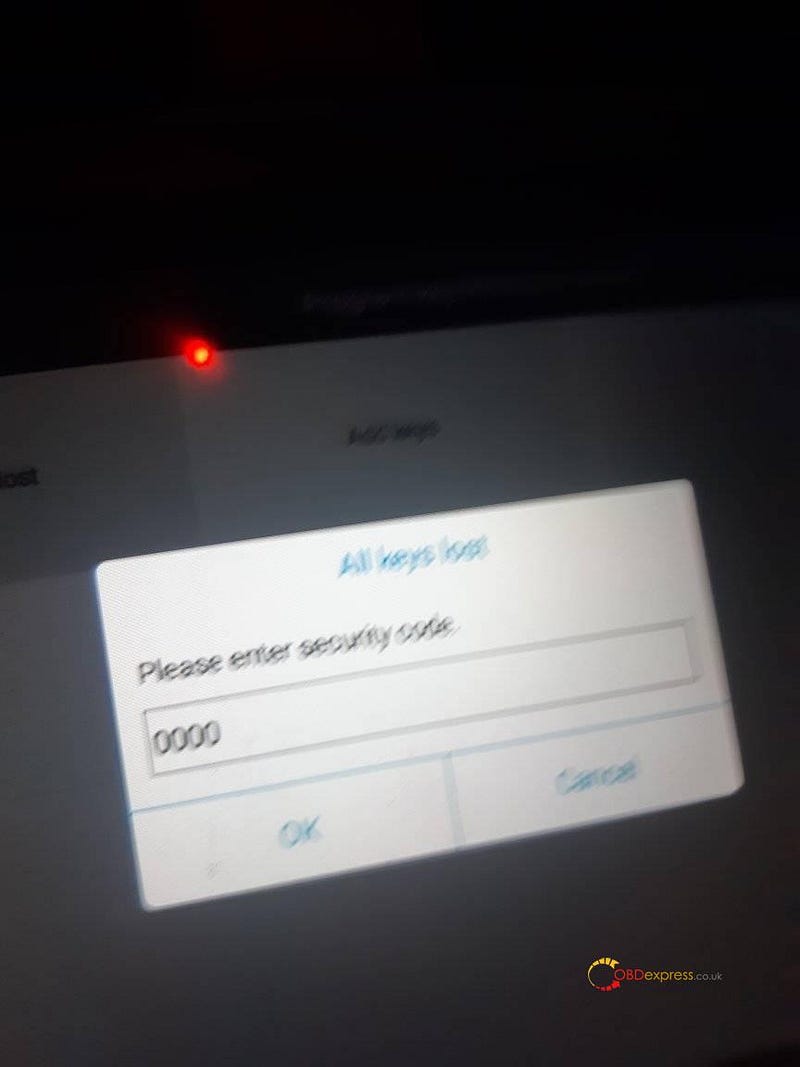
Please enter security code.

Xtool X100 Pad2 Program Oven Key Opel 2015 Successfully

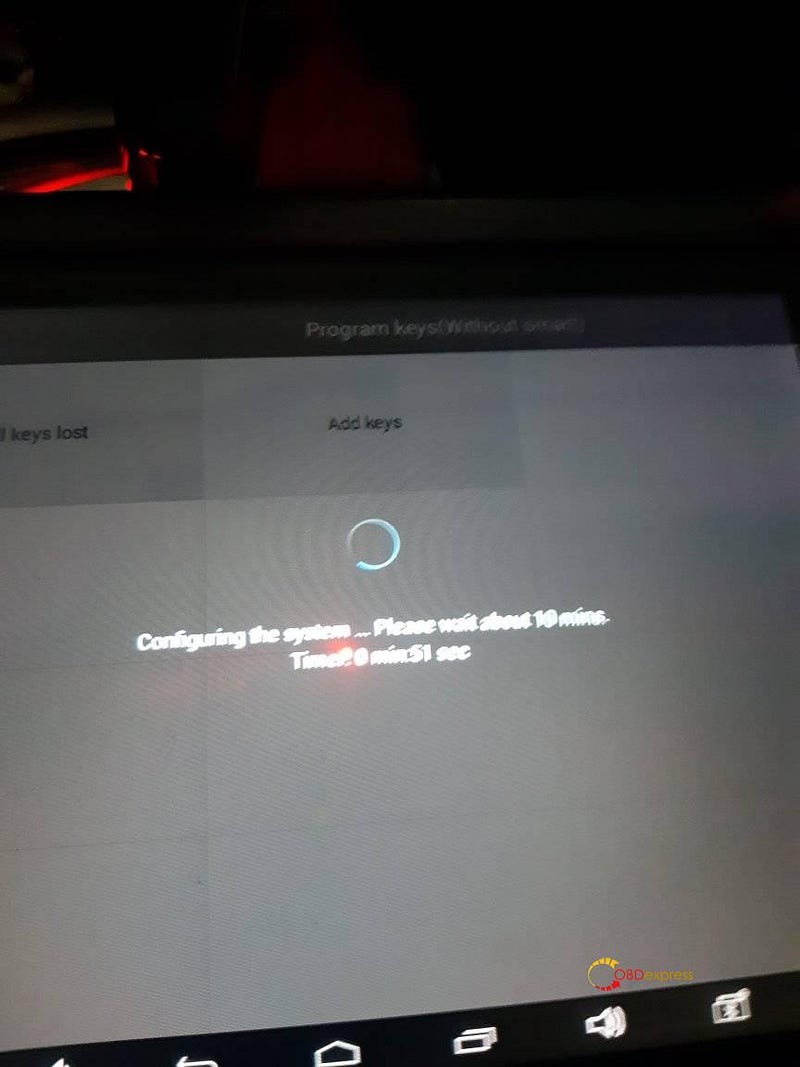
All keys lost or add keys.

Xtool X100 Pad2 Program Oven Key Opel 2015 Successfully

All keys lost operation guide: Close all doors and switch ignition to “On” Position. Press “Yes” to continue or press “No” to return.
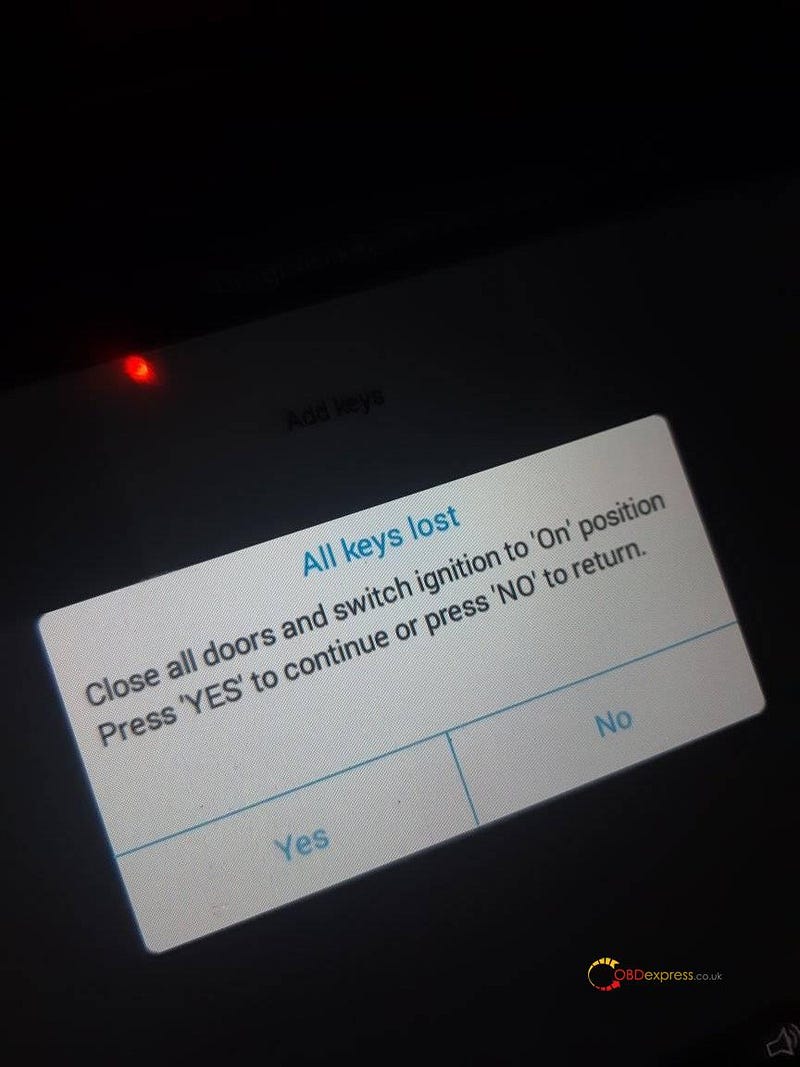
Xtool X100 Pad2 Program Oven Key Opel 2015 Successfully

Alright, I am very happy with Xtool X100 Pad2 for it can add new key and program all keys lost, besides there are step-by-step operation guide on the screen.

Wednesday, 21 June 2017

How to use op com diagnostic on Astra (H) 2008

This write-up, as a op com diagnostic user manual, is aimed to help read/clear fault codes or check engine codes.


Be sure to obtain your 4 digit security code from your car documents

Connect the OPCOM device to the car
-Port is located near driver side pedals
how-to-use-opcom (1)
-Device must be fitted with lights on the top
how-to-use-opcom (2)

Connect USB cable to USB Port
how-to-use-opcom (3)
If you are using a Virtual Machine:
  1. a) Boot up the Windows XP Machine
  2. b) Pass the OPCOM Device to the machine (OPCOM Software and Drivers).
c)Ensure the device is recognized in Device Manager as 'OPCOM'

If you are using native Windows XP:
  1. a) Ensure the device is recognized in Device Manager as 'OPCOM'

Open OPCOM Software from the desktop

Ensure the Vaux-com 120309a recognizes the opcom device
  1. a) Open the settings sub menu
  2. b) Click 'Check Interface'
  3. c) If the device is not recognized, reboot the Vitrual Machine and/or your computer.

Turn on the car

Open Diagnostics in the OPCOM interface

Select vehicle year and model. Here: Astra (H) 2008

Enter 4 digit security code
-Located with car documents in glove box

Check your engine fault codes
  1. a) Select 'Engine'
  2. b) Select engine size/model
  3. c) Click 'Refresh List'how-to-use-opcom (4
  4. d) Record list on a notepad
  5. e) Click 'Clear Fault Codeshow-to-use-opcom (5)Research Fault codes
    1. a) Open Google
    2. b) Search fault codes one by one
    3. c) Follow advice from reputable forums or repair guides
    Conclusion

    If you reach the final step of this guide, congratulations! You have unlocked the ability to forever maintain and check in with your cars electronics and sensors. There is no other feeling like avoiding dealership technology sessions costs. You now have the ability to check every check-engine light and ensure that no damage is occurring on your vehicle. This advanced option of preventative maintenance will save you thousands in the future and put your mind to rest, knowing the exact condition of your car engine and other various components.


Source :http://blog.obdexpress.co.uk/2017/06/21/opcom-manual-how-to-readclear-fault-codes/


http://www.hobdii.com/

KEYDIY New KD-Moto Adapter Adds Honda, Yamaha & Ducati

  Motorcycle key programming is now coming to the KEYDIY KD-X4 . The new KEYDIY KD-Moto Adapter adds dedicated motorcycle coverage for a w...